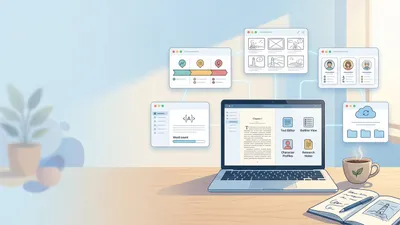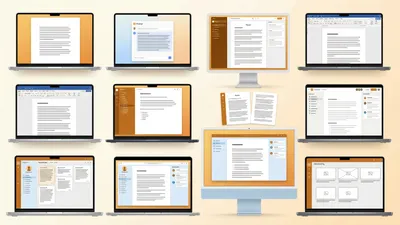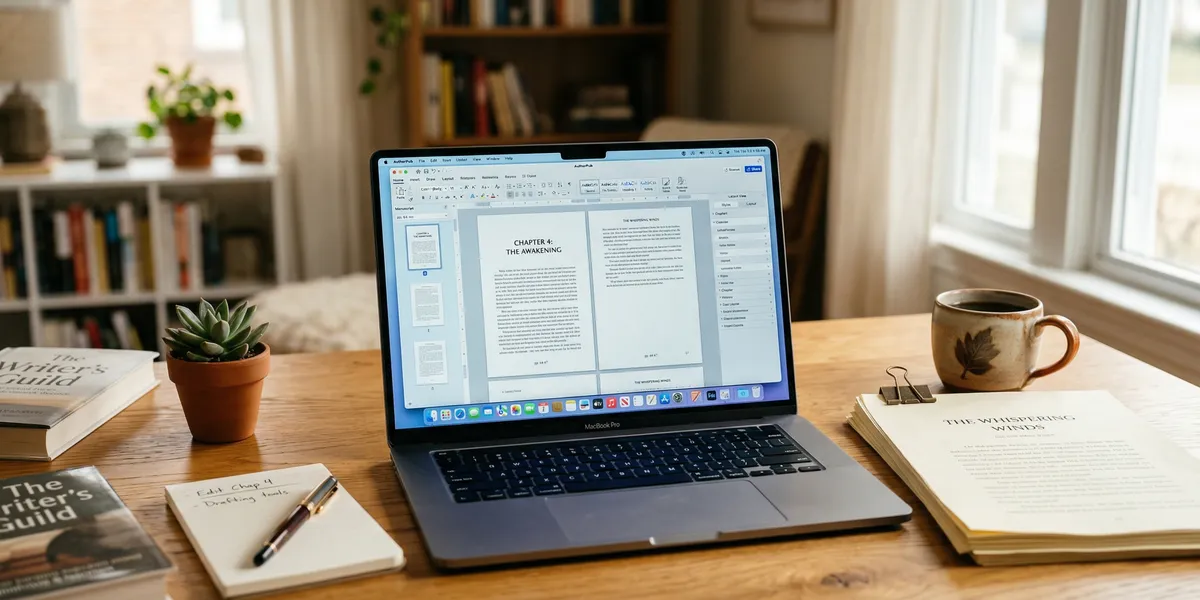
Atticus writing software is a browser-based tool that combines book writing and formatting in one application. It costs $147 as a one-time purchase, works on every operating system, and exports publication-ready ebooks and print files. This guide covers everything you need to know before buying it, including what it does well, where it falls short, and which authors it suits best.
What Is Atticus?
Atticus is an all-in-one book writing and formatting tool created by Dave Chesson of Kindlepreneur. It launched as a direct competitor to Vellum and Scrivener, aiming to combine the best of both into a single platform.
The core pitch is simple: write your manuscript and format it for publishing without switching between applications. You draft chapters in Atticus, arrange your front and back matter, pick a formatting theme, and export files ready for Amazon KDP, IngramSpark, Draft2Digital, or any other distributor.
Atticus runs in your browser and also offers a downloadable desktop app for Windows, Mac, Linux, and Chromebook. That cross-platform availability is one of its biggest advantages over Vellum, which only works on Mac.
Our Pick — Chapter
If you need AI-powered help writing your book before you format it, Chapter generates complete manuscripts from outline to finished draft. Use Chapter to write the book, then Atticus to format it for publishing.
Best for: Authors who want AI to handle the writing so they can focus on formatting and publishing Pricing: $97 one-time (nonfiction) Why we built it: Most formatting tools assume you already have a manuscript. Chapter solves the harder problem first.
Key Features
Writing Environment
Atticus provides a clean word processor with the basics you need for book drafting. The editor supports standard formatting (bold, italic, headings), drag-and-drop chapter reordering, and a left sidebar for navigating your manuscript structure.
The writing interface is functional but intentionally simple. There is no distraction-free mode, no corkboard view, and no advanced organizational tools like Scrivener’s binder system. What you get is closer to Google Docs with book-specific features layered on top.
One standout feature is the goal-tracking system. You can set project-level word count targets with deadlines and daily writing goals to build a consistent habit. A progress tracker shows how you are pacing against your targets.
Atticus also supports special content types beyond standard prose. You can insert call-out boxes, text message formatting for dialogue-heavy scenes, and social profile links in your back matter. These formatting elements carry through to your final export without extra work.
Book Formatting
Formatting is where Atticus genuinely shines. The software ships with a library of professionally designed themes that control typography, spacing, chapter headings, and page layout. You pick a theme, adjust the settings you care about, and Atticus applies consistent formatting across your entire manuscript.
Key formatting capabilities include:
- Ebook and print in one project — You format a single manuscript and toggle settings between ebook and print output rather than maintaining two separate files.
- Trim size presets — Standard sizes for trade paperback, mass market, and custom dimensions are built in.
- Chapter heading styles — Multiple heading designs with options for images, ornamental breaks, and custom fonts.
- Front and back matter templates — Dedication, copyright page, about the author, also-by pages, and more.
- Device preview — See how your book renders on Kindle, iPad, phone, and in print before exporting.
The device preview is particularly useful. You can toggle between screen sizes and immediately spot formatting problems that would otherwise only appear after uploading to a retailer.
Atticus also handles special elements like images within chapters, drop caps, scene break ornaments, and custom fonts. You can embed images in your manuscript and control their placement in both ebook and print layouts. The scene break editor lets you choose from decorative dividers or use a simple blank space.
Export Options
Atticus exports to ePub and print-ready PDF. Both formats meet the specifications required by major distributors. The ePub files work on Amazon KDP, Draft2Digital, Kobo, Apple Books, and others. The PDF files include proper bleed, margins, and trim marks for print-on-demand services like IngramSpark and KDP Print.
You can also export to DOCX if you need to send your manuscript to an editor or use it in another application.
Collaboration
Atticus added a collaboration feature that lets you share projects with co-authors and editors who also have Atticus accounts. Collaborators can leave comments directly in the manuscript, which streamlines the editing feedback loop.
That said, the collaboration tools are basic compared to Google Docs. There is no real-time co-editing, and external editors who do not own Atticus will need you to export to DOCX for their review.
Pricing and Access
Atticus costs a one-time fee of $147. That price includes lifetime access to all future updates at no additional cost. There is no subscription, no annual renewal, and no tiered pricing.
There is no free trial, but Atticus offers a 30-day money-back guarantee. You can purchase the software, use it for a full month, and request a refund if it does not meet your needs.
| Feature | Details |
|---|---|
| Price | $147 one-time |
| Updates | Free lifetime updates |
| Platforms | Windows, Mac, Linux, Chromebook, browser |
| Trial | 30-day money-back guarantee |
| Account | One login, use on unlimited devices |
Compared to alternatives, Atticus sits in the middle of the pricing spectrum. Scrivener costs around $49-60, but it does not format for publishing without significant effort. Vellum costs $199-250 but only runs on Mac. Atticus offers a reasonable middle ground at $147 with both writing and formatting included.
How to Get Started With Atticus
Setting up Atticus takes about fifteen minutes. Here is the process:
Step 1: Purchase and create your account. Head to atticus.io and buy a license. You will receive an email from [email protected] with a link to create your account. Check your spam and promotions folders if it does not arrive.
Step 2: Choose your access method. You can use Atticus directly in your browser or download the desktop app. The browser version needs an internet connection to start, but works offline once loaded. The desktop app provides a more native experience and reliable offline access.
Step 3: Create or import your project. From the dashboard, click to create a new book or import an existing manuscript. Atticus accepts DOCX, ePub, and plain text files. Formatting from your original document transfers over in most cases, though you will want to review it after import.
Step 4: Set up your book details. Enter your title, subtitle, author name, and series information. These details populate your front matter and export metadata automatically.
Step 5: Start writing or formatting. If you are drafting from scratch, add chapters using the left sidebar and start writing. If you imported a finished manuscript, jump straight to the formatting section to choose a theme and customize the layout.
The learning curve is mild. Most authors report being productive within the first hour. Atticus also provides video tutorials that cover every major feature if you prefer guided walkthroughs.
Who Is Atticus Best For?
Atticus works best for a specific type of author. Here is who benefits most:
Self-publishing authors who want one tool for writing and formatting. If you are tired of drafting in Word, exporting to another program for formatting, and managing multiple file versions, Atticus consolidates that workflow.
Windows and Linux authors who want Vellum-quality formatting. Vellum’s formatting quality is excellent, but it only runs on Mac. Atticus gives PC and Linux users access to similar formatting capabilities.
Prolific authors who publish frequently. Once you set up a formatting theme, you can reuse it across every book. The time savings compound when you are publishing multiple titles per year. Romance and thriller authors who release four to twelve books annually see the biggest return here.
Series authors managing consistent branding. Atticus lets you save formatting templates and reuse them across projects. When your series needs matching typography, chapter headings, and back matter across ten books, having that locked into a reusable theme eliminates hours of manual formatting per release.
Authors who prioritize simplicity over power features. If you want a tool that is easy to learn and does the job without a steep learning curve, Atticus delivers. You will not get Scrivener’s organizational depth, but you also will not need a tutorial series to start using it.
Who Should Look Elsewhere?
Atticus is not the right choice for every author:
Authors who need deep organizational tools. If you are writing a complex series with extensive worldbuilding notes, character databases, and research files, Scrivener offers a far more powerful organizational system.
Authors who want AI writing assistance. Atticus has no AI features. It will not help you outline, draft, expand scenes, or generate content. For AI-powered book writing, Chapter or tools like Sudowrite are better options. You can check our full comparison of book writing software for more options.
Authors on a tight budget. At $147, Atticus is not expensive compared to Vellum, but it costs three times more than Scrivener. If you only need a writing tool and will handle formatting separately, Scrivener gives you more organizational power for less money.
Authors who need advanced find-and-replace. Atticus’s find-and-replace is basic. It does not support wildcards, regex, or complex search patterns. If you rely on power-editing features, this will frustrate you.
Atticus vs. the Competition
Here is how Atticus stacks up against the tools it competes with most directly:
| Feature | Atticus | Scrivener | Vellum | Chapter |
|---|---|---|---|---|
| Price | $147 one-time | $49-60 one-time | $200-250 one-time | $97 one-time |
| Writing tools | Basic editor | Advanced organizer | No writing tools | AI-powered drafting |
| Formatting | Professional templates | Manual compile | Professional templates | N/A |
| AI features | None | None | None | Full AI book generation |
| Platform | All (browser + desktop) | Mac, Windows, iOS | Mac only | Web |
| Learning curve | Low | High | Low | Low |
| Best for | Write + format in one | Organize complex projects | Premium Mac formatting | Writing the book with AI |
Atticus vs. Scrivener: Scrivener is the stronger writing tool with its binder, corkboard, and research folders. Atticus is the stronger formatting tool. If you need both, Atticus saves you from buying a second program for formatting. If organization is your priority, Scrivener wins. Read more in our best novel writing software roundup.
Atticus vs. Vellum: These two compete directly on formatting. Vellum produces slightly more polished output with more granular customization, but it only runs on Mac and costs $100 more. Atticus is the practical choice for cross-platform authors and comes close to matching Vellum’s quality. For a deeper look, see our Atticus book formatting guide.
Atticus vs. Chapter: These tools solve different problems. Chapter uses AI to help you write the book from scratch. Atticus helps you format and publish a finished manuscript. Many authors use both — Chapter to draft their nonfiction book, then Atticus to format it for publication. See our list of AI writing tools for more options in the AI space.
Tips for Getting the Most Out of Atticus
A few practical tips that experienced Atticus users have learned:
Set up your formatting theme before you start writing. Even if you plan to revise the theme later, working inside a styled environment helps you spot structural issues earlier. You will notice when chapters feel too long or too short when they are rendered in a real book layout.
Use the goal tracker honestly. Set a daily word count that is achievable for your schedule. Atticus tracks writing streaks, and building a streak creates genuine momentum. Authors who use the goal tracker consistently report higher completion rates than those who skip it.
Build a template for your series. If you write in a series, spend extra time perfecting your first book’s formatting. Save every setting — fonts, chapter heading styles, scene break ornaments, back matter layout. Applying that template to book two takes minutes instead of hours.
Export test files early. Do not wait until your manuscript is done to test your export settings. Run a test export after formatting your first three chapters. Upload the ePub to your Kindle app and the PDF to a print preview tool. Catching layout problems early saves a complete reformatting pass at the end.
Common Mistakes to Avoid
- Skipping the device preview. Always check how your formatting looks on multiple screen sizes before exporting. Ebook formatting that looks good on one device can break on another.
- Fighting the templates instead of choosing a better one. If a theme is not working for your book, switch to a different one rather than trying to override individual settings. Atticus themes are designed as complete systems.
- Importing messy files. Clean up your DOCX before importing into Atticus. Remove manual page breaks, inconsistent heading styles, and extra spacing. The cleaner your import file, the less reformatting work you will do inside Atticus.
- Ignoring print formatting. If you plan to publish a print edition, set up your trim size and check margins early. Adjusting these after formatting your entire book means reviewing every chapter again.
- Not setting up front and back matter. Atticus makes it easy to add copyright pages, dedication pages, and about-the-author sections. Skipping these makes your book look amateur compared to traditionally published titles.
FAQ
Does Atticus work offline?
Yes. The desktop app works offline once you have logged in at least once. The browser version requires an internet connection to load but can function offline after the initial page load. Your work syncs automatically when you reconnect.
Can I use Atticus for fiction and nonfiction?
Yes. Atticus supports both fiction and nonfiction projects. The formatting templates include options suitable for novels, memoirs, how-to books, poetry collections, and children’s books. You choose the appropriate theme and structure for your genre.
Does Atticus replace Scrivener?
It depends on your workflow. If you primarily need a clean writing environment with good formatting, Atticus can replace Scrivener. If you rely on Scrivener’s organizational features like the binder, corkboard, snapshots, or research folders, Atticus does not offer equivalents. Many authors draft in Scrivener and format in Atticus.
Is Atticus better than Vellum?
Atticus and Vellum produce similar-quality formatted output. Vellum has an edge in design polish and customization options, but it only works on Mac and costs more. Atticus works on every platform and includes writing tools that Vellum lacks entirely. For most authors, Atticus is the more practical choice unless you specifically need Vellum’s advanced formatting options and already own a Mac.
Can I try Atticus before buying?
There is no free trial, but the 30-day money-back guarantee functions as a risk-free test period. Purchase the software, use it for a month, and request a refund if it does not work for you.