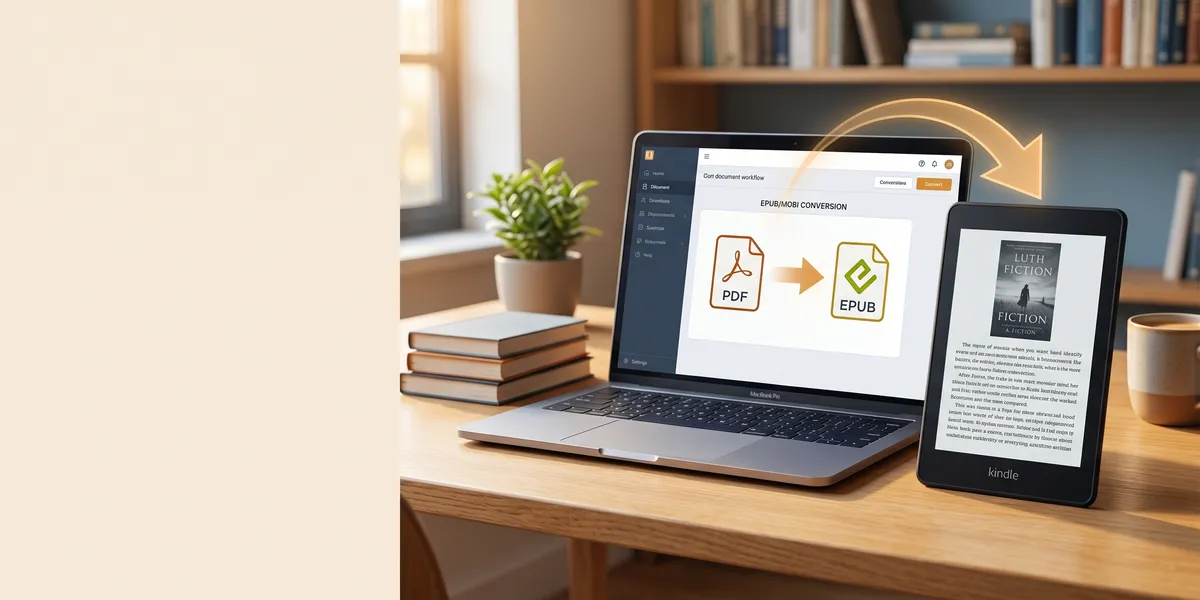
You can convert any ePub file to Kindle format in under two minutes — no software required.
In this guide, you’ll learn:
- 4 methods to get ePub files onto your Kindle (from easiest to most powerful)
- How to fix common conversion problems like broken formatting and missing images
- Which method works best for your specific situation
Here’s exactly how to do it.
What Happens When You Send an ePub to Kindle?
Amazon automatically converts ePub files to its native Kindle format (AZW3 or KFX) when you send them through any official channel. You don’t need to manually convert anything.
This means your ePub keeps its chapter structure, table of contents, and basic formatting. Amazon’s converter handles the heavy lifting behind the scenes.
One important catch: your ePub must be DRM-free. If you purchased an ePub from a bookstore that applied digital rights management, Amazon’s converter will reject it. Files you create yourself or download from DRM-free sources work perfectly.
Method 1: Send to Kindle (Web) — Fastest for Most People
This is the simplest method and works from any computer with a browser.
Step 1: Go to amazon.com/sendtokindle and sign into your Amazon account.
Step 2: Drag and drop your ePub file into the upload area. You can also click to browse your files. The web uploader supports files up to 200 MB.
Step 3: Select which Kindle device or app should receive the file.
Step 4: Click “Send.” Your ePub converts automatically and appears in your Kindle library within minutes.
Best for: Quick, one-off conversions when you have a single ePub file to read on your Kindle.
Method 2: Email Your ePub to Kindle
Every Kindle device and app has a unique email address. Send an ePub to that address, and Amazon converts it automatically.
Step 1: Find your Kindle email address. Go to Amazon’s Manage Your Content and Devices page. Click the Devices tab and select your Kindle. Your Send-to-Kindle email address looks like [email protected].
Step 2: Add your personal email to the approved senders list. Under the Preferences tab, scroll to “Personal Document Settings” and add your email address to the “Approved Personal Document Email List.”
Step 3: Compose an email from your approved address. Attach the ePub file and send it to your Kindle email address. Leave the subject line blank or type “convert” to trigger automatic conversion.
Step 4: Wait 5-10 minutes. The converted file appears in your Kindle library and syncs across all your devices.
Best for: Batch sending. You can attach multiple ePub files to a single email and convert them all at once.
Method 3: Use the Kindle App on Your Phone
You can send ePub files directly from your smartphone or tablet without touching a computer.
On iPhone/iPad:
- Open the Files app and locate your ePub file.
- Tap the Share button.
- Select the Kindle app from the share sheet.
- Add the title and author, then tap Send.
On Android:
- Open your Downloads folder or file manager.
- Long-press the ePub file and tap Share.
- Choose the Kindle app.
- Fill in the book details and tap Send.
The app uploads your file to Amazon’s servers, converts it, and delivers it back to your Kindle. This usually takes under five minutes.
Best for: Converting ePub files you downloaded on your phone, or when you’re away from your computer.
Method 4: Calibre — Full Control Over Every Detail
Calibre is free, open-source software that gives you complete control over how your ePub converts to Kindle format. It’s more work than the other methods, but it’s the best option when you need perfect results.
Step 1: Download and install Calibre from calibre-ebook.com.
Step 2: Click “Add books” and select your ePub file. Calibre imports it into your library.
Step 3: Select the book and click “Convert books.” Choose AZW3 as the output format. This is Amazon’s modern Kindle format and produces the best results.
Step 4: Adjust conversion settings if needed:
- Look & Feel: Control fonts, margins, and text size
- Table of Contents: Fine-tune chapter detection
- Search & Replace: Fix encoding issues or unwanted characters
- Output: Set Kindle-specific options like page breaks between chapters
Step 5: Click “OK” to start the conversion. When it finishes, connect your Kindle via USB and click “Send to device.” Or use Calibre’s built-in email feature to send wirelessly.
Best for: Authors and publishers who convert files regularly, need custom formatting, or want to fix problematic ePub files before sending them to Kindle.
Pro tip: If a direct ePub-to-AZW3 conversion produces formatting errors, try converting your ePub to ePub first (yes, ePub to ePub). This rebuilds the internal file structure and fixes hidden issues that cause conversion failures. Then convert the rebuilt ePub to AZW3.
Which Method Should You Choose?
| Method | Speed | Difficulty | Best For |
|---|---|---|---|
| Send to Kindle (Web) | 2 minutes | Easy | Single files, quick reads |
| Email to Kindle | 5-10 minutes | Easy | Batch conversions, multiple files |
| Kindle App (Mobile) | 3-5 minutes | Easy | On-the-go, phone downloads |
| Calibre | 10-15 minutes | Moderate | Custom formatting, bulk management |
If you just want to read an ePub on your Kindle — use the Send to Kindle web tool. It’s the fastest path from ePub file to reading.
If you’re an author preparing files for publication — use Calibre. The extra control over formatting, metadata, and output settings makes a real difference in how your book looks on Kindle devices. Pair it with proper book formatting software for professional results.
How to Fix Common ePub to Kindle Conversion Problems
Even with Amazon’s automatic converter, things can go wrong. Here are the most common issues and how to fix them.
Broken Formatting or Missing Images
Amazon’s converter sometimes strips complex CSS styling or drops images that use uncommon file paths. Fix this by:
- Opening the ePub in Sigil (free ePub editor) and simplifying the CSS
- Making sure all images use relative file paths within the ePub package
- Converting through Calibre instead, which gives you more control over how images and formatting translate
Strange Characters and Encoding Errors
About 15% of ePub files have character encoding issues that cause problems during conversion. You’ll see symptoms like curly quotes turning into “a€™” or em dashes becoming garbled symbols.
Fix this in Calibre by using the Search & Replace feature during conversion. Replace common problem characters, or set the input encoding to UTF-8 explicitly.
”File Could Not Be Converted” Error
This usually means one of three things:
- The ePub has DRM protection. Amazon won’t convert DRM-protected files from other stores. You’ll need a DRM-free version.
- The file is corrupted. Re-download the ePub from the original source.
- The ePub structure is invalid. Run it through ePub Checker to find structural errors, then fix them in Sigil or Calibre.
Table of Contents Not Showing
If your converted file lands on Kindle without chapter navigation, the ePub’s internal table of contents is probably missing or broken. Calibre can regenerate it during conversion — check the “Table of Contents” settings panel and enable automatic detection.
Understanding ePub vs. Kindle Formats
ePub is an open standard used by most ebook platforms — Apple Books, Google Play Books, Kobo, and more. It’s essentially a zip file containing HTML, CSS, and images.
Kindle formats (AZW3/KFX) are Amazon’s proprietary formats. They support features specific to Kindle devices like X-Ray, Word Wise, and enhanced typesetting.
Amazon phased out MOBI format uploads in 2022, so if you see old guides mentioning MOBI conversion — skip that advice. Modern Kindle devices use AZW3 and KFX exclusively.
If you’re writing and formatting your own books, you’ll want to understand the broader landscape of ebook formats and how they work across different platforms.
How to Create a Kindle-Ready ePub From Scratch
If you’re an author or content creator who needs to produce ePub files that convert cleanly to Kindle, start with your manuscript — not with conversion tools.
Our Pick — Chapter
Chapter turns your manuscript into a properly formatted ePub that converts perfectly to Kindle — no manual formatting headaches.
Best for: Nonfiction authors who want clean, professional ebook files Pricing: $97 one-time (nonfiction) Why we built it: Authors kept telling us the hardest part wasn’t writing — it was getting their finished book into a format that looked good on every device.
Your workflow should look like this:
- Write and structure your book with clear chapter breaks and consistent heading levels
- Format for ebook using a tool that generates clean, valid ePub files
- Test on Kindle by sending your ePub through Send to Kindle before publishing
- Publish to KDP using the validated ePub file
For a detailed walkthrough of the publishing process, check out our guide on how to self-publish a book on Amazon.
Can You Read ePub Directly on Kindle Without Converting?
As of 2026, Kindle devices and apps do not natively read ePub files. You must convert them through one of the methods above.
However, Amazon has made the conversion process nearly invisible. When you use Send to Kindle or email, the conversion happens automatically on Amazon’s servers. You never see the intermediate format — your ePub goes in, and a Kindle-ready book comes out.
This is different from Kobo and Apple devices, which read ePub natively with no conversion step required.
Is It Legal to Convert ePub to Kindle?
Converting ePub files you own or created is completely legal. You’re simply changing the file format to read on a different device.
The only legal gray area involves DRM removal. If an ePub has DRM protection from a bookstore, removing that protection may violate the store’s terms of service — even if you own the book. The safest approach is to purchase DRM-free ePubs when possible or buy the Kindle version directly from Amazon.
If you’re an author converting your own manuscripts, you have full rights to convert to any format you want.
Common Mistakes to Avoid
- Skipping the preview step. Always check your converted file on an actual Kindle device or app before sharing or publishing. Formatting issues are invisible until you see them on screen.
- Using outdated MOBI format. Some old tutorials suggest converting to MOBI. Don’t — Amazon deprecated MOBI in 2022. Convert to AZW3 or let Amazon handle the conversion automatically.
- Ignoring metadata. Title, author name, and cover image should be set correctly in the ePub before conversion. This metadata carries over to your Kindle library and affects how the book displays.
- Sending DRM-protected files. Amazon rejects DRM-protected ePubs from other stores. Check for DRM before attempting conversion to save yourself troubleshooting time.
FAQ
How Do I Convert ePub to Kindle Format?
To convert ePub to Kindle format, use Amazon’s Send to Kindle web tool at amazon.com/sendtokindle. Upload your DRM-free ePub file, select your Kindle device, and click Send. Amazon automatically converts the ePub to Kindle format and delivers it to your library within minutes.
Can Kindle Read ePub Files?
No, Kindle devices cannot read ePub files directly. You must convert ePub to Kindle format first using Send to Kindle, email, the Kindle app, or Calibre. Amazon automatically handles the conversion when you use any of their official transfer methods.
What Is the Best Free ePub to Kindle Converter?
The best free ePub to Kindle converter is Calibre, an open-source ebook management tool. Calibre converts ePub files to AZW3 (Kindle format) with full control over formatting, metadata, and output settings. For simpler needs, Amazon’s free Send to Kindle web tool converts files automatically.
Does Converting ePub to Kindle Lose Formatting?
Most ePub files convert to Kindle with formatting intact, including chapters, bold text, italics, and images. Complex CSS layouts, custom fonts, and embedded multimedia may not convert perfectly. Test your converted file on a Kindle device and use Calibre for problematic files that need formatting adjustments.
How Long Does ePub to Kindle Conversion Take?
ePub to Kindle conversion takes under two minutes using Amazon’s Send to Kindle web tool. The email method takes 5-10 minutes. Calibre conversion is nearly instant on your computer, though transferring to the device adds a few minutes. File size and server load can affect Amazon’s processing time.