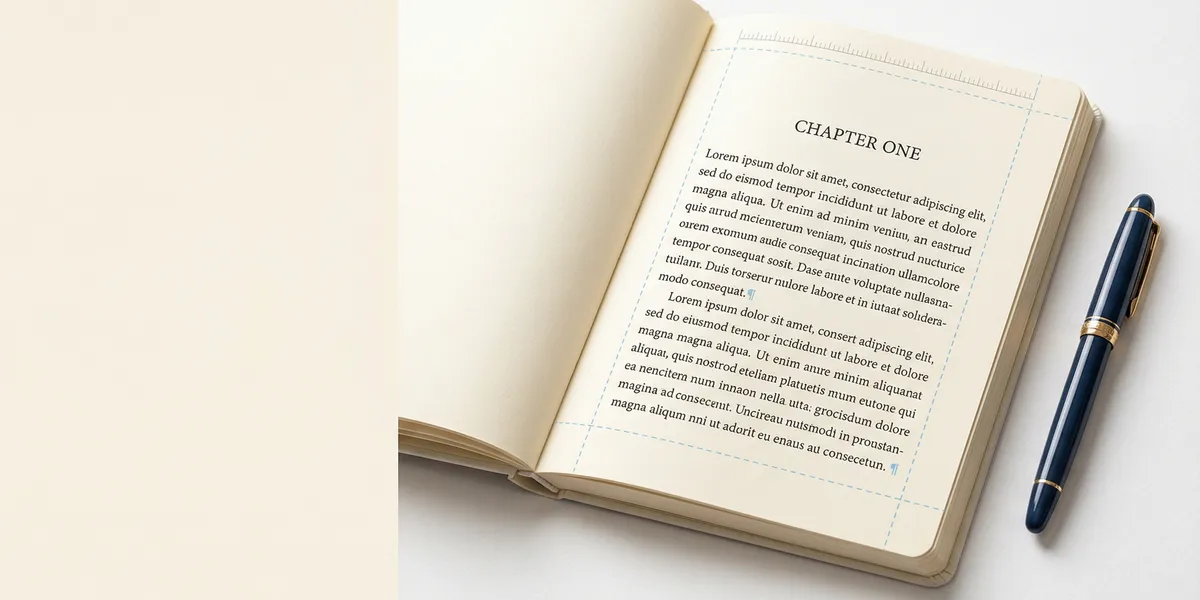
A free book template for Microsoft Word gives you pre-set margins, fonts, page sizes, and chapter styles so you can focus on writing instead of wrestling with formatting. Below you’ll find where to download templates for every common book size, how to customize them, and how to set one up from scratch if none of the pre-built options fit.
Why use a book template in Word
Starting with a blank document and manually configuring margins, gutters, headers, and page numbers takes hours. One wrong setting and your book looks amateur when printed or uploaded to Amazon KDP.
A template handles the technical formatting so you only make creative decisions. Templates also prevent common mistakes like inconsistent chapter headings, missing mirror margins, or incorrect gutter widths that cause text to disappear into the spine.
If you already have a finished manuscript, a template lets you paste your text into a properly formatted document rather than retroactively fixing hundreds of pages.
Where to download free book templates for Word
Several reliable sources offer free book templates in .docx format. Each has different strengths depending on your book size and publishing platform.
| Source | Sizes available | Best for |
|---|---|---|
| Kindlepreneur | 5x8, 5.25x8, 5.5x8.5, 6x9 | Fiction and nonfiction authors publishing on KDP |
| DIY Book Formats | 5x8, 5.5x8.5, 6x9, 7x10 | Authors who want detailed Word and InDesign templates |
| Reedsy | Standard manuscript format | Authors submitting to agents or publishers |
| DiggyPod | Multiple print sizes | Print-on-demand authors |
| 48 Hour Books | 4.25x7 through 8.5x11 | Authors ordering bulk print runs |
| UsedToTech | 5x8, 6x9, 8.5x11 | KDP paperback authors who want quick setup |
Download the template that matches your target trim size, open it in Word, and start writing or pasting your manuscript.
Common book sizes and when to use them
Choosing the right trim size before you start formatting prevents rework later. Here are the standard sizes most self-publishers use.
5” x 8” is the standard fiction paperback size. It fits comfortably in one hand and works well for novels, novellas, and memoirs under 80,000 words.
5.5” x 8.5” is a slightly larger option popular with memoir writers, literary fiction, and narrative nonfiction. It offers more room per page, which reduces total page count.
6” x 9” is the standard for nonfiction. Business books, how-to guides, self-help, and textbooks all typically use this size. It gives enough space for tables, diagrams, and longer paragraphs without feeling cramped.
8.5” x 11” is reserved for workbooks, children’s books with illustrations, and academic texts. Most narrative books should avoid this size because it feels like a school handout, not a bookstore product.
How to customize a Word book template
Once you download a template, you’ll need to adjust it to match your specific book. Here’s what to check and change.
Page size and margins
Go to Layout > Size and confirm the page dimensions match your chosen trim size. If you’re using a standard template, this should already be set.
For margins, go to Layout > Margins > Custom Margins. Select Mirror Margins from the “Multiple pages” dropdown. This ensures your left and right pages have mirrored layouts with the gutter on the binding side.
Recommended margin settings for a 6x9 book:
- Top: 0.5”
- Bottom: 0.5”
- Outside: 0.5”
- Inside: 0.75” to 0.8” (gutter side)
The inside margin needs extra space so text doesn’t disappear into the binding. For books over 300 pages, increase the gutter to 0.9” or more.
Fonts and spacing
Most book templates use Times New Roman or Garamond at 11pt or 12pt. Both are industry-standard body fonts that read well in print. Avoid sans-serif fonts for your body text in print books.
Set line spacing to 1.15 or 1.3 for published books (double spacing is for manuscripts submitted to editors, not finished products). Use justified text alignment so both margins are clean.
For paragraph indentation, set a 0.3” to 0.5” first-line indent through Format > Paragraph. Never use the Tab key to indent paragraphs. The first paragraph of each chapter should have no indent.
Chapter headings and styles
Use Word’s built-in Heading 1 style for chapter titles and Heading 2 for subheadings. This serves two purposes: consistent formatting throughout your book, and automatic table of contents generation.
Chapter titles typically use a larger font (14pt to 18pt), centered, with extra spacing above. Each chapter should start on a new page. Insert a Section Break (Next Page) at the end of each chapter rather than hitting Enter repeatedly.
Headers and page numbers
Go to Insert > Header and check two boxes: Different Odd & Even Pages and Different First Page. This lets you put the author name on even (left) pages and the book title on odd (right) pages, while hiding headers on chapter-opening pages.
For page numbers, insert them in the footer. Front matter (title page, copyright page, dedication) should use Roman numerals or no numbers at all. The main body starts at page 1.
Create a Section Break between front matter and Chapter 1. In the footer of Chapter 1, click Link to Previous to turn it off, then set your page numbers to start at 1.
How to build a book template from scratch
If none of the pre-built templates match your needs, you can create one in about 20 minutes.
Step 1: Open a blank Word document. Go to Layout > Size > More Paper Sizes and enter your custom dimensions (e.g., 6” wide by 9” tall).
Step 2: Set mirror margins. Layout > Margins > Custom Margins. Choose “Mirror margins” under Multiple Pages. Set your top, bottom, outside, and inside margins.
Step 3: Create your styles. Right-click on “Heading 1” in the Styles panel and modify it to your preferred chapter title font, size, and spacing. Do the same for Heading 2, Normal (body text), and any custom styles you need for block quotes or lists.
Step 4: Add a title page. Type your book title, author name, and any subtitle. Center everything. This page gets no header or footer.
Step 5: Add front matter pages. Copyright page, dedication, and table of contents each go on separate pages. Use Section Breaks between them.
Step 6: Set up headers and footers. Different odd and even pages, different first page, author name on left pages, book title on right pages.
Step 7: Save as a template. Go to File > Save As and choose Word Template (.dotx). This preserves your formatting for future books.
Common mistakes to avoid
- Using regular page breaks instead of section breaks between chapters. Section breaks let you control headers, footers, and page numbering independently for each chapter.
- Setting margins too small. KDP requires minimum margins of 0.25” on all sides, but 0.5” or larger looks far more professional. Tight margins make books feel cheap.
- Forgetting mirror margins. Without them, your gutter will be on the wrong side of alternating pages, pushing text into the spine on left pages.
- Using the Tab key for paragraph indents. This creates inconsistent spacing. Always use Paragraph > First Line Indent in the formatting options.
- Skipping the PDF export check. Before uploading anywhere, export your book as a PDF and review every page. Formatting that looks correct in Word sometimes shifts in PDF conversion.
Skip the template: use AI to write and format your book
Templates solve the formatting problem, but you still have to write the book, design the layout, and manually handle every export setting. If you want a faster path from idea to finished book, AI writing tools handle both the content and the formatting.
Our Pick — Chapter
Chapter is an AI book writing platform that generates complete, structured nonfiction books. It handles outlining, writing, and formatting in one workflow, so you never need to touch a Word template at all.
Best for: Nonfiction authors who want a finished book without manual formatting Pricing: $97 one-time Why we built it: Most authors spend more time fighting formatting than writing. Chapter removes that friction entirely.
Over 2,100 authors have used Chapter to create more than 5,000 books. The platform exports publish-ready files, so you skip the template setup, margin calculations, and style configuration that Word requires.
If you prefer working in Word, templates are a solid free option. But if you want to go from idea to published book with less manual work, Chapter is worth a look.
FAQ
What’s the best book size for a first-time self-publisher?
Start with 5.5” x 8.5” for fiction or memoir and 6” x 9” for nonfiction. These are the most common sizes on Amazon, which means readers expect them, and KDP’s margin requirements are well-documented for both.
Can I use Google Docs instead of Word?
Yes. Most .docx templates open in Google Docs with formatting intact. Some advanced features like mirror margins and section breaks may not transfer perfectly, so review the layout after importing. For a detailed comparison of formatting tools, see our guide to AI book formatting tools.
Do I need a different template for ebooks vs. print books?
Ebook formatting is fundamentally different from print. Ebooks use reflowable text, so fixed page sizes and margins don’t apply. Word templates are primarily for print books. For ebook formatting, you’ll need to export to ePub format, which tools like Kindle Create or dedicated ebook creation platforms handle better than Word.
How do I add a table of contents in my Word book template?
After formatting your chapter titles with Heading 1 style, go to References > Table of Contents and choose an automatic style. Word generates the TOC from your headings and updates page numbers when you right-click and select “Update Field.” Place the TOC after your copyright page and before Chapter 1.
What font size should I use for my book?
For print books, 11pt is standard for 6x9 trim sizes, and 12pt works well for smaller 5x8 formats. Avoid going below 10pt for body text. Chapter titles typically range from 14pt to 18pt. The font size should feel comfortable when you hold a printed proof at normal reading distance.