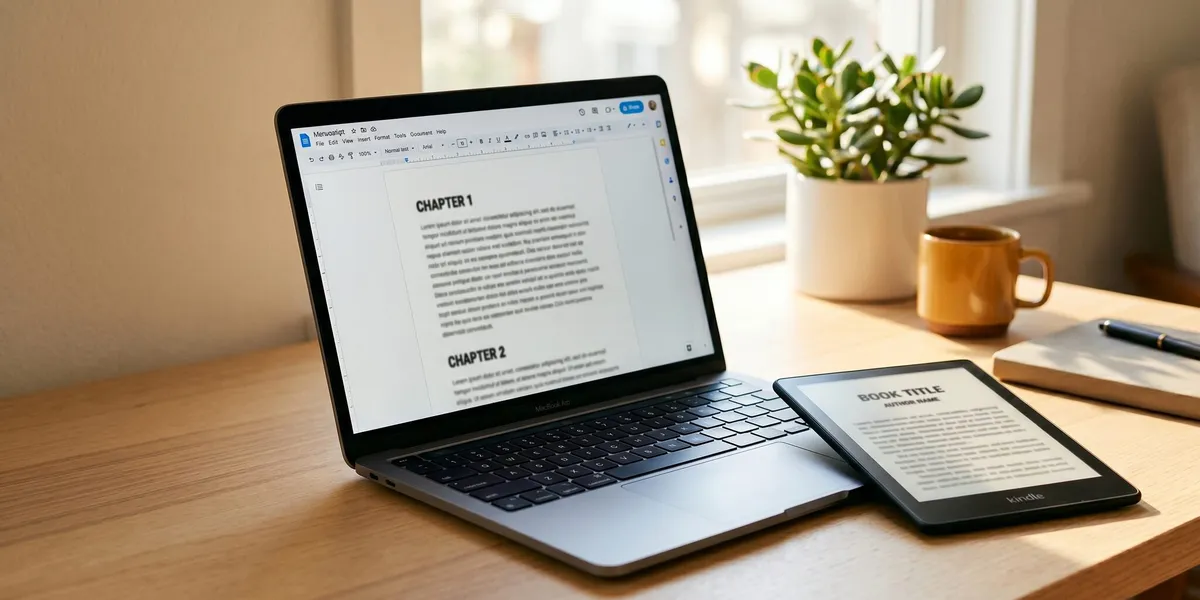
You can format an ebook for Kindle yourself in under two hours — no design experience required. Amazon KDP accepts EPUB, DOCX, and KPF files, and the process comes down to cleaning your manuscript, structuring your front and back matter, and uploading through Kindle Direct Publishing.
In this guide, you’ll learn:
- Which file format to use for your Kindle ebook in 2026
- How to format your manuscript in Word or Kindle Create step by step
- The image, font, and layout rules that prevent rejection
- Common KDP formatting errors and exactly how to fix them
Here’s the complete process from manuscript to published Kindle ebook.
What File Format Does Kindle Use in 2026?
Amazon KDP converts every ebook into its proprietary KF8 format behind the scenes. You don’t need to worry about that conversion — you just need to upload your file in one of three accepted formats.
EPUB (.epub) is the industry standard ebook format and the best choice for most authors. It gives you the most control over formatting and works across every major retailer if you publish wide later. If you upload an EPUB, validate it with EPUBCheck first — KDP rejects files with critical validation errors.
DOCX (.docx) is the simplest option if you wrote your book in Microsoft Word or Google Docs. KDP converts your DOCX to KF8 automatically. You lose some formatting control compared to EPUB, but for text-heavy books without complex layouts, it works fine.
KPF (.kpf) is the native format from Amazon’s free Kindle Create tool. It gives you the cleanest conversion because Kindle Create is built specifically for KDP. This is the easiest path for authors who want professional results without learning EPUB.
| Format | Best For | Pros | Cons |
|---|---|---|---|
| EPUB | Authors publishing wide | Full control, industry standard | Requires validation |
| DOCX | Simple text-heavy books | No extra tools needed | Less formatting control |
| KPF | KDP-exclusive authors | Cleanest conversion, free tool | KDP-only format |
MOBI is dead. Amazon stopped accepting MOBI uploads in 2023. If you have old guides recommending MOBI, ignore that advice. Learn more about the differences in our EPUB vs MOBI comparison.
How to Format Your Manuscript in Microsoft Word
Formatting your ebook in Microsoft Word is the fastest path if you already wrote your manuscript there. The key is stripping out print-specific formatting and making your document flow like a digital file.
Step 1: Clean Up Your Document
Start by removing everything Kindle doesn’t need:
- Delete headers and footers. Kindle adds its own location bar — your page numbers will display as gibberish.
- Remove page numbers. Same reason. Ebooks don’t have fixed pages.
- Strip manual line breaks. Use Find & Replace to find
^l(manual line breaks) and replace with^p(paragraph marks). - Remove extra spaces. Find & Replace double spaces with single spaces. Run it twice to catch triple spaces.
- Delete tab characters. Find
^tand replace with nothing. You’ll use paragraph indents instead.
Step 2: Set Your Paragraph Formatting
Select all text (Ctrl+A) and set consistent paragraph formatting:
- Font: Times New Roman or Garamond, 12pt. The reader will override your font choice on their device, but starting with a standard font prevents conversion errors.
- Line spacing: 1.15 or 1.5. Avoid exact spacing values — they break on different screen sizes.
- First-line indent: 0.3 inches via Paragraph settings (not the Tab key). This creates the professional paragraph indent readers expect.
- After paragraph spacing: 0pt for fiction, 6-8pt for nonfiction. Fiction readers expect indented paragraphs with no extra spacing. Nonfiction readers expect block paragraphs with spacing between them.
Step 3: Format Your Chapter Headings
Apply Word’s built-in Heading styles — this is what KDP uses to build your table of contents:
- Select your chapter title text
- Apply Heading 1 style from the Styles ribbon
- Repeat for every chapter title
- Use Heading 2 for subheadings within chapters (nonfiction)
Add page breaks before every chapter. Place your cursor before the chapter title, go to Insert > Page Break. Never use multiple Enter keys to push content to a new page — that creates inconsistent spacing across devices.
Step 4: Create Your Table of Contents
A clickable table of contents is required for Kindle ebooks. In Word:
- Place your cursor where you want the TOC (after your title page)
- Go to References > Table of Contents
- Choose a simple format (no page numbers — they don’t exist in ebooks)
- Make sure it links to your Heading 1 styles
Test every link in your TOC before uploading. A broken TOC is the fastest way to get a one-star review.
Step 5: Handle Images Correctly
Every image in your Kindle ebook needs to meet Amazon’s specifications:
- Format: JPEG or PNG (JPEG for photos, PNG for graphics with text)
- Resolution: 300 DPI minimum, 72 DPI acceptable for web-quality images
- Maximum size: 50MB per image, but keep them under 5MB for fast loading
- Color space: RGB (not CMYK — that’s for print)
- Alignment: Center all images. Don’t use text wrapping — it breaks on most Kindle devices.
For your book cover, upload it separately through the KDP dashboard. Don’t embed it in your manuscript file.
Step 6: Save and Upload
Save your file as .docx (not .doc — KDP doesn’t accept the older format). Upload through KDP and use the online previewer to check every chapter before publishing.
How to Format Your Ebook Using Kindle Create
Kindle Create is Amazon’s free formatting tool, and it’s the easiest way to get a professional-looking Kindle ebook without any technical knowledge.
Download and Import
- Download Kindle Create for Mac or PC
- Choose “Reflowable” for text-heavy books (novels, nonfiction) or “Print Replica” for fixed-layout books (textbooks, comics)
- Import your .docx or .pdf file
Kindle Create automatically detects your chapter breaks and converts them into a navigable structure. Review the detected chapters in the left sidebar and fix any it missed.
Apply Themes and Formatting
Kindle Create offers built-in themes that style your chapter openings with professional typography:
- Classic: Simple, elegant — works for literary fiction and memoir
- Modern: Clean with subtle design elements — good for nonfiction
- Amour: Decorative flourishes — designed for romance
Select a theme and preview it across multiple device types (phone, tablet, Kindle reader). The preview feature is one of Kindle Create’s biggest advantages over manual formatting.
Add Front and Back Matter
Insert standard ebook elements through Kindle Create’s interface:
- Title page — your book title, subtitle, and author name
- Copyright page — copyright notice, ISBN (optional for KDP), edition info
- Dedication (optional)
- Table of contents — Kindle Create generates this automatically from your chapters
- About the author — a brief bio with links to your website or social media
- Also by page — list your other books to drive cross-sales
Export as KPF
When you’re satisfied with the preview, export as .kpf and upload directly to KDP. The KPF format preserves every formatting choice you made in Kindle Create.
How to Format an EPUB for Kindle
If you want maximum control over your ebook’s formatting — or you plan to publish on multiple platforms — creating an EPUB file is the professional approach.
Option 1: Use a Formatting Tool
The fastest way to create a clean EPUB is with dedicated book formatting software:
Our Pick — Chapter
Chapter handles the entire journey from writing to export. You write your book inside the platform using AI-assisted tools, then export a properly formatted EPUB ready for Kindle upload — no separate formatting step needed.
Best for: Authors who want writing and formatting in one workflow Pricing: $97 one-time (nonfiction) Why we built it: Most authors waste hours bouncing between writing tools and formatting tools. Chapter eliminates that gap.
Other solid EPUB formatting tools include Atticus ($147 one-time), Vellum ($249.99, Mac only), and Sigil (free, open source). Each produces KDP-compatible EPUB files. See our full AI book formatting tools roundup for detailed comparisons.
Option 2: Convert from Word Using Calibre
Calibre is a free, open-source ebook management tool that converts DOCX to EPUB:
- Import your formatted .docx file
- Click “Convert books” and select EPUB as the output format
- Configure metadata (title, author, description)
- Set “Look & Feel” options for fonts and layout
- Convert and validate the output with EPUBCheck
Calibre gives you more control than a straight DOCX upload to KDP, but the learning curve is steeper than Kindle Create.
Validate Before Uploading
No matter how you create your EPUB, run it through EPUBCheck before uploading to KDP. Amazon rejects EPUBs with critical errors, and debugging after upload wastes time.
Common validation errors include:
- Missing required metadata (title, language, identifier)
- Broken internal links in the table of contents
- Images referenced in the HTML but missing from the file package
- Invalid CSS properties
Fix every “ERROR” level issue. “WARNING” level issues usually don’t block upload but are worth fixing for compatibility.
Kindle Formatting Requirements You Can’t Skip
Amazon has specific requirements that apply to every Kindle ebook regardless of how you format it. Miss any of these and your book either gets rejected or displays incorrectly.
Table of Contents
Every Kindle ebook must have a working, clickable table of contents. Amazon’s quality review team checks this manually. Your TOC must:
- Link to every chapter
- Appear in the Kindle’s built-in navigation menu (the “Go To” feature)
- Use descriptive chapter titles, not just “Chapter 1”
Cover Image
Your cover is uploaded separately in the KDP dashboard, but it must meet these specs:
- Ideal size: 2,560 x 1,600 pixels (1.6:1 ratio)
- Minimum: 1,000 x 625 pixels
- Format: JPEG or TIFF
- File size: Under 50MB
A low-resolution cover triggers a KDP warning and makes your book look unprofessional in search results.
Font Handling
Kindle readers let users choose their own font. Your formatting should account for this:
- Don’t rely on a specific font for meaning (use bold or italics instead)
- Avoid decorative fonts in body text — they may not render
- Use standard fonts in your source file for the cleanest conversion
Reflowable vs. Fixed Layout
Most books should use reflowable formatting — text that adjusts to the reader’s screen size and font preferences. This is the default for novels, nonfiction, and most genres.
Fixed layout locks your pages to a specific design. Use it only for:
- Children’s picture books
- Comics and graphic novels
- Textbooks with complex diagrams
- Cookbooks with specific photo-text layouts
Fixed-layout ebooks don’t allow font resizing and only display well on tablets — not phones or basic Kindle readers.
Common KDP Formatting Errors and How to Fix Them
These are the formatting problems that trip up most first-time Kindle publishers. Fixing them before upload saves you days of back-and-forth with KDP’s review process.
”Your file contains fonts that cannot be embedded”
Fix: Open your manuscript and replace any unusual or licensed fonts with standard alternatives (Times New Roman, Georgia, Arial). If you’re using EPUB, check your CSS for @font-face declarations pointing to missing font files.
”EPUB validation failed”
Fix: Run your EPUB through EPUBCheck and fix every ERROR-level issue. The most common cause is broken internal links or missing image files.
”Your cover image resolution is too low”
Fix: Recreate or upscale your cover to at least 1,000 x 625 pixels (ideally 2,560 x 1,600). Upload as JPEG. Don’t just resize a small image larger — that creates blurriness.
Table of contents not appearing in “Go To” menu
Fix: This happens when your TOC isn’t properly marked as the NCX navigation in your EPUB, or when your Word headings aren’t using built-in Heading styles. In Word, reapply Heading 1 to every chapter title. In Kindle Create, verify chapters are detected in the sidebar.
Images displaying at wrong size
Fix: Don’t set fixed pixel dimensions in your image tags. Use percentage-based sizing (e.g., width: 100%) so images scale to the reader’s screen. Kindle devices range from 6-inch readers to 10-inch tablets — fixed sizes break on one end or the other.
How Long Does It Take to Format an Ebook for Kindle?
Formatting an ebook for Kindle takes 2-6 hours for most authors, depending on your method and book complexity. A clean fiction manuscript formatted in Kindle Create can be ready in under 2 hours. A nonfiction book with images, tables, and complex layouts might take a full day.
Here’s a realistic time breakdown:
| Method | Simple Novel | Nonfiction w/ Images |
|---|---|---|
| Kindle Create | 1-2 hours | 3-4 hours |
| Word + direct upload | 2-3 hours | 4-6 hours |
| EPUB (manual/Calibre) | 3-5 hours | 6-8 hours |
| Professional service | 0 hours (you outsource) | 0 hours |
If you’re publishing multiple books, investing time in learning proper formatting pays off. If you’re publishing once and want it done right, consider a book formatting service or a tool like Chapter that handles formatting as part of the writing process.
Can You Format a Kindle Ebook for Free?
Yes. You can format a Kindle ebook for free using several methods. Kindle Create is Amazon’s own free tool and handles most formatting needs for fiction and straightforward nonfiction. Calibre is a free open-source tool that converts Word files to EPUB with solid formatting options. And KDP’s built-in converter accepts a plain .docx file and does the conversion automatically.
The tradeoff with free tools is time and control. You’ll spend more hours tweaking formatting compared to paid tools like Atticus or Vellum that streamline the process with drag-and-drop interfaces.
For authors writing their book from scratch, Chapter combines AI-assisted writing with built-in export — so you skip the separate formatting step entirely. Over 10,000 authors have used Chapter to create books, and the platform has been featured in USA Today and the New York Times.
Do You Need an ISBN for a Kindle Ebook?
You do not need an ISBN to publish a Kindle ebook on Amazon. KDP assigns a free ASIN (Amazon Standard Identification Number) to every Kindle book automatically. The ASIN works as your book’s unique identifier within Amazon’s ecosystem.
However, if you plan to publish on other platforms — Apple Books, Kobo, Barnes & Noble — you’ll need an ISBN. You can purchase ISBNs from Bowker (US) or get free ones from some national ISBN agencies.
Bottom line: For KDP-exclusive publishing, skip the ISBN. For wide distribution, get one.
Common Mistakes to Avoid
These formatting pitfalls cost authors time and damage the reading experience:
- Using spaces or tabs for indentation. Always use paragraph formatting settings. Tabs create inconsistent indents across Kindle devices.
- Leaving in page numbers and headers. Strip every print-specific element. Kindle handles navigation its own way.
- Embedding your cover in the manuscript. Upload your cover separately through the KDP dashboard. An embedded cover creates a duplicate first page.
- Skipping the preview step. Always use KDP’s online previewer or the Kindle Previewer app to check your ebook on every device type before publishing.
- Using fixed-width images. Set images to percentage-based widths so they scale correctly on phones, tablets, and dedicated Kindle readers.
FAQ
How do you format an ebook for Kindle?
To format an ebook for Kindle, clean your manuscript by removing headers, footers, and page numbers. Apply Heading styles to chapter titles, add a clickable table of contents, and save as .docx or .epub. Upload to KDP and preview before publishing.
What is the best file format for Kindle ebooks?
The best file format for Kindle ebooks is EPUB for maximum control and cross-platform compatibility, or KPF (from Kindle Create) for the cleanest Amazon-specific conversion. KDP also accepts .docx files for authors who want a simpler upload process.
Can you format a Kindle ebook in Google Docs?
You can format a Kindle ebook in Google Docs by exporting your document as a .docx file and uploading it to KDP. Google Docs supports heading styles and basic formatting, but you’ll have less control over typography than Word or dedicated tools.
How much does it cost to format an ebook for Kindle?
Formatting an ebook for Kindle costs $0 to $500+ depending on your approach. Free options include Kindle Create and Calibre. Paid software like Atticus ($147) or Vellum ($249.99) offers more features. Professional formatting services typically charge $100-$500 per book.
What size should images be in a Kindle ebook?
Images in a Kindle ebook should be JPEG or PNG format at a minimum of 300 DPI. The maximum file size is 50MB per image, though keeping images under 5MB ensures fast loading. Use RGB color space and center-align all images in your manuscript.