InDesign book templates give you a pre-built layout so you can drop your manuscript into a professional design without starting from scratch. This guide covers where to find the best free templates, how to set them up correctly, and when a simpler tool might be the better choice.
What InDesign Book Templates Include
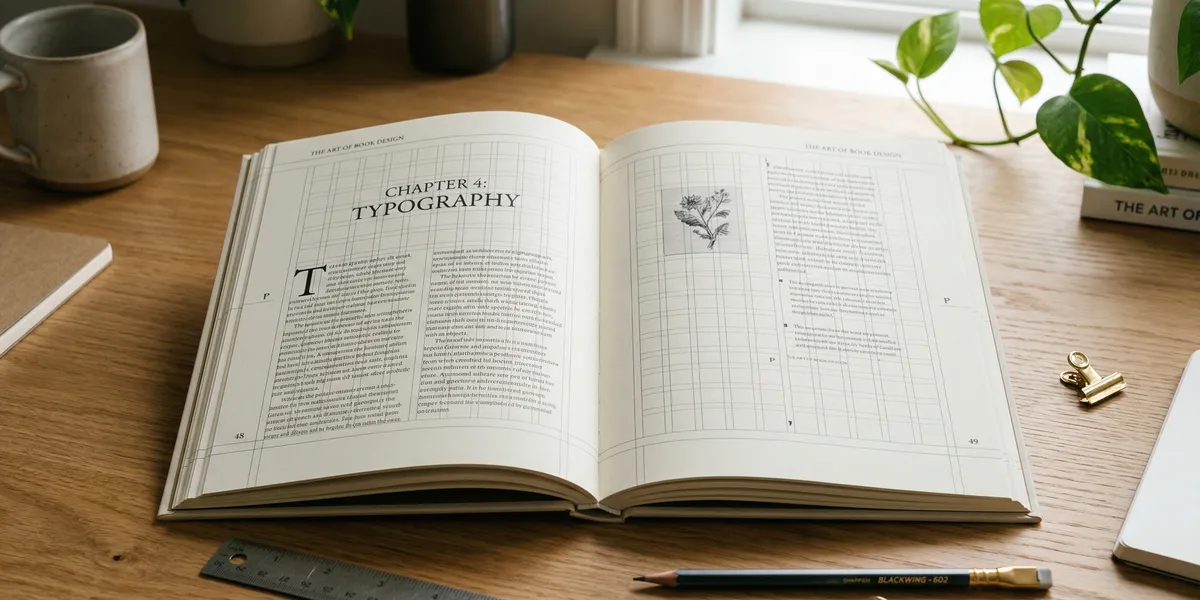
A good InDesign book template handles the structural decisions most authors struggle with: margins, master pages, paragraph styles, and trim size. Instead of configuring every detail manually, you open the template, replace the placeholder text, and adjust the design to match your book.
Most templates come as .indd files (native InDesign format) or .idml files (compatible with older versions and some third-party apps). Premium templates often include multiple chapter layouts, front matter pages, and pre-configured styles for headings, body text, and captions.
The quality gap between free and paid templates is real but manageable. Free templates cover the basics well enough for straightforward text-heavy books. Paid templates earn their price on design-heavy projects like cookbooks, portfolios, and children’s books where visual polish matters.
Best Free InDesign Book Templates
Here are the most reliable sources for free InDesign book templates in 2026.
InDesign Skills
The InDesign Skills full book template is one of the most popular free options available. It includes both .indd and .idml versions, so it works in InDesign CC as well as older versions going back to CS4. The template uses organized layers and includes placeholder body text with pre-configured paragraph styles.
Best for: Authors who want a clean, professional starting point for a text-heavy book.
Adobe Stock Free Templates
Adobe offers a selection of free InDesign templates through Adobe Stock. These are native to the Adobe ecosystem, which means they integrate smoothly with your existing Creative Cloud workflow. The free tier includes basic book and ebook layouts, though the library is smaller than third-party sources.
Best for: Authors already paying for Creative Cloud who want native Adobe templates.
DIY Book Formats
DIY Book Formats specializes in templates built specifically for self-published authors. Their InDesign templates come with proper trim sizes for popular platforms like Amazon KDP and IngramSpark, and they include front matter, chapter opener, and back matter page designs.
Best for: Self-published authors targeting print-on-demand platforms.
Template.net
Template.net offers a large collection of editable InDesign book templates across genres and formats. The library includes novel layouts, coffee table books, children’s books, and more. Free downloads are available with an account, though some premium options require a subscription.
Best for: Authors who want variety and genre-specific options.
HubSpot eBook Templates
HubSpot’s free ebook templates include InDesign versions alongside PowerPoint and Google Slides options. These six designs are specifically built for digital publishing and require no attribution. They work well for lead magnets, guides, and digital-first nonfiction.
Best for: Nonfiction authors creating digital ebooks or marketing materials.
How to Set Up an InDesign Book Template
Downloading a template is the easy part. Setting it up correctly requires attention to a few critical details that affect whether your book prints properly.
Step 1: Verify Your Trim Size
Your trim size is the final dimension of your printed book after the pages are cut. Standard trim sizes vary by genre:
| Genre | Common Trim Size |
|---|---|
| Fiction (novels) | 5.5” x 8.5” |
| Nonfiction / business | 6” x 9” |
| Mass market paperback | 4.25” x 6.87” |
| Children’s picture books | 8.5” x 8.5” or 10” x 8” |
| Cookbooks / coffee table | 8.5” x 11” |
| Textbooks / academic | 7” x 10” |
Open your template and go to File > Document Setup to confirm the page dimensions match your target trim size. If the template uses a different size, you can change it here, but expect to reflow text and adjust layouts afterward.
Amazon KDP lists five sizes as most popular: 5” x 8”, 5.25” x 8”, 5.5” x 8.5”, 6” x 9”, and 6.14” x 9.21”. If you are printing through IngramSpark, their supported range goes from 4” x 6” up to 8.5” x 11” for white paper.
Step 2: Check Margins and Bleed
Margins create breathing room around your text. The binding edge (gutter) needs more space than the outer edges because pages curve inward at the spine.
Recommended margin settings:
- Outer margins (top, bottom, outside): 0.5” minimum
- Gutter (inside/binding edge): 0.625” to 0.75” for books under 300 pages, up to 0.875” for thicker volumes
- Bleed: 0.125” (3mm) on all sides except the gutter
Check your margins in Layout > Margins and Columns. The bleed settings live in File > Document Setup under the Bleed and Slug section.
Bleed only matters if your design has images or color that extend to the edge of the page. For text-only interiors, you can skip the bleed. For covers and image-heavy layouts, it is essential.
Step 3: Configure Master Pages
Master pages are InDesign’s version of reusable templates within your template. They define repeating elements like headers, footers, page numbers, and decorative borders that appear consistently across your book.
Open the Pages panel (Window > Pages) and double-click a master page to edit it. Most templates include at least two masters: one for regular chapter pages and one for chapter openers. You can create additional masters for front matter, back matter, or special sections.
Place your running headers and automatic page numbers on the master pages rather than individual pages. This saves hours of manual work on a 200-page book.
Step 4: Replace Placeholder Text
Most templates include filler text to demonstrate the layout. To replace it with your manuscript:
- Click inside a text frame and select all the placeholder text (Edit > Select All or Cmd+A)
- Delete it
- Either paste your text (Edit > Paste) or place a Word document directly (File > Place)
Using File > Place is the better approach for full manuscripts because InDesign will automatically flow text across pages and create new pages as needed. The paragraph styles from the template stay intact, giving your text the correct formatting immediately.
Step 5: Export a Print-Ready PDF
When your layout is finished, export for print:
- Go to File > Export and choose Adobe PDF (Print)
- Select the PDF/X-4 preset (or your printer’s recommended preset)
- In the Marks and Bleeds tab, check Crop Marks and Use Document Bleed Settings
- In the Output tab, select No Color Conversion if your images are already in CMYK
- Click Export
Send this PDF to your printer or upload it to your print-on-demand platform. Always order a proof copy before approving the final print run.
Common Mistakes to Avoid
- Using RGB images for print: InDesign won’t automatically convert your images to CMYK. Use Edit > Edit in Photoshop or convert before placing images.
- Ignoring the gutter margin: Books with tight gutter margins are painful to read because text disappears into the spine. Add extra space on the binding edge.
- Skipping the preflight check: Run Window > Output > Preflight before exporting. It catches missing fonts, low-resolution images, and overset text.
- Forgetting facing pages: Books use facing page spreads. Make sure Facing Pages is checked in Document Setup so left and right pages mirror each other.
- Not embedding fonts: When sharing InDesign files, use File > Package to collect all fonts and linked images into one folder.
When to Skip InDesign Entirely
InDesign is powerful, but it demands a steep learning curve and a $22.99/month Creative Cloud subscription. For many self-published authors, the investment does not match the need.
Our Pick — Chapter
Chapter generates complete, formatted books from your manuscript using AI. You write your content, and the platform handles layout, formatting, and export — no design skills required.
Best for: Nonfiction authors who want a finished book without learning design software. Pricing: $97 one-time (nonfiction) Why we built it: Most authors do not need InDesign’s complexity. They need a formatted book that looks professional and is ready to publish.
Other alternatives worth considering:
- Atticus ($147 one-time) — Browser-based writing and formatting tool that handles ebook and print layouts. Works on any device.
- Vellum ($199+, Mac only) — Beautiful print and ebook formatting with 14 built-in trim sizes. The gold standard for fiction authors on Mac.
- Affinity Publisher (free) — Full-featured InDesign alternative with no subscription. Supports
.idmlimport and now includes AI-powered image editing. - Scribus (free, open-source) — Desktop publishing with CMYK support and custom page control. Less polished but completely free.
- Kindle Create (free) — Amazon’s formatting tool for both ebook and print. Best for simple, text-heavy books destined for KDP.
For text-heavy nonfiction and fiction, dedicated formatting tools produce professional results in a fraction of the time InDesign requires. Reserve InDesign for visually complex projects where full design control is genuinely necessary.
FAQ
Do I need InDesign to format a book?
No. InDesign is the industry standard for professional book design, but tools like Chapter, Atticus, and Vellum produce print-ready books without any design expertise. InDesign makes the most sense for image-heavy books, complex layouts, or authors who already know the software.
What file format should I use for InDesign templates?
Use .indd files if you have the matching InDesign version. Use .idml files if your InDesign version is older or if you want to open the template in Affinity Publisher. The .idml format preserves most layout features but may lose some advanced effects.
What is the standard bleed for book printing?
The standard bleed is 0.125 inches (3mm) on the top, bottom, and outside edges. The gutter (inside edge) typically does not need bleed because it is bound into the spine. Your print provider may have specific requirements, so check before exporting.
Can I use a free InDesign template for commercial publishing?
Most free templates allow commercial use, but always read the license terms. Templates from Adobe Stock, InDesign Skills, and HubSpot explicitly allow commercial projects. Some Template.net downloads require attribution or have restrictions on redistribution of the template itself.
What trim size should I choose for my book?
Choose 5.5” x 8.5” for fiction or 6” x 9” for nonfiction as safe defaults. These sizes are supported by all major print-on-demand platforms, keep printing costs reasonable, and match what readers expect for each genre. Check our guide to self-publishing on Amazon for platform-specific requirements.