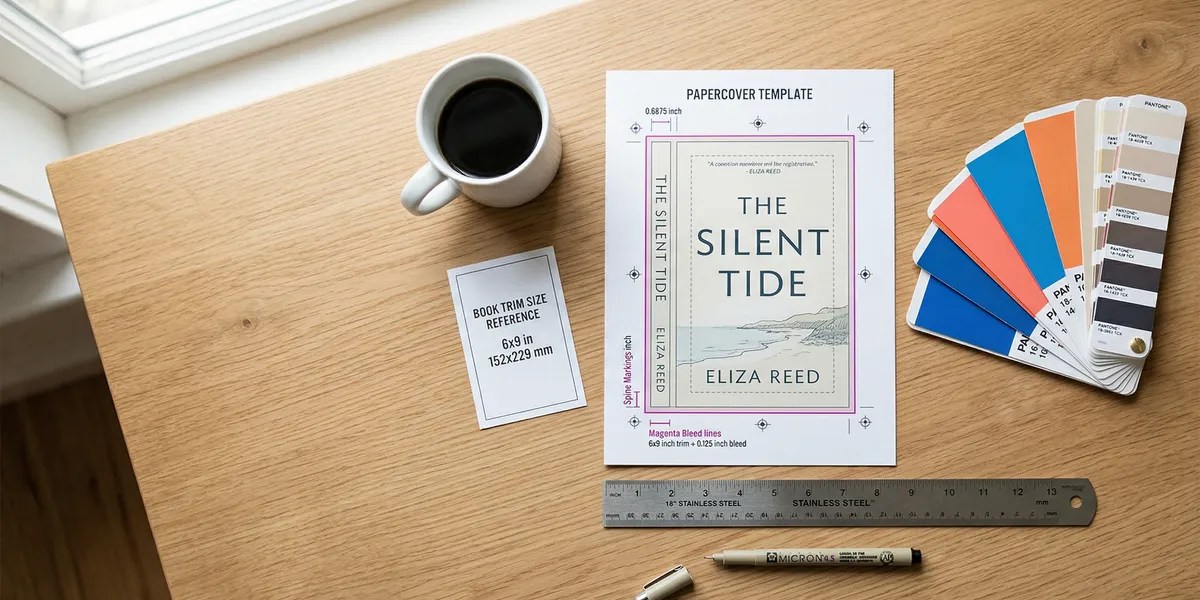
Your KDP book cover template determines whether your paperback prints correctly or gets rejected. Amazon has specific requirements for bleed, spine width, trim size, and resolution — and getting any of them wrong means your cover will show white edges, misaligned spines, or cut-off text.
This guide covers exactly how to get your KDP book cover template, the dimensions you need, and design tips that prevent the most common rejection reasons.
How to Get Your KDP Book Cover Template
Amazon provides a free cover template generator through the KDP Cover Calculator. This is the most reliable way to get the exact dimensions for your specific book.
To generate your template:
- Go to the KDP Cover Calculator page
- Select your binding type (paperback or hardcover)
- Choose your interior type (black and white, premium color, or standard color)
- Select your paper type (white or cream)
- Enter your trim size and page count
- Click Calculate Dimensions
- Download the PNG and PDF template files
The generated template shows your front cover area, back cover area, spine, bleed zones, and barcode placement — all sized precisely for your book. This is the template you should use as the base layer in whatever design tool you work with.
Use this template every time. Even if you have designed KDP covers before, the spine width changes with page count and paper type. A template from a 200-page book will not work for a 300-page book.
KDP Cover Dimensions Explained
Your KDP book cover template dimensions depend on three variables: trim size, page count, and paper type. Here is how each component breaks down.
Ebook Cover Dimensions
Ebook covers are simpler. Amazon requires a single front-cover image:
| Specification | Requirement |
|---|---|
| Recommended size | 2,560 x 1,600 pixels |
| Aspect ratio | 1.6:1 (height to width) |
| Minimum size | 1,000 x 625 pixels |
| File format | JPEG or TIFF |
| Resolution | 300 DPI recommended |
Paperback Cover Dimensions
Paperback covers include the front, spine, and back as a single PDF file. The total cover width is calculated with this formula:
Cover Width = Bleed + Back Cover Width + Spine Width + Front Cover Width + Bleed
Cover Height = Bleed + Trim Height + Bleed
For example, a 6” x 9” book with a 0.5” spine needs a total cover width of 12.75 inches (0.125” + 6” + 0.5” + 6” + 0.125”) and a total cover height of 9.25 inches (0.125” + 9” + 0.125”).
Common Trim Sizes
| Trim Size | Best For | Pricing Tier |
|---|---|---|
| 5” x 8” | Compact novels, mass-market feel | Standard |
| 5.25” x 8” | Romance, thrillers | Standard |
| 5.5” x 8.5” | Fiction, general nonfiction | Standard |
| 6” x 9” | Most popular — fiction and nonfiction | Standard |
| 6.14” x 9.21” | Trade paperbacks | Large |
| 7” x 10” | Textbooks, workbooks | Large |
| 8.5” x 11” | Workbooks, activity books | Large |
The 6” x 9” trim size works for the widest range of genres and keeps printing costs in the standard tier. Unless you have a specific reason to go smaller or larger, start here.
How to Calculate Spine Width
Spine width is the most common source of KDP cover rejections. It depends on your page count and paper type.
Spine width formula:
Spine Width = (Page Count x Paper Thickness) + 0.06”
Where paper thickness is:
- White paper: 0.002252 inches per page
- Cream paper: 0.0025 inches per page
The 0.06” is added for the cover material itself.
Quick Reference: Spine Widths by Page Count
| Page Count | White Paper Spine | Cream Paper Spine |
|---|---|---|
| 100 pages | 0.285” | 0.310” |
| 150 pages | 0.398” | 0.435” |
| 200 pages | 0.510” | 0.560” |
| 250 pages | 0.623” | 0.685” |
| 300 pages | 0.736” | 0.810” |
Spine text rule: Your book must have at least 79 pages to include text on the spine. If your book has fewer than 79 pages and you include spine text, KDP will reject the cover.
Bleed and Safe Zone Requirements
Bleed is the area beyond the trim line where your background color or images must extend. When the printer cuts your book, slight variations in the cut mean your design needs to extend past the edge to prevent white borders.
Bleed: 0.125” (3.2 mm) on all sides. Your background colors, images, and design elements that touch the edge must extend into the bleed area.
Safe zone: Keep all text and important design elements at least 0.25” (6.4 mm) from the outside cover edge. This prevents anything important from being trimmed off.
Spine variance: Allow 0.0625” (1.6 mm) on either side of the fold lines. Every book varies slightly when bound, so spine text and elements should not extend to the very edge of the spine area.
Free KDP Cover Template Sources
Beyond Amazon’s own cover calculator, several free tools generate KDP-compliant templates:
Amazon’s Cover Creator (Built-in)
KDP’s Cover Creator is built into the publishing dashboard. It provides layout templates with customizable fonts and lets you upload your own images. It automatically calculates spine width based on your uploaded interior file.
Best for: Authors who want a simple, no-design-skills-needed option. The results are basic but technically correct.
Limitation: Limited creative control. Your cover will look like a KDP Cover Creator cover, which experienced readers recognize.
Self Publishing Titans Template Generator
Self Publishing Titans offers a free template generator that calculates dimensions and produces downloadable templates with bleed and safe zone guides.
Canva with KDP Dimensions
Canva has KDP cover templates built in, but they use generic dimensions. For accurate results, create a custom-size design using the exact dimensions from Amazon’s Cover Calculator. Canva is particularly useful because you can layer the downloaded KDP template as a guide, then design on top of it.
Free Design Tools That Work with KDP Templates
- Canva — Easiest for beginners, extensive template library, free tier available
- GIMP — Free, full-featured image editor (Mac, Windows, Linux)
- Photopea — Free browser-based editor similar to Photoshop
- Affinity Designer — One-time purchase, no subscription, professional quality
Design Tips That Prevent Rejections
Most KDP cover rejections come from a handful of common mistakes. Here is how to avoid them.
Resolution and File Format
- Export your cover as a single PDF containing the front, spine, and back as one image
- Maintain at least 300 DPI resolution throughout — lower resolution prints blurry
- Keep the file under 650 MB
- Flatten all transparencies before saving (unflatlined transparencies cause printing artifacts)
- Embed all fonts in the PDF
Barcode Placement
KDP automatically places an ISBN barcode on the bottom right of your back cover. The barcode area is roughly 2” x 1.2”. Do not place important design elements or text in this zone — KDP will put the barcode on top of them.
If you want to place your own barcode, you can. But if you leave the area clear, KDP handles it automatically.
Text Readability
- Use at least 7-point font for any text on the cover
- Ensure strong contrast between text and background
- Test your cover as a thumbnail — if you cannot read the title at the size of an Amazon listing thumbnail, your text is too small or too low-contrast
- Avoid placing text near the trim edges
Genre-Appropriate Design
Your cover needs to match reader expectations for your genre. A memoir cover that looks like a thriller will confuse readers and hurt sales. Before designing, study the current bestsellers in your category on Amazon and note the common visual patterns — typography style, color palette, imagery type, and layout structure.
For a deeper dive on genre conventions, see our guide on how to design a book cover.
Step-by-Step: Creating Your Cover with a Template
Here is the practical workflow from template to uploaded cover:
1. Finalize your interior file first. Your page count determines the spine width, so your manuscript needs to be formatted before you start the cover. If you change the page count later, you will need to regenerate the template and resize your cover.
2. Generate your template. Use the KDP Cover Calculator with your exact trim size, page count, and paper type. Download both the PNG and PDF versions.
3. Import the template into your design tool. Place the template as the bottom layer. It shows the front cover, back cover, spine, bleed lines, and barcode area.
4. Design on top of the template. Build your cover using the template guides. Extend background elements into the bleed area. Keep text within the safe zone.
5. Remove or hide the template layer before exporting. The template guide lines should not be visible in your final file.
6. Export as a print-ready PDF at 300 DPI. Flatten all layers, embed fonts, and remove any transparency.
7. Upload to KDP. In your book’s setup page, upload the cover PDF. KDP’s previewer will show you how the cover will look — check for alignment issues, especially around the spine.
Our Pick — Chapter
If you are still writing your book and want to get from manuscript to published faster, Chapter helps you write, structure, and export your nonfiction book — so you have a finalized page count and formatted interior ready for cover design.
Best for: Nonfiction authors who want to write and format their book in one place Pricing: $97 one-time Why we built it: Getting a finalized interior file is a prerequisite for an accurate cover template — Chapter helps you get there faster.
Common Mistakes to Avoid
- Using a template from the wrong page count. If your interior changes after you design the cover, the spine width will be wrong. Always regenerate the template after finalizing your interior.
- Ignoring the safe zone. Text placed within 0.25” of the trim edge risks being cut off. This is the most common amateur mistake on self-published covers.
- Low-resolution images. Anything below 300 DPI will print blurry. Stock photos downloaded from the web at screen resolution (72 DPI) are not print-ready.
- Including color profiles in the PDF. KDP removes color profiles automatically, and they can cause unexpected color shifts. Export without embedded color profiles.
- Forgetting the barcode zone. Authors place back cover text in the barcode area, then wonder why KDP puts a barcode over their text.
- Adding crop marks or trim marks. KDP does not want these in your file. Export clean, without any printer marks.
FAQ
What size should my KDP book cover be?
It depends on your trim size and page count. The most common setup — a 6” x 9” book — requires a cover height of 9.25” and a width determined by your spine. Use the KDP Cover Calculator with your exact specifications to get precise dimensions.
Can I use Canva to make a KDP book cover?
Yes, but do not use Canva’s generic book cover templates without adjusting dimensions. Create a custom-size design using the exact pixel dimensions from your KDP template, then design within those constraints. Canva exports to PDF, which KDP accepts.
What DPI does KDP require for covers?
KDP requires a minimum of 300 DPI for print covers. Ebook covers should also be 300 DPI for best quality, though the minimum accepted resolution is lower. Do not upscale a low-resolution image to 300 DPI — this does not improve quality.
How do I calculate spine width for KDP?
Multiply your page count by the paper thickness (0.002252” for white paper, 0.0025” for cream paper), then add 0.06” for the cover material. Or skip the math and use Amazon’s Cover Calculator, which does it automatically.
Why does KDP keep rejecting my cover?
The most common rejection reasons are: cover dimensions do not match the template, images extend past the bleed area, text falls outside the safe zone, resolution is below 300 DPI, or the file contains crop marks. Download a fresh template, check your dimensions, and verify your export settings.