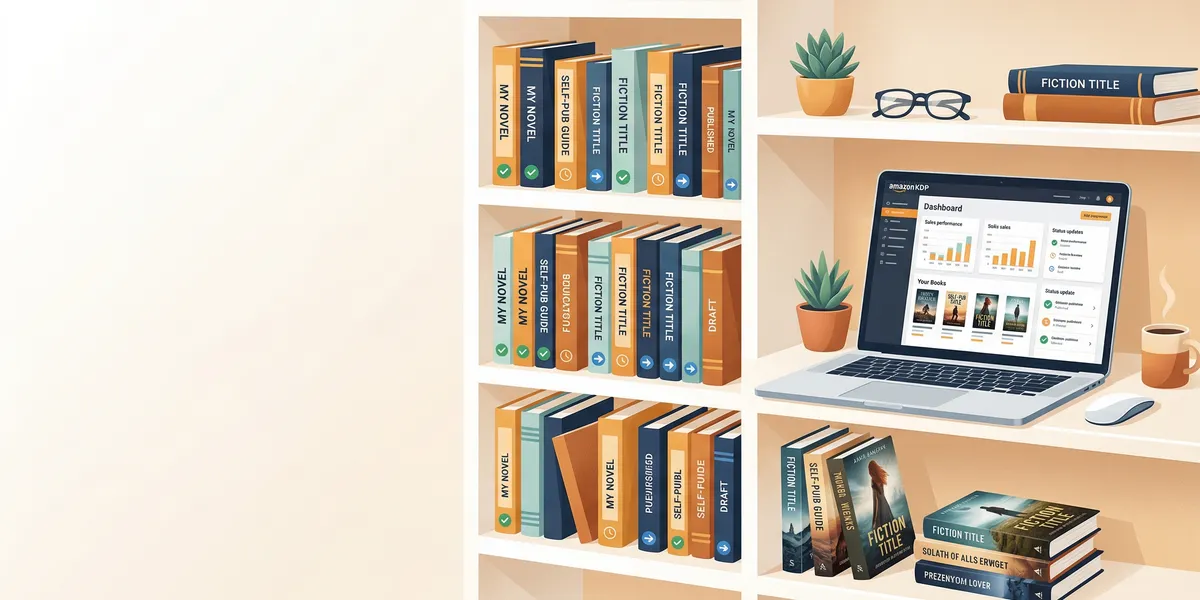
Your KDP Bookshelf is the central hub where you manage every book you publish on Amazon. From uploading new manuscripts to tracking royalties and running promotions, everything flows through this single dashboard inside Kindle Direct Publishing.
Whether you have one book or fifty, understanding how the Bookshelf works saves you time and prevents the metadata mistakes that delay publications. This guide walks through every feature, status, and action available on your KDP Bookshelf — plus how to write a book worth putting on it.
What is the KDP Bookshelf?
The KDP Bookshelf is the main dashboard inside your Kindle Direct Publishing account. When you log in at kdp.amazon.com, the Bookshelf is the first screen you see. It lists every title you have created — published, in progress, or archived.
From the Bookshelf, you can:
- Create new ebook, paperback, or hardcover titles
- Edit metadata (title, description, keywords, categories)
- Upload or replace manuscript files and cover images
- Set and change pricing across all Amazon marketplaces
- Track book status through the publishing pipeline
- Access sales reports and royalty data
- Order author copies of print books
- Enroll titles in KDP Select for Kindle Unlimited
- Archive or unpublish titles you want to remove
For a single book the interface is simple. For authors managing dozens of titles, the Bookshelf becomes an operations dashboard where good organization prevents costly mistakes.
How to access your KDP Bookshelf
Getting to your Bookshelf takes three steps:
- Go to kdp.amazon.com
- Sign in with your Amazon account credentials
- You land directly on the Bookshelf
If you already have an Amazon customer account, you can use those same credentials. There is no separate KDP account to create — your existing Amazon login works. First-time users will need to complete tax information and payment details before publishing, but you can browse the Bookshelf immediately.
Bookmark kdp.amazon.com/bookshelf for direct access. The Bookshelf is also accessible from the navigation menu at the top of any KDP page.
Understanding Bookshelf views
The KDP Bookshelf offers four views to help you filter and organize your titles. Switch between them using the View dropdown to the left of the search bar.
| View | What it shows |
|---|---|
| Your Titles | Default view — all active titles, excludes archived |
| Series Titles | Only titles grouped into a series, excludes archived |
| Archived Titles | Only titles you have archived |
| All Titles | Everything — active, archived, all formats |
Your Titles is where you will spend most of your time. It shows every live and in-progress title without the clutter of archived projects.
Series Titles is useful when you publish multiple books in a series and want to manage them as a group. You can link related titles (ebook, paperback, hardcover) together so they appear on the same Amazon product page.
Archived Titles hides books from your default view without removing them from Amazon. Archiving is fully reversible — you can unarchive any title at any time.
Use the search bar to find specific titles quickly if your catalog grows large. You can search by title, subtitle, or ISBN.
KDP Bookshelf book statuses explained
Every title on your Bookshelf has a status label showing where it sits in the publishing pipeline. Understanding these statuses tells you what actions you can take next.
Draft
Your book has been started but not submitted for publishing. You can edit everything — manuscript, cover, metadata, categories, keywords, pricing, and rights. There is no deadline to submit a draft. It stays in this status until you click Publish.
In Review
You have clicked Publish and Amazon is reviewing your book. This typically takes up to 72 hours, though many books go live within 24 hours. During In Review, most settings are locked. Avoid making edits until the review completes.
Publishing
Amazon has approved your book and is pushing it live to the store. This is a brief transitional status between In Review and Live. No action needed on your part.
Live
Your book is available for purchase on Amazon. You can still edit metadata, update your manuscript file, change pricing, or upload a new cover. Changes to live books typically take 24-72 hours to reflect on Amazon.
Archived
You have moved the title out of your active Bookshelf view. The book remains on Amazon for sale — archiving only affects your dashboard organization. To truly remove a book from sale, you need to unpublish it.
Blocked or unavailable
Amazon has flagged an issue with your title. Check your KDP email and Bookshelf alerts for specific details. Common causes include content policy violations, rights disputes, or missing tax information. Resolve the flagged issue and resubmit.
Managing your books on the Bookshelf
The ellipsis menu (the ”…” button) next to each title is your gateway to every management action. Here is what you can do with each book.
Editing book details
Click the ellipsis and select “Edit eBook Details,” “Edit Paperback Details,” or “Edit Hardcover Details” depending on the format. This takes you back into the title setup workflow where you can change:
- Title, subtitle, and series information
- Book description (the sales copy buyers see on Amazon)
- Keywords (up to 7 keyword phrases for discoverability)
- Categories (choose up to 3 browse categories)
- Author name and contributors
- Language, publication date, and ISBN
Changes to live books enter a review queue and typically update within 72 hours.
Updating your manuscript or cover
From the same edit workflow, navigate to the Content tab to upload a new manuscript file or cover image. KDP accepts manuscripts in DOCX, EPUB, KPF, and PDF formats depending on the book type.
For ebooks, Amazon’s Kindle Create tool converts your manuscript into a Kindle-optimized format. For print books, ensure your file matches the trim size and bleed settings you selected.
After uploading, always use the online previewer to check formatting before republishing. Formatting issues are the most common reason books look wrong after publishing.
Setting and changing prices
Navigate to the Pricing tab for any title to set or adjust prices. You can set different prices for each Amazon marketplace (US, UK, Germany, Japan, etc.) or let Amazon auto-calculate international prices based on your primary price.
KDP offers two royalty options for ebooks:
| Royalty plan | Rate | Price range |
|---|---|---|
| 35% royalty | 35% of list price | $0.99 - $200.00 |
| 70% royalty | 70% of list price minus delivery costs | $2.99 - $9.99 |
For print books, your royalty is 60% of the list price minus printing costs. The exact printing cost depends on page count, trim size, ink type, and marketplace. KDP shows your estimated royalty per sale before you publish.
Viewing your book on Amazon
The “View on Amazon” link next to each title takes you directly to your book’s product page. Hover over it to see links for each marketplace where your book is available. Use this to verify your listing looks correct, check your cover display, and confirm your description formatting.
Ordering author copies
For print titles, you can order copies at the printing cost — no royalty markup. Author copies are perfect for events, giveaways, review copies, or personal stock. Order through the ellipsis menu next to your print title.
Using KDP reports and analytics
Beyond the Bookshelf itself, KDP provides a reporting dashboard at kdpreports.amazon.com for tracking sales and earnings.
Sales Dashboard
The main dashboard shows estimated royalties, unit sales, and Kindle Edition Normalized Pages (KENP) read for KDP Select titles. You can filter by date range, marketplace, and individual title.
The “Today” tab gives near-real-time estimates (roughly 2-hour delay). Use this to spot trends, measure the impact of promotions, and track launch-day performance.
Key report types
| Report | What it tracks |
|---|---|
| Orders | Units sold across all formats and marketplaces |
| KENP Read | Pages read through Kindle Unlimited |
| Royalties Estimator | Estimated earnings before finalization |
| Prior Months’ Royalties | Finalized royalty payments |
Amazon pays royalties monthly, approximately 60 days after the end of the month in which sales occurred. March sales, for example, are paid out at the end of May.
Reading your reports strategically
Your reports tell you more than just revenue numbers. Use them to:
- Identify your best-performing marketplace — if UK sales are strong, consider UK-specific advertising
- Measure promotion impact — compare sales before, during, and after a KDP Select free promotion or Countdown Deal
- Track KENP trends — rising page reads suggest your book is getting traction in Kindle Unlimited
- Spot seasonal patterns — many genres see predictable spikes around holidays or back-to-school periods
KDP Select: should you enroll?
From your Bookshelf, you can enroll any ebook in KDP Select — Amazon’s optional program that adds your book to Kindle Unlimited in exchange for exclusivity.
What you get
- Your ebook appears in Kindle Unlimited, where subscribers can read it at no additional cost
- You earn per page read (typically $0.004-$0.005 per KENP page)
- Access to promotional tools: Free Book Promotions (up to 5 days per 90-day term) and Kindle Countdown Deals
- 70% royalty eligibility in additional marketplaces (Brazil, Japan, India, Mexico)
- Eligibility for All Stars bonuses based on top readership
The tradeoff
KDP Select requires 90-day exclusivity periods. During enrollment, your ebook cannot be sold or distributed digitally anywhere else — not on your website, Apple Books, Barnes & Noble, Kobo, or any other retailer. Physical formats are not affected.
KDP Select works best for authors whose primary audience reads on Kindle, especially in genres where Kindle Unlimited readership is high (romance, thriller, science fiction, LitRPG). If your strategy depends on wide distribution across multiple retailers, skip KDP Select and publish wide through platforms like Draft2Digital.
Writing a book worth publishing on KDP
Your KDP Bookshelf is only as valuable as the books on it. The hardest part of self-publishing is not navigating Amazon’s dashboard — it is writing a complete, polished manuscript that readers want to buy.
This is where most authors stall. They set up their KDP account, study the Bookshelf, research keywords — and then spend months (or years) trying to finish the actual book.
Our Pick — Chapter
Chapter.pub is an AI book writing platform that helps you go from idea to finished manuscript. It handles structure, drafts, and editing so you can focus on your expertise and ideas rather than staring at a blank page.
Best for: Nonfiction authors who want a complete manuscript ready for KDP Pricing: $97 one-time Why we built it: Writing the book is the bottleneck — not publishing it. Over 2,147 authors have used Chapter to create more than 5,000 books, with results featured in USA Today and the New York Times.
Chapter works particularly well for the KDP workflow because it produces clean, structured manuscripts that export easily into the formats KDP accepts. Instead of wrestling with formatting issues on your Bookshelf, you start with a manuscript that is ready to upload.
Common KDP Bookshelf mistakes to avoid
Even experienced self-publishers run into these problems. Avoiding them saves you days of waiting for re-reviews and lost sales from broken listings.
- Submitting with metadata errors — typos in your title, subtitle, or description delay review and look unprofessional on Amazon. Triple-check every field before hitting Publish.
- Ignoring keyword optimization — your 7 keyword slots directly affect discoverability. Research what readers actually search for rather than guessing. Our guide to Amazon keywords for books covers this in detail.
- Uploading unformatted manuscripts — a DOCX file that looks fine in Word can break in Kindle formatting. Always preview your ebook using KDP’s online previewer or the Kindle Previewer desktop app before publishing.
- Confusing archiving with unpublishing — archiving only hides a title from your Bookshelf view. The book stays live on Amazon. To actually stop selling a book, you must unpublish it through the ellipsis menu.
- Setting prices without checking royalties — pricing your ebook at $1.99 locks you into the 35% royalty tier. If your content supports it, pricing at $2.99 or higher qualifies for the 70% royalty rate and usually nets you more per sale.
- Forgetting international pricing — KDP serves readers in over a dozen marketplaces. If you only set a US price and let Amazon auto-convert, your book may be priced awkwardly in other currencies. Check key markets manually.
FAQ
How do I find my book on Amazon after publishing?
Go to your KDP Bookshelf and look for the “View on Amazon” link next to your title. Hover over it to see links for each marketplace. Click the marketplace you want, and it takes you directly to your book’s product page. New books typically appear within 72 hours of submission.
Can I edit a book after it is published on KDP?
Yes. Click the ellipsis (”…”) next to your live title and select the appropriate edit option. You can update your manuscript, cover, description, keywords, categories, and pricing. Changes enter Amazon’s review queue and typically go live within 24-72 hours.
What is the difference between archiving and unpublishing a KDP book?
Archiving hides a title from your default Bookshelf view but keeps it for sale on Amazon. Unpublishing removes the book from sale entirely — customers can no longer buy new copies (though third-party sellers may still list used copies). Archiving is reversible; unpublishing is also reversible, but requires going back through the review process.
How long does KDP review take?
Most books are reviewed and published within 72 hours. Many go live within 24 hours. If your book contains content that triggers a manual review (sensitive topics, previously flagged account, or AI-generated content requiring disclosure), the review may take longer.
Do I need a separate account for the KDP Bookshelf?
No. Your regular Amazon customer account works for KDP. Sign in at kdp.amazon.com with the same email and password you use for Amazon shopping. You will need to add tax information and payment details to receive royalties, but no separate account creation is required.