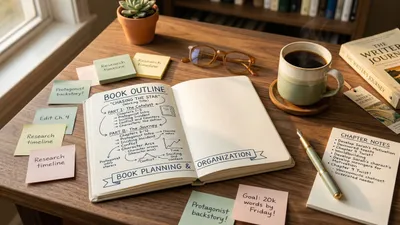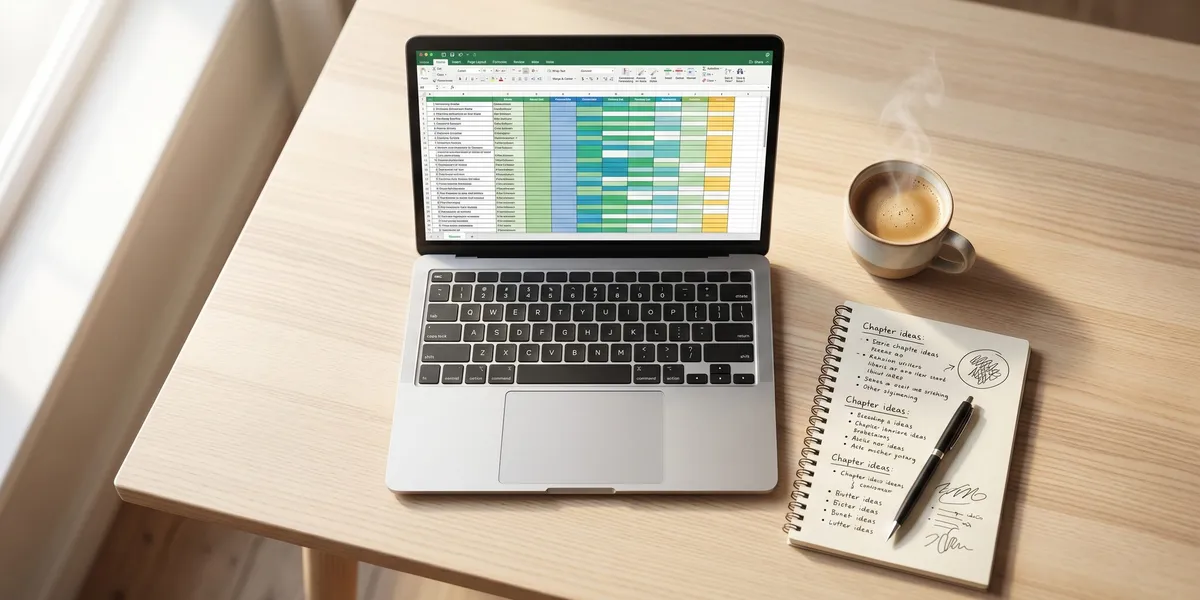
A book planning spreadsheet is a structured document — built in Google Sheets, Excel, or a similar tool — that organizes every element of your book project in one place. You can track chapters, characters, word count targets, research notes, and deadlines across multiple tabs without losing a single detail.
In this guide, you’ll learn:
- How to set up a book planning spreadsheet from scratch (with exact columns to use)
- Which tabs every fiction and nonfiction writer needs
- How to track word count, deadlines, and revision progress automatically
- When a spreadsheet works better than dedicated book writing software
Here’s how to build one that actually keeps your book project on track.
Why Use a Book Planning Spreadsheet?
A book planning spreadsheet gives you a bird’s-eye view of your entire project that no single document can match. You see every chapter, character arc, and deadline in one glance — and you spot structural problems before they cost you weeks of rewriting.
Writers who use spreadsheets for book planning report three consistent benefits. First, they finish drafts faster because the structure is already decided before they write. Second, they catch plot holes and pacing issues early by scanning their scene grid. Third, they maintain momentum by tracking daily word count against a visible deadline.
The spreadsheet approach works because writing a book is fundamentally a project management challenge. You need to coordinate dozens of chapters, multiple character arcs, research sources, revision passes, and publishing deadlines. A spreadsheet handles all of that without forcing you to learn complex software.
What to Include in Your Book Planning Spreadsheet
Before you open a blank spreadsheet, you need to know which elements to track. The exact columns depend on whether you’re writing fiction or nonfiction, but every book planning spreadsheet should cover these five core areas.
Chapter and Scene Tracker
This is the backbone of your spreadsheet. Create columns for:
- Chapter number — sequential numbering
- Chapter title — working titles you can update later
- Scene summary — one sentence describing the main event
- POV character — who narrates this section (fiction)
- Word count target — estimated length per chapter
- Status — not started, drafting, first revision, final
This tracker alone prevents the most common reason books stall out: losing track of where you are and what comes next. When you can see your entire book outline as a grid, structural gaps become obvious.
Character Database
Fiction writers need a dedicated tab for character tracking. Set up columns for:
- Character name and any aliases
- Role — protagonist, antagonist, supporting, minor
- Physical description — key visual details
- Motivation — what they want and why
- Arc — how they change from beginning to end
- First appearance — which chapter they enter
- Relationships — connections to other characters
Color-code your characters and reference those colors in your chapter tracker. This technique — used by authors like Caroline Hardaker and Iulian Ionescu — lets you visually scan which characters appear in each chapter and spot if anyone disappears for too long.
Word Count and Deadline Tracker
Create a tab that connects your writing output to your timeline. Include:
| Column | Purpose | Example |
|---|---|---|
| Date | Each writing day | Apr 27, 2026 |
| Words written | Daily output | 1,200 |
| Cumulative total | Running count | 34,500 |
| Target total | Where you should be | 35,000 |
| Difference | Ahead or behind | -500 |
| Chapter worked on | What you wrote | Ch. 12 |
Set a formula to calculate your daily target based on your total word count goal and deadline. If you’re writing a 75,000-word novel and you have 90 days, your daily target is 834 words. The spreadsheet shows whether you’re ahead, on pace, or falling behind — every single day.
Research and Reference Notes
Nonfiction writers especially benefit from a dedicated research tab. Track:
- Source title and author
- Key data points or quotes you plan to use
- Chapter where it belongs — linked to your chapter tracker
- Citation format — ready for your bibliography
- Fact-checked — yes or no
Fiction writers can adapt this tab for worldbuilding details, historical accuracy notes, or character profile reference material. The goal is one central place for every fact your book depends on so you never waste time re-finding a source.
Revision Checklist
Add a tab for your editing passes. Create columns for:
- Chapter number
- Structural edit — complete or pending
- Line edit — complete or pending
- Fact check — complete or pending (nonfiction)
- Continuity check — complete or pending (fiction)
- Final proofread — complete or pending
- Notes — specific issues to fix
This tab transforms revision from an overwhelming task into a measurable checklist. You can see exactly how much editing remains and which chapters need the most work.
How to Set Up Your Book Planning Spreadsheet (Step by Step)
Follow these seven steps to build a functional book planning spreadsheet from scratch. The whole setup takes about 30 minutes.
Step 1: Choose Your Platform
Google Sheets is the best free option for most writers. It auto-saves, works on any device, and lets you share with beta readers or editors. Microsoft Excel offers more powerful formulas and offline access. Either works — pick whichever you already use.
If you prefer a more visual approach, tools like Milanote and Grist offer database-style templates specifically designed for novel planning.
Step 2: Create Your Tab Structure
Start with these five tabs:
- Overview — book title, genre, target word count, deadline, one-paragraph premise
- Chapters — your chapter/scene tracker (the main planning grid)
- Characters — your character database (fiction) or source tracker (nonfiction)
- Progress — daily word count and deadline tracking
- Revision — editing checklist by chapter
You can add more tabs later — settings for worldbuilding, a timeline for historical fiction, a marketing tab for your book launch plan — but these five cover the essentials.
Step 3: Build Your Chapter Grid
On the Chapters tab, create your column headers across row 1. Then add one row for each planned chapter. If you’re not sure how many chapters you’ll have, start with 20-30 rows for fiction or 10-15 for nonfiction.
Fill in what you know. Leave cells blank where you haven’t decided yet. The spreadsheet should reflect your current thinking, not force you to have every detail figured out before you start writing.
Pro tip: Add conditional formatting so cells turn green when a chapter’s status is “complete.” That visual progress bar becomes genuinely motivating as you watch your grid fill up with green.
Step 4: Add Formulas for Automatic Tracking
In your Progress tab, add these formulas:
- Cumulative word count:
=SUM(B$2:B2)in column C (drag down for each row) - Daily target:
=($C$1-C2)/(DAYS($D$1,A2))where C1 is total goal and D1 is deadline - Percentage complete:
=C2/$C$1formatted as a percentage - Days remaining:
=DAYS($D$1,TODAY())
These formulas turn your spreadsheet from a static list into a living dashboard that updates every time you log your daily words.
Step 5: Color-Code for Visual Scanning
Assign colors to key categories:
- Character colors — each major character gets a highlight color in the chapter grid
- Status colors — red for not started, yellow for in progress, green for complete
- Story element colors — blue for plot points, purple for subplots, orange for theme moments
The color-coding approach popularized by writers like Andrew D. Connell transforms a wall of text cells into a visual map of your entire book. You can instantly see if your subplot disappears for five chapters or if your B-story character goes missing in the middle act.
Step 6: Set Up Your Revision Tracker
On the Revision tab, list every chapter with checkbox columns for each editing pass. Add a “Notes” column for specific issues you spot during each pass.
Link this tab to your Chapter tab so chapter titles auto-populate. That way you only update chapter information in one place.
Step 7: Create a Dashboard Summary
On your Overview tab, pull in key metrics from other tabs using formulas:
- Total chapters planned vs. completed
- Current word count vs. target
- Days until deadline
- Percentage of revisions complete
This dashboard becomes your project’s command center. Open it at the start of each writing session to see exactly where you stand and what to work on next.
Book Planning Spreadsheet vs. Dedicated Writing Software
Spreadsheets are powerful, but they’re not the only way to organize a book. Here’s how they compare to dedicated tools.
| Feature | Spreadsheet | Dedicated Software |
|---|---|---|
| Cost | Free (Google Sheets) | $0-$97+ |
| Learning curve | Low if you know spreadsheets | Varies by tool |
| Customization | Unlimited — build anything | Pre-built structures |
| Writing + planning | Separate tools needed | All-in-one |
| AI assistance | None built in | Available in some tools |
| Collaboration | Easy sharing | Depends on tool |
| Mobile access | Good (Google Sheets) | Varies |
Spreadsheets excel at: custom tracking, deadline management, data visualization, and writers who want total control over their planning system.
Dedicated software excels at: combining planning with actual writing, AI-assisted outlining, and writers who prefer guided structure over blank grids.
Our Pick — Chapter
If you want an all-in-one solution that handles both planning and writing, Chapter combines AI-powered outlining with a full writing environment. Instead of building spreadsheet formulas, you describe your book’s concept and Chapter generates a complete chapter-by-chapter outline you can customize and start writing from immediately.
Best for: Writers who want planning and writing in one tool without manual spreadsheet setup Pricing: $97 one time, 2 books included (fiction or nonfiction), 30-day money-back guarantee Why we built it: Over 2,147 authors and 5,000+ books later, we found most writers abandon spreadsheet planning because it lives separate from the actual writing. Chapter puts both in one place.
You don’t have to choose one approach exclusively. Many of Chapter’s 2,147+ authors use a spreadsheet alongside the platform — the spreadsheet for high-level project management, Chapter for the actual writing and AI-assisted outlining.
Book Planning Spreadsheet Template for Fiction
Here’s a ready-to-copy fiction spreadsheet structure. Create these columns on your main Chapters tab:
| Chapter | Title | POV | Scene Summary | Setting | Characters Present | Conflict | Resolution | Word Target | Status |
|---|---|---|---|---|---|---|---|---|---|
| 1 | The Letter | Maya | Maya finds a letter from her dead mother | Kitchen, Portland | Maya, Dad | Maya wants answers, Dad refuses to talk | Maya decides to investigate alone | 3,000 | Drafted |
| 2 | The Drive | Maya | Maya drives to her mother’s hometown | Highway, Oregon coast | Maya | Internal conflict about what she’ll find | Arrives at the town | 2,500 | Not started |
Add a row for each chapter. Include a “Notes” column at the end for anything that doesn’t fit the other categories — foreshadowing reminders, research needed, dialogue snippets you want to include.
For a complete fiction outlining system, combine this spreadsheet with a story outline template that covers three-act structure or the hero’s journey framework.
Book Planning Spreadsheet Template for Nonfiction
Nonfiction books need different tracking columns. Here’s the structure:
| Chapter | Title | Core Argument | Supporting Evidence | Case Studies | Action Steps | Word Target | Sources Needed | Status |
|---|---|---|---|---|---|---|---|---|
| 1 | Why This Matters | The problem costs readers $X/year | Industry report, survey data | Client story: Sarah | Calculate your current cost | 4,000 | 3 studies | Outlined |
| 2 | The Framework | Our 5-step solution overview | Research from 3 universities | Before/after comparison | Download the worksheet | 3,500 | 2 studies, 1 expert quote | Not started |
The key difference from fiction: nonfiction chapters need to track evidence, sources, and practical takeaways. Each chapter should advance your argument while giving the reader something actionable.
For a more detailed nonfiction planning framework, see our book planning template guide, which includes premise worksheets and audience analysis tools.
Common Mistakes to Avoid
- Over-engineering your spreadsheet. If you spend more time formatting cells than writing, you’ve gone too far. Start simple and add complexity only when you need it.
- Not updating the tracker. A spreadsheet only works if you log your progress consistently. Build a 2-minute end-of-session habit: update word count, mark chapter status, add any notes.
- Tracking too many things. You don’t need 30 columns. Focus on the information that actually influences your writing decisions — everything else is decoration.
- Skipping the revision tab. Planning and drafting get all the attention, but the revision tracker is what prevents the “I finished my draft, now what?” paralysis that stops many first-time authors.
- Using the spreadsheet instead of writing. Planning is not writing. Once your spreadsheet has enough structure to guide your next session, close it and open your manuscript.
Can You Use Google Sheets for Book Planning?
You can absolutely use Google Sheets for book planning, and it’s one of the best free options available. Google Sheets offers real-time auto-saving, access from any device, easy sharing with writing partners or editors, and enough formula power to build automatic word count trackers and deadline calculators.
The main limitation is that Google Sheets lives separate from your writing environment. You’ll need to switch between your spreadsheet and your writing app — which is why some writers prefer all-in-one tools like Chapter or Scrivener that combine planning with writing.
How Many Tabs Should a Book Planning Spreadsheet Have?
A book planning spreadsheet should have five to seven tabs for most projects. Start with the essential five — Overview, Chapters, Characters, Progress, and Revision — then add tabs only when your project demands them.
Common additions include a Settings tab for worldbuilding details (fantasy and sci-fi), a Timeline tab for historical accuracy (historical fiction and memoir), and a Marketing tab for your launch plan once you approach publication.
More than ten tabs usually signals over-engineering. If your spreadsheet has become a procrastination tool rather than a writing tool, simplify.
What’s the Best Free Book Planning Spreadsheet Template?
The best free book planning spreadsheet template depends on your genre and complexity level. For simple projects, a single-tab chapter tracker in Google Sheets works perfectly. For complex novels with multiple POV characters and subplots, look for templates with dedicated character tracking and scene-level detail.
Several free options exist. Grist’s novel planning template offers a database-style approach. Google Sheets’ template gallery includes basic project trackers you can adapt. And our book outline template guide includes copy-paste structures that work in any spreadsheet.
For writers who’d rather skip the spreadsheet setup entirely, Chapter’s AI outline generator creates a complete chapter-by-chapter plan from your book concept — no formulas required.
FAQ
What is a book planning spreadsheet?
A book planning spreadsheet is a structured document in Google Sheets or Excel that organizes every element of your book project — chapters, characters, word count goals, research, and revision tracking — across multiple tabs. It gives you a visual overview of your entire project so you can spot gaps, track progress, and stay on deadline.
Is Google Sheets or Excel better for planning a book?
Google Sheets is better for most book planning because it auto-saves, works on any device, and lets you share with collaborators for free. Excel is better if you need advanced formulas, offline access, or handle extremely large datasets. Both are fully capable of supporting a complete book planning workflow.
How do I track word count in a book planning spreadsheet?
You track word count in a book planning spreadsheet by creating a daily progress tab with columns for date, words written, cumulative total, and target. Use the formula =SUM(B$2:B2) for running totals and =C2/[goal] for percentage complete. Update it at the end of each writing session for accurate tracking.
Can I use a spreadsheet to plan a nonfiction book?
You can use a spreadsheet to plan a nonfiction book by creating columns for chapter topics, core arguments, supporting evidence, case studies, and source citations. Nonfiction spreadsheets differ from fiction ones because they track research and evidence rather than character arcs and scene details. See our book planning template for ready-made nonfiction structures.
What’s the best alternative to a book planning spreadsheet?
The best alternative to a book planning spreadsheet is dedicated book writing software that combines planning with writing in one tool. Chapter uses AI to generate complete outlines from your book concept and provides a writing environment alongside the plan. Scrivener offers a traditional approach with binder-style organization, index cards, and corkboard views.