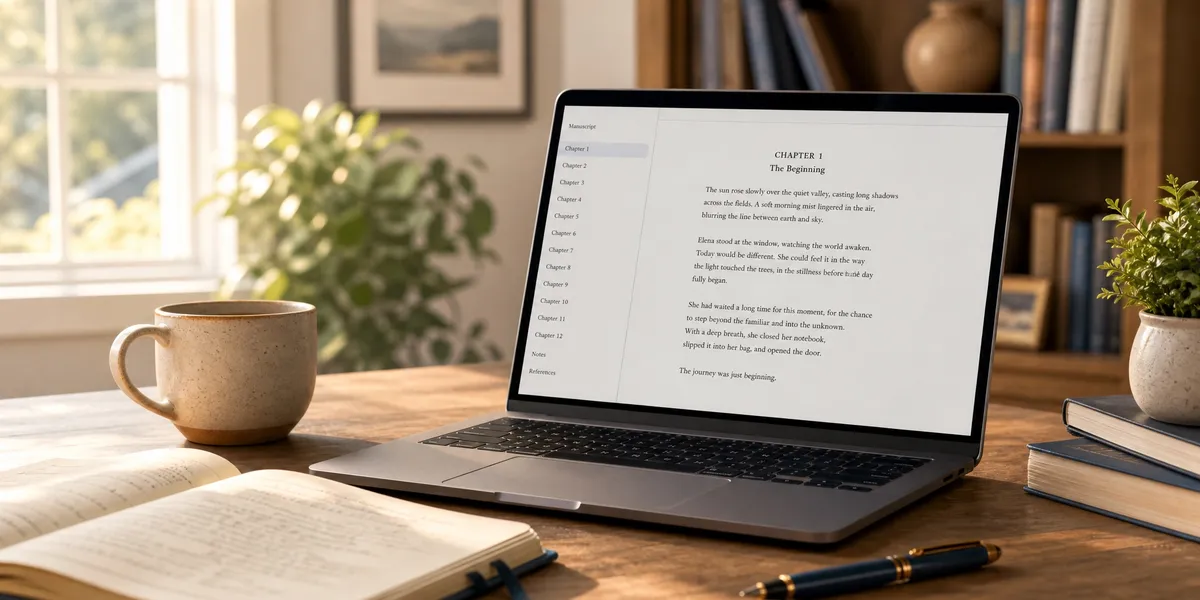
Yes, you can absolutely write a book in Google Docs — and thousands of authors do. It’s free, cloud-based, and familiar enough that you can start writing today without learning new software.
In this guide, you’ll learn:
- How to set up Google Docs specifically for book-length manuscripts
- The formatting settings that keep your chapters clean and organized
- Where Google Docs falls short (and what to use instead for serious projects)
Here’s everything you need to write your book in Google Docs from first outline to finished manuscript.
Is Google Docs Good Enough for Writing a Book?
Google Docs is a solid choice for drafting a book, especially if you’re writing your first manuscript or working on a shorter project. It handles the actual writing phase well — you get cloud saves, real-time collaboration, and access from any device.
But “good enough” depends on your goals. Google Docs works beautifully as a drafting tool. It struggles as a publishing tool. You won’t find custom trim sizes, mirrored margins, or reliable EPUB export built in.
For a full breakdown of writing tools at every price point, check out the best book writing software compared side by side.
Bottom line: Google Docs is great for getting words on the page. For formatting, exporting, and publishing, you’ll likely need a dedicated tool — more on that later.
How to Set Up Google Docs for Book Writing
Before you type a single word, configure your document for a book-length project. These settings save hours of reformatting later.
Page Setup
Go to File > Page setup and adjust:
- Page size: 6” x 9” (standard trade paperback) or 5.5” x 8.5” (smaller trim). You may need the “Page Sizer” add-on for custom dimensions.
- Margins: 1” on all sides for drafting. For print-ready formatting, you’ll need 0.5” gutter margins — which Google Docs doesn’t natively support.
- Orientation: Portrait (always for books).
Font and Text Settings
Choose a readable serif font for your manuscript body:
- Font: Times New Roman, Georgia, or Garamond at 12pt
- Line spacing: 1.15 or 1.5 (go to Format > Line & paragraph spacing)
- Paragraph indent: 0.5” first-line indent (Format > Align & indent > Indentation options > Special indent > First line)
These settings mirror standard manuscript formatting conventions that editors and beta readers expect.
Heading Styles for Chapters
This is the single most important setup step. Use Google Docs’ built-in heading styles to structure your book:
- Heading 1 for chapter titles (“Chapter 1: The Beginning”)
- Heading 2 for major sections within chapters
- Normal text for body paragraphs
Heading styles power the automatic outline panel (View > Show outline) and let you generate a table of contents later. Skip this step and you’ll regret it at 50,000 words.
How to Organize Your Book Chapters in Google Docs
Once your formatting is set, you need a system for organizing chapters — especially for manuscripts over 40,000 words.
Option 1: One Document, Page Breaks Between Chapters
The simplest approach. Write everything in a single Google Doc and insert a page break (Insert > Break > Page break) before each new chapter.
Pros: Everything in one place, easy word count tracking, simple find-and-replace across the whole manuscript.
Cons: The document gets sluggish past 80,000-100,000 words. Scrolling becomes painful. Rearranging chapters means cutting and pasting huge blocks of text.
Option 2: Document Tabs (2026 Feature)
Google Docs now supports Document Tabs — a feature that lets you create multiple tabs within a single document. Think of it like browser tabs, but for chapters.
Create a tab for each chapter, plus tabs for your outline, character notes, and research. You get the organizational benefits of separate files with the convenience of one document.
Pros: Clean separation between chapters, easy to navigate, all content stays in one file.
Cons: Still shares the same formatting settings across tabs. Word count tracking per tab requires manual counting.
Option 3: Separate Documents in a Shared Folder
Create a Google Drive folder for your book and add a separate document for each chapter (01-chapter-one.doc, 02-chapter-two.doc, etc.).
Pros: Fast performance regardless of book length. Easy to rearrange chapter order. Each chapter loads instantly.
Cons: No unified word count. Find-and-replace only works per document. You’ll need to combine everything for export.
For most authors writing their first book, Option 1 works fine up to about 80,000 words. If you’re writing a longer manuscript or a book series, Options 2 or 3 give you more flexibility.
How to Create a Book Outline in Google Docs
A solid outline saves you from writing yourself into corners. Google Docs gives you two built-in ways to outline.
Using the Outline Panel
Turn on the outline panel (View > Show outline). Every Heading 1 and Heading 2 in your document appears in the left sidebar as a clickable navigation link.
Start by typing your chapter titles as Heading 1 entries. Add brief notes under each as normal text. This gives you a bird’s-eye view of your book structure that you can click through as you write.
Using a Separate Outline Document
For complex books — especially nonfiction with research components — create a dedicated outline document. Use bullet points or numbered lists to map:
- Chapter topics and key arguments
- Scene beats for each chapter (fiction)
- Source materials and research notes
- Target word count per chapter
Need a head start? Grab a free book outline template and adapt it to your project.
How to Use Google Docs’ Collaboration Features for Your Book
Real-time collaboration is where Google Docs genuinely outshines most desktop writing software.
Working With Co-Authors
Click Share and add your co-author’s email. You can both write simultaneously, see each other’s cursors, and leave comments in real time. This is genuinely useful for co-authored books, anthologies, or ghostwriting projects.
Working With Editors and Beta Readers
Switch to Suggesting mode (click the pencil icon in the top right and select “Suggesting”). Every edit your reviewer makes appears as a tracked change that you can accept or reject individually.
This workflow replaces the old process of emailing Word documents back and forth. Your editor marks up the manuscript, you review their suggestions, and the revision history keeps every version.
Leaving Comments and Feedback
Highlight any text and click the comment icon (or use Ctrl+Alt+M). Comments thread like a conversation — your editor asks a question, you reply, and you resolve the thread when it’s addressed.
For a deeper look at the editing process, see our guide on how to finish writing a book — including the revision stages that come after your first draft.
Google Docs Formatting Tips for Book Manuscripts
Getting the formatting right in Google Docs takes some intentional setup. Here are the specifics.
Adding a Title Page
Create your title page on the first page of your document:
- Center-align the text
- Add your book title in a larger font (18-24pt, bold)
- Add your author name below it
- Insert a page break after the title page
Building a Table of Contents
Once you’ve applied Heading styles to all your chapters, go to Insert > Table of contents and choose the linked version. Google Docs generates a clickable TOC that updates automatically when you add or remove chapters.
Right-click the TOC and select “Update table of contents” whenever you make structural changes.
Adding Page Numbers
Go to Insert > Headers & footers > Page number and choose your placement (bottom center is standard for books). Check “Different first page” to hide the number on your title page.
Important limitation: Google Docs can’t do Roman numerals for front matter pages (i, ii, iii) followed by Arabic numerals for the body (1, 2, 3). You’ll need a dedicated book formatting tool for that.
Front and Back Matter
Every published book needs more than just chapters. Add these pages using page breaks:
Front matter: Title page, copyright page, dedication, table of contents Back matter: Acknowledgments, about the author, also by the author, glossary (if applicable)
For a complete walkthrough of what goes where, see our ebook formatting guide.
How to Track Word Count in Google Docs
Tracking your daily word count keeps you accountable and on schedule. Google Docs offers two approaches.
Quick Word Count
Press Ctrl+Shift+C (or Cmd+Shift+C on Mac) to see your total word count. Highlight a specific section first to count just that selection.
Display Word Count While Typing
Go to Tools > Word count and check “Display word count while typing.” A small counter appears at the bottom left of your screen — helpful for hitting daily writing targets.
Most book writing apps offer more detailed progress tracking (words per chapter, daily goals, streak tracking). But Google Docs’ basic counter works for authors who just need a number.
How to Export Your Book From Google Docs
You’ve finished your manuscript. Now you need to get it out of Google Docs and into a publishable format.
Export Options
Go to File > Download and choose:
- Microsoft Word (.docx): Best for sending to editors or uploading to formatting tools
- PDF: Works for simple ebook distribution, but lacks reflowable text
- EPUB: Available through File > Download, but the output is basic and often needs cleanup
- Plain Text (.txt): Strips all formatting — useful as a last resort
The Export Reality Check
Here’s where Google Docs hits its ceiling. The exports work for drafts but rarely produce publication-ready files. Common issues include:
- Inconsistent spacing and indentation in PDF exports
- Missing or broken formatting in EPUB files
- No support for print-specific features (bleed, crop marks, gutter margins)
For self-publishing on Amazon KDP or IngramSpark, you’ll almost certainly need to run your exported .docx through a proper formatting tool like Atticus, Vellum, or a dedicated book formatting service.
When Google Docs Is Not Enough: Better Alternatives
Google Docs is a drafting tool, not a book production platform. Here’s when you should consider upgrading.
You’ve outgrown Google Docs if you:
- Need professional print formatting with custom trim sizes
- Want AI assistance to help you write faster
- Are managing a complex project (100,000+ words, multiple POVs, series bible)
- Need clean EPUB/MOBI exports for ebook stores
- Want built-in progress tracking and writing goals
Our Pick — Chapter
If you want to go beyond drafting and actually produce a complete book — outline, draft, and polished manuscript — Chapter uses AI to help you write your entire book in days instead of months. Over 2,147 authors have used it to create 5,000+ books, with results featured in USA Today and the New York Times.
Best for: Authors who want AI-powered book writing from outline to finished manuscript Pricing: $97 one time, 2 books included (fiction or nonfiction), 30-day money-back guarantee Why we built it: Google Docs gives you a blank page. Chapter gives you a writing partner that helps you structure, draft, and complete your book.
For a full comparison of every option, see our roundup of the best free writing software and the best AI tools for writing a book.
Google Docs Book Writing Tips From Published Authors
These practical tips come from authors who’ve written full manuscripts in Google Docs:
-
Use voice typing for first drafts. Go to Tools > Voice typing and dictate your rough draft. It’s faster than typing for many writers and helps you find a natural voice.
-
Create a “scratch pad” tab. Use Document Tabs to keep a scratch document for deleted scenes, alternate dialogue, and random ideas. Don’t delete anything permanently — you might need it later.
-
Set up keyboard shortcuts. Customize shortcuts for your most-used heading styles (Tools > Preferences). Formatting chapters should take seconds, not minutes.
-
Use the “Version history” as insurance. Google Docs saves every version automatically (File > Version history). Name key versions (“Draft 1 Complete,” “Post-Editor Revision”) so you can roll back if needed.
-
Install the “Table of Contents” add-on. The built-in TOC works, but add-ons offer more formatting control and clickable navigation for longer manuscripts.
-
Write in full-screen mode. Click View > Full screen to eliminate distractions. Pair it with the outline panel for distraction-free writing with easy navigation.
Can You Write a Full-Length Novel in Google Docs?
You can write a full-length novel in Google Docs, and many published authors have done exactly that. The platform handles manuscripts up to 80,000-100,000 words without significant performance issues.
Beyond that word count, you may notice slower loading times and occasional lag when scrolling. For epic fantasy or multi-book series projects exceeding 100,000 words, consider splitting chapters into separate documents or switching to dedicated novel writing software.
The bigger question isn’t whether Google Docs can handle a novel — it’s whether it’s the most efficient tool for the job. If you’re spending hours fighting formatting issues instead of writing, that’s a sign you’ve outgrown the platform.
How Does Google Docs Compare to Microsoft Word for Book Writing?
Both Google Docs and Microsoft Word work for writing books, but they serve different needs:
| Feature | Google Docs | Microsoft Word |
|---|---|---|
| Price | Free | $6.99/month (Microsoft 365) |
| Cloud saves | Automatic | Requires OneDrive setup |
| Real-time collaboration | Built-in, seamless | Available but clunkier |
| Offline access | Yes (with Chrome extension) | Yes (native) |
| Advanced formatting | Limited | Robust (styles, sections, headers) |
| EPUB export | Basic | Requires add-ins |
| Print formatting | Minimal | Better, but still limited |
| Performance at 100K+ words | Sluggish | Generally better |
Choose Google Docs if: You want free, easy collaboration and you’re primarily drafting. Choose Word if: You need advanced formatting features and plan to handle layout yourself. Choose neither if: You want a tool built specifically for writing books — see our book writing software comparison for purpose-built options.
Common Mistakes When Writing a Book in Google Docs
Avoid these pitfalls that trip up first-time book authors:
- Skipping heading styles. Without Heading 1 and Heading 2 styles, you lose the outline panel, automatic TOC, and easy navigation. Set these up from day one.
- Writing without page breaks. Chapters should start on new pages. Use Insert > Break > Page break — not just hitting Enter multiple times.
- Ignoring version history. Name your important versions. When you accidentally delete 2,000 words (it happens), version history is your safety net.
- Formatting as you write. Write first, format later. Fiddling with fonts and spacing while drafting kills your momentum.
- Not backing up. Google Docs auto-saves to the cloud, but also download a .docx backup to your local drive weekly. Cloud services can have outages.
FAQ
Can you write a book in Google Docs for free?
Yes, you can write a book in Google Docs completely free. All you need is a Google account. Google Docs includes cloud storage, real-time collaboration, and basic formatting tools at no cost. However, you may need paid tools for professional formatting and export when you’re ready to publish.
How do you format a book manuscript in Google Docs?
To format a book manuscript in Google Docs, set your page size to 6” x 9”, use a 12pt serif font like Times New Roman, apply Heading 1 styles to chapter titles, add 0.5” first-line paragraph indents, and insert page breaks between chapters. Use the built-in table of contents for navigation.
Is Google Docs or Microsoft Word better for writing a book?
Google Docs is better for free cloud-based drafting and collaboration, while Microsoft Word offers stronger formatting and better performance on long manuscripts. For serious book projects, neither is ideal — dedicated book writing software like Chapter, Scrivener, or Atticus provides purpose-built features for authors.
Can Google Docs export to EPUB for ebook publishing?
Google Docs can export to EPUB format through File > Download, but the output is basic and often needs significant cleanup. For professional ebook publishing, export your manuscript as a .docx file and use a dedicated ebook formatting tool like Atticus or Vellum to produce a polished EPUB.
What is the maximum word count Google Docs can handle?
Google Docs can technically handle documents up to 1.02 million characters (roughly 150,000-200,000 words). However, performance degrades noticeably past 80,000-100,000 words with slower loading, scrolling lag, and occasional freezes. For longer manuscripts, split your book into chapter-level documents within a shared Google Drive folder.