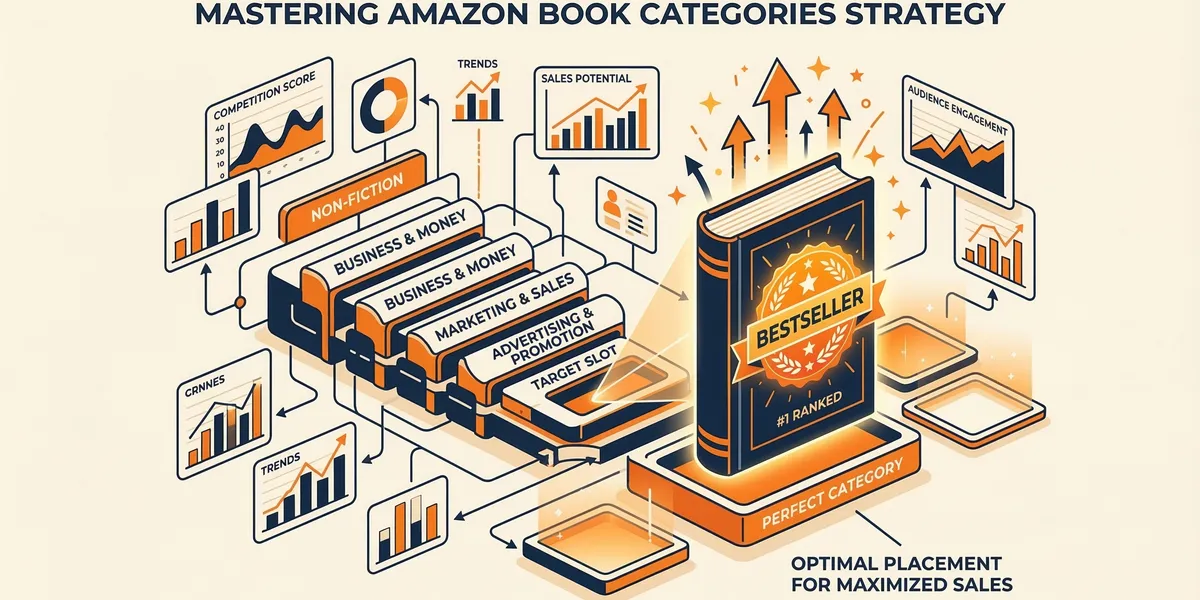
Choosing the right Amazon book categories is the fastest way to earn a bestseller badge — and the most overlooked strategy in self-publishing. The right category can make your book #1 overnight. The wrong category buries it on page 47 where nobody will ever find it.
Amazon lets you place your book in up to 3 browse categories during setup, plus additional keyword-driven categories that Amazon assigns based on your metadata. The strategy is simple: find categories with enough readers to matter but few enough competing books that you can rank.
This guide shows you exactly how to research categories, pick the right ones, and use Amazon’s category system to maximize visibility.
What this guide covers
- Why categories matter
- How Amazon categories work
- How to research categories
- The niche category strategy
- How to request additional categories
- Common category mistakes
- FAQ
Why Amazon categories matter
Amazon categories serve three functions that directly impact your book’s discoverability and sales:
Bestseller badges
When your book ranks #1 in a category, Amazon displays an orange “Best Seller” badge on your book cover thumbnail. This badge is visible everywhere — in search results, in “also bought” sections, and on your book page. According to Kindlepreneur’s research, books with a bestseller badge see a 30-50% increase in click-through rates from Amazon search results.
Browse path visibility
Every Amazon category has a browse page where readers can discover books by browsing rather than searching. Readers who browse categories are actively looking for something new to read — they have high purchase intent. Being in the right category puts your book in front of these browsing buyers.
Algorithm signals
Amazon’s A10 algorithm uses your category performance as a ranking signal. A book that is #1 in its category gets more algorithmic visibility than a book ranked #5,000 in a broader category — even if the broader category has more total readers. Amazon rewards relative performance within categories.
How Amazon categories work
Understanding Amazon’s category system is essential before you start choosing. It is more nuanced than most authors realize.
Browse categories vs BISAC codes
When you publish on KDP, you select categories using Amazon’s browse category tree. These are different from BISAC (Book Industry Standards and Communications) codes used by traditional publishers and bookstores.
Amazon’s browse categories are more granular than BISAC codes. For example, BISAC has “FICTION / Fantasy / General.” Amazon has:
- Kindle Store > Kindle eBooks > Science Fiction & Fantasy > Fantasy > Sword & Sorcery
- Kindle Store > Kindle eBooks > Science Fiction & Fantasy > Fantasy > Coming of Age
- Kindle Store > Kindle eBooks > Science Fiction & Fantasy > Fantasy > Military
Each of those sub-categories has its own bestseller list, its own browse page, and its own ranking system.
How many categories you get
| Category type | How many | How to get them |
|---|---|---|
| KDP browse categories | Up to 3 | Selected during KDP setup |
| Keyword-driven categories | Up to 7+ | Amazon assigns based on your book’s keywords |
| Requested categories | Unlimited (in theory) | Email KDP support to add categories |
Your 3 browse categories are your starting point. But your 7 backend keywords can trigger placement in additional categories that Amazon maps to specific keyword phrases.
Kindle vs print categories
Amazon maintains separate category rankings for Kindle ebooks and print books. Your Kindle edition can rank in different categories than your paperback. This means you effectively get 6+ category placements across formats — doubling your visibility.
How to research categories
Picking categories without research is guessing. Here is a systematic approach.
Step 1: Start with Amazon’s bestseller lists
Go to Amazon Best Sellers and navigate to your genre. Click through sub-categories to see how deep the tree goes. Note the categories that match your book’s topic and audience.
For each potential category, check:
- Number of sub-categories. More sub-categories means more niche options.
- Sales rank of the #1 book. A category where the #1 book has a sales rank of 50,000+ means relatively low competition.
- Sales rank of the #20 book. This tells you how deep the competition goes.
Step 2: Analyze the competition
For each category you are considering, look at the top 20 books. Ask:
| Question | What it tells you |
|---|---|
| How many reviews does the #1 book have? | High review counts mean entrenched competition |
| Are the top books from major publishers? | Traditional publisher dominance is harder to break through |
| When were the top books published? | A list dominated by 2020-era books may be ripe for fresh content |
| Is there a mix of indie and traditional? | Mixed lists are the most accessible for self-published authors |
| Does your book fit the category genuinely? | Mismatched books get reported and removed by readers and competitors |
Step 3: Use category research tools
Several tools automate the research process:
- Publisher Rocket ($97 one-time) — The most popular category research tool. Shows competition scores, estimated sales, and keyword-category mapping. Used by over 100,000 authors.
- KDSpy ($47 one-time) — Chrome extension that pulls sales and ranking data directly from Amazon search results.
- Kindlepreneur’s Free Category Search — Free tool that helps you browse Amazon’s category tree.
Step 4: Check category-keyword mapping
Amazon assigns some categories based on keywords, not browse selection. For example, including the keyword “cozy mystery” in your KDP backend keywords can trigger placement in the “Cozy Mystery” category even if you did not select it manually.
Amazon publishes a partial list of these keyword-to-category mappings. Study this list and include relevant keywords in your backend keywords to trigger additional category placements.
The niche category strategy: how to become a bestseller
This is the most powerful category strategy available to self-published authors, and it is completely legitimate.
The principle
Amazon has thousands of book categories. Some are broad (Fiction > Fantasy) with millions of books. Others are hyper-niche (Kindle Store > Kindle eBooks > Business & Money > Processes & Infrastructure > Government & Business) with only a few hundred books.
In a niche category with 200-500 books, you might only need 10-20 sales in a single day to hit #1 and earn the bestseller badge. In a broad category with 500,000 books, you might need 5,000+ daily sales.
How to find niche categories
- Start in your broadest genre category on Amazon
- Click into sub-categories, then sub-sub-categories
- Look for categories where the #1 book has a sales rank above 10,000
- Check that the category genuinely matches your book’s content
- Note categories with fewer than 1,000 total books
The sweet spot
The ideal category has:
| Factor | Sweet spot |
|---|---|
| Total books in category | 200 – 2,000 |
| #1 book sales rank | 5,000 – 50,000 |
| #1 book review count | Under 500 |
| Relevance to your book | Genuine fit (not forced) |
| Reader traffic | Active browse page with regular new releases |
A category with 300 books where the current #1 has a sales rank of 25,000 is perfect. You can reach #1 with a modest launch — even 15-25 sales in a concentrated period might be enough.
Stacking categories
Your 3 browse categories should be strategic:
- Category 1: Your most niche, winnable category (aim for the bestseller badge)
- Category 2: A mid-tier category with more readers but reasonable competition
- Category 3: Your broadest relevant category (maximum exposure, harder to rank)
This gives you a realistic shot at a bestseller badge in Category 1, competitive visibility in Category 2, and maximum browse exposure in Category 3.
How to request additional categories
Amazon allows you to request placement in categories beyond your initial 3. This is done by contacting KDP support directly.
The process
- Find the exact category path. Navigate to the category on Amazon and note the full browse path (e.g., “Kindle Store > Kindle eBooks > Business & Money > Marketing & Sales > Marketing > Web Marketing”).
- Email KDP support. Go to your KDP dashboard, click Help, then Contact Us. Select your book and request category additions.
- Provide specific information:
- Your book title and ASIN
- The exact category path you want to be added to
- A brief explanation of why your book fits this category
- Wait 3-5 business days. KDP support manually adds categories and will confirm via email.
Tips for success
- Request 1-2 categories at a time — large batch requests are more likely to be denied
- Make sure your book genuinely fits the category. KDP support will review the request and deny inappropriate placements
- You can make multiple requests over time. Start with your most strategic categories and add more later
- If a request is denied, try a slightly different sub-category within the same branch
When to request more categories
The best time to request additional categories is after your initial launch, once you have some reviews and sales history. A book with 10+ reviews and consistent sales is more likely to be approved for additional categories than a brand-new book with zero reviews.
Common category mistakes
Choosing only broad categories. Placing your book in “Fiction > Fantasy” pits you against hundreds of thousands of books, including titles from major publishers with massive marketing budgets. Always include at least one niche category where you can compete.
Picking categories that do not match your book. Some authors choose low-competition categories that have nothing to do with their book’s content. This might earn a temporary bestseller badge, but readers who discover the book through that category will be disappointed, leave negative reviews, and Amazon may eventually remove the placement. Amazon’s content guidelines explicitly state that books must be placed in relevant categories.
Ignoring keyword-driven categories. Your 7 backend keywords can trigger placement in additional categories automatically. Failing to research keyword-category mapping leaves free visibility on the table. Check Amazon’s keyword-to-category list before finalizing your keywords.
Setting categories once and forgetting them. Category competitiveness changes over time. A category that was easy to rank in during your launch month might become crowded 6 months later — or vice versa. Review your categories quarterly and adjust based on performance.
Not checking separate categories for each format. Your Kindle ebook and paperback can be in different categories. Use this to your advantage — place them in complementary categories to maximize total browse visibility.
FAQ
How quickly can I earn a bestseller badge?
It depends on the category. In a niche category with 200-500 books, you might earn a bestseller badge with 10-25 sales in a single day. In competitive categories, it could take hundreds of daily sales. The badge updates hourly, so a concentrated burst of sales (like a launch day) can trigger it even with modest total sales numbers.
Does Amazon remove you from categories if your sales drop?
No. Amazon does not remove books from browse categories based on sales performance. Your category ranking will drop (from #1 to #500, for example), but you stay listed in the category. The only way you lose a category is if Amazon determines the placement is not relevant or if you manually change it.
Can I change my categories after publishing?
Yes. You can update your browse categories at any time through your KDP dashboard. Changes typically take 24-72 hours to reflect on your live listing. You can also request additional categories through KDP support without changing your existing ones.
Should I use the same categories for Kindle and paperback?
Not necessarily. Using different categories for each format doubles your browse visibility. Research which categories work best for each format — ebook readers and print buyers sometimes browse different sub-categories.
How do international Amazon categories work?
Each Amazon marketplace (US, UK, Germany, etc.) has its own category system. Categories that exist on Amazon.com may not exist on Amazon.co.uk, and competition levels differ by marketplace. If you sell internationally, research categories for each marketplace separately. KDP’s category selection allows you to set different categories for different marketplaces.
For a step-by-step guide to setting up your book on Amazon, including category selection during the publishing process, see our KDP publishing guide. If you need help writing a book description that converts browsers into buyers, check out our guide on how to write a book description that sells. And for the full self-publishing process, see our complete guide to self-publishing.