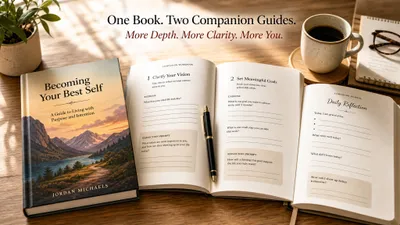
You can create a professional workbook and have it ready to sell or share in under a week — even without design experience.
In this guide, you’ll learn:
- How to plan your workbook’s structure around a clear transformation
- The page types that drive real engagement (exercises, reflections, checklists)
- How to design and format your workbook for print, PDF, and digital
- Where to publish and price your finished workbook
Here’s how to build one from scratch.
What Is a Workbook (And Why Create One)?
A workbook is an interactive book that guides your reader through a process using exercises, prompts, worksheets, and structured space to write. Unlike a standard nonfiction book, a workbook asks the reader to do something on every page.
Workbooks are one of the most effective formats for coaches, course creators, educators, and subject-matter experts. They work because they force participation. A reader can passively skim a regular book and forget everything by Tuesday. A workbook makes them commit pen to paper.
You might create a workbook to:
- Companion a course or coaching program — reinforce what you teach
- Sell as a standalone product — workbooks on Amazon KDP sell consistently in self-help, business, and education niches
- Use as a lead magnet — give away a short workbook to build your email list
- Package your expertise — turn your framework or method into something tangible
How to Choose Your Workbook Topic
Your workbook needs a specific outcome. Not a broad subject — a measurable result your reader achieves by the last page.
Weak topic: “Productivity” (too vague — that’s a category, not a workbook)
Strong topic: “Plan your ideal weekly schedule in 5 days” (specific transformation, clear timeline)
To find the right topic, ask yourself three questions:
- What process do you teach or know well? Any method with clear steps can become a workbook.
- Where do people get stuck? The workbook should guide them through the hard part.
- What would be different after they finish? If you can’t name the outcome, the topic isn’t specific enough.
If you already have a self-help book or course, your workbook topic is already chosen. Pull out the most actionable framework and build around it.
How to Outline Your Workbook Structure
A workbook follows a progression. Each section builds on the previous one, moving the reader from where they are now to where they want to be.
Use this five-part framework as your starting point:
1. Introduction (1-3 pages)
- What the workbook helps them accomplish
- How to use it (digital vs. print, how much time each section takes)
- What they’ll have when they finish
2. Assessment or Starting Point (3-5 pages)
- Self-evaluation exercises so the reader knows their baseline
- Helps them see the gap between where they are and where they want to be
3. Core Sections (the bulk — 4-8 sections)
- Each section covers one step, concept, or skill
- Every section includes teaching content + exercises + reflection space
- Sections should follow a logical sequence
4. Action Plan or Integration (3-5 pages)
- Pulls together everything they’ve learned
- Concrete next-steps worksheet
- Timeline or accountability tracker
5. Resources and Reference (1-3 pages)
- Quick-reference checklists
- Recommended tools or further reading
- Answer keys if applicable
Most workbooks land between 40-80 pages. Don’t pad for page count — every page should earn its place.
Need help structuring your outline? A book outline template can give you the scaffolding to start.
How to Write Workbook Content That Drives Engagement
The content in a workbook is different from a standard book. You write less prose and more prompts. The ratio should be roughly 30% teaching, 70% exercises and interactive elements.
Keep the teaching sections short
Each section needs just enough context for the reader to understand what they’re doing and why. Two to three short paragraphs per section is plenty. If you’re writing more than a page of teaching before the first exercise, you’re writing a book — not a workbook.
Write clear, specific instructions
Vague instructions kill workbook engagement. Compare these:
- Vague: “Reflect on your goals.”
- Specific: “Write down three goals you want to accomplish in the next 90 days. For each goal, list one action you can take this week to move toward it.”
The specific version tells the reader exactly what to do, how many items to write, and what timeframe to consider.
Use a variety of exercise types
The best workbooks mix different kinds of interactive elements to keep things fresh:
| Exercise Type | What It Does | Example |
|---|---|---|
| Fill-in-the-blank | Guided completion | ”My target reader is ______ who struggles with ______.” |
| Checklists | Track progress or evaluate | ”Check each step you’ve completed: ☐ ☐ ☐“ |
| Reflection prompts | Deeper thinking | ”What’s the biggest obstacle between you and this goal?” |
| Ranking/rating scales | Self-assessment | ”Rate your confidence from 1-10 on each skill.” |
| Action steps | Concrete next moves | ”List 3 things you’ll do this week based on what you learned.” |
| Matrices/grids | Comparison and analysis | ”Map each idea on the effort vs. impact grid below.” |
| Journaling space | Open-ended processing | Lined or blank space for freeform writing |
A good section might open with a short teaching paragraph, move to a fill-in exercise, add a reflection prompt, and close with an action step. That rhythm keeps readers moving.
If you’re creating something more journal-focused, check out our guide on how to create a guided journal for prompt-writing frameworks.
How to Design Your Workbook Pages
Design makes or breaks a workbook. A wall of text with no visual structure won’t get completed. You don’t need to be a designer — you just need clean layouts with plenty of white space.
Essential design elements
- Consistent headers — every section should look like it belongs in the same workbook
- Generous white space — leave room for writing (lined spaces, open boxes, or dotted areas)
- Visual hierarchy — use bold for instructions, regular weight for context, and different styling for exercise prompts
- Page numbers and section labels — readers need to navigate easily
- Borders or boxes for exercise areas — separate “write here” space from teaching content
Tools for designing your workbook
You have several options depending on your skill level and budget:
For beginners:
- Canva — drag-and-drop workbook templates, free plan available. Best for digital-only workbooks and simple print layouts.
- Google Docs — surprisingly capable for basic workbooks. Use tables for structured exercises and text boxes for writing space.
For intermediate creators:
- Microsoft Word or Pages — more formatting control than Google Docs. Good for print-ready layouts.
- PowerPoint/Keynote — works well for workbooks with visual layouts (one page = one slide).
For professional results:
- Adobe InDesign — industry standard for print layout. Steep learning curve but maximum control.
- Affinity Publisher — one-time purchase alternative to InDesign with similar capabilities.
Our Pick — Chapter
If your workbook includes substantial written content — teaching sections, frameworks, or methodology — Chapter helps you draft and structure the prose portions using AI. You can build out your teaching content, section introductions, and exercise instructions, then export and design the visual layout separately.
Best for: Drafting workbook content and structuring your sections quickly Pricing: $97 one-time (nonfiction) Why we built it: Over 10,000 authors have used Chapter to write nonfiction books, and workbooks are one of the most popular formats on the platform.
Print vs. digital design considerations
| Feature | Print Workbook | Digital (PDF) Workbook |
|---|---|---|
| Writing space | Physical lines and boxes | Fillable form fields |
| Page size | 8.5 x 11” or 6 x 9” | Any size (8.5 x 11” most common) |
| Margins | Need gutter margin for binding | Standard margins fine |
| Color | Adds cost per copy | No added cost |
| Interactivity | None (pen and paper) | Clickable links, expandable fields |
If you plan to sell on Amazon KDP, design for print first. You can always create a PDF version from the same content.
How to Format a Workbook for Print (KDP and IngramSpark)
If you want to sell physical copies, you need to format your workbook for print-on-demand platforms like Amazon KDP or IngramSpark.
Page size and margins
The most common workbook sizes:
- 8.5 x 11 inches — standard “workbook” size, plenty of writing space
- 8 x 10 inches — slightly more compact, still feels spacious
- 6 x 9 inches — book-sized, works for workbooks with more reading content and less writing space
For KDP, set your margins to at least:
- Inside (gutter) margin: 0.75” for books under 150 pages, 0.875” for 150-400 pages
- Outside margin: 0.5”
- Top and bottom: 0.5”
Interior formatting checklist
- ☐ Page numbers on every page (except title page and copyright)
- ☐ Section headers consistent throughout
- ☐ Exercise areas have clear boundaries (lines, boxes, or shaded regions)
- ☐ Fonts are readable at the chosen page size (11-12pt for body text)
- ☐ Line spacing in writing areas matches actual writing height (~8mm between lines)
- ☐ Black and white interior (unless you’re paying for color printing)
- ☐ PDF exported at 300 DPI for print quality
For detailed formatting guidance, see our ebook formatting guide — many of the same principles apply to workbook interiors.
Creating a workbook cover
Your cover needs to signal “workbook” at a glance. Effective workbook covers typically:
- Include the word “Workbook” prominently in the title
- Use clean, professional design (not busy or cluttered)
- Show the transformation or subject visually
- Match the interior style and color scheme
You can design covers in Canva, use KDP’s Cover Creator, or hire a designer. For more on cover design, check out our guide on how to design a book cover.
How to Create a Digital Fillable Workbook (PDF)
Digital workbooks have a major advantage: your reader can type directly into them. This is especially valuable for coaching clients, course students, or anyone who prefers digital over paper.
Making your PDF fillable
In Adobe Acrobat Pro:
- Design your workbook in your preferred tool and export as PDF
- Open in Acrobat Pro and select “Prepare Form”
- Acrobat auto-detects form fields — review and adjust each one
- Set field types (text field, checkbox, dropdown) for each interactive element
- Save as a fillable PDF
Free alternatives:
- PDFescape — browser-based form field editor (free for files under 100 pages)
- LibreOffice Writer — create forms with fillable fields and export as PDF
- JotForm — create fillable PDFs from scratch using their builder
Digital workbook best practices
- Test on multiple devices — your PDF should work on desktop, tablet, and phone
- Set tab order — make sure hitting Tab moves to the next logical field
- Include save instructions — tell readers to “Save As” so they keep a blank master copy
- Add clickable navigation — link your table of contents to each section
- Use expandable text fields — let readers write as much as they need
How to Create a Workbook With AI
AI tools can dramatically speed up workbook creation — especially the content-writing phase. Here’s a practical workflow:
Step 1: Generate your framework
Use AI to brainstorm and refine your workbook structure. Prompt it with your topic, target audience, and desired outcome. Ask for a section-by-section breakdown with exercise types for each section.
Step 2: Draft teaching content
AI can write the instructional paragraphs that precede each exercise. Give it your outline and ask for concise, actionable teaching content — no fluff, no filler.
Step 3: Create exercise prompts
This is where AI really shines. Generate dozens of reflection questions, fill-in-the-blank exercises, and action steps, then curate the best ones.
Step 4: Edit for your voice
AI-generated content needs your expertise and personality layered on top. Rewrite anything that sounds generic. Add your own examples, frameworks, and insights.
Over 10,000 authors have written books using AI-assisted workflows on Chapter alone — and workbooks are among the fastest-growing categories. The platform handles the writing and structuring, so you can focus on designing the interactive elements.
Where to Publish and Sell Your Workbook
Once your workbook is formatted, you have several publishing options:
Amazon KDP (Print + Digital)
The largest marketplace for self-published workbooks. You can sell both print and Kindle versions. Print-on-demand means no upfront inventory costs.
- Royalty: 60% on print (list price minus printing cost), 35-70% on Kindle
- Reach: Access to millions of Amazon shoppers
- Best for: Ongoing passive sales to a broad audience
For step-by-step setup instructions, see our Amazon KDP publishing guide.
Your Own Website (Digital PDF)
Sell your workbook directly and keep 100% of the revenue (minus payment processing). Platforms like Gumroad, Payhip, Podia, or Shopify make this straightforward.
- Royalty: 90-97% (after payment processing fees)
- Best for: Coaches and course creators with an existing audience
Course Platforms
Bundle your workbook with a course on Teachable, Kajabi, or Thinkific. The workbook becomes a value-add that increases course completion rates and justifies higher pricing.
Lead Magnet (Free)
Give away a shorter version of your workbook (10-15 pages) to build your email list. This works especially well if you have a paid workbook, course, or coaching program to sell on the back end.
How to Price Your Workbook
Workbook pricing depends on your format, distribution channel, and audience:
| Format | Typical Price Range | Notes |
|---|---|---|
| Print (KDP) | $12.99 - $24.99 | Factor in printing costs — larger workbooks cost more to print |
| Digital PDF (own site) | $17 - $47 | Higher margins, perceived as premium |
| Course companion | Included in course price | Increases perceived course value by $50-100+ |
| Lead magnet | Free | Short version (10-15 pages) to build your list |
Print workbooks on KDP need to cover printing costs. An 80-page 8.5x11” black-and-white interior costs roughly $3.50-4.50 to print. Price accordingly to maintain a reasonable royalty.
Digital workbooks can command higher prices than ebooks because they deliver a structured experience, not just information.
Common Mistakes to Avoid
- Too much teaching, not enough exercises. If your workbook is more than 30% prose, it’s a book with worksheets — not a workbook. Flip the ratio.
- Vague instructions. “Think about your goals” isn’t an exercise. Tell them exactly what to write, how many items, and in what format.
- No logical progression. Each section should build on the previous one. Random exercises feel disconnected and get abandoned.
- Skipping the design phase. A workbook in plain Times New Roman with no visual structure looks unprofessional and won’t get completed.
- Making it too long. A 200-page workbook intimidates readers before they start. Aim for 40-80 pages that deliver a focused transformation.
How Long Does It Take to Create a Workbook?
Creating a workbook takes 1-4 weeks depending on your approach and the complexity of your content. Here’s a realistic breakdown:
- Planning and outlining: 1-2 days
- Writing content and exercises: 3-7 days
- Design and formatting: 2-5 days
- Review and testing: 1-2 days
- Publishing setup: 1 day
Using AI for the content-drafting phase can cut your writing time in half. Using templates for design can save another 2-3 days. A simple 40-page workbook with a Canva template and AI-assisted content could be done in under a week.
Can You Create a Workbook With No Design Experience?
Yes. Canva’s free workbook templates handle the design work for you. Choose a template, replace the placeholder text with your content, adjust colors to match your brand, and export. Thousands of coaches and course creators have published professional-looking workbooks this way without touching design software.
If you want more control, Google Docs or Microsoft Word with a clean layout, consistent fonts, and well-placed tables can produce a perfectly functional workbook. The content matters more than the design — a beautifully designed workbook with weak exercises won’t get completed any more than an ugly one.
What’s the Difference Between a Workbook and a Guided Journal?
A workbook guides readers through a structured process with exercises, assessments, and action steps tied to a specific outcome. A guided journal provides prompts for open-ended personal reflection without a fixed progression or end goal.
Think of it this way: a workbook has right and wrong answers (or at least better and worse ones). A guided journal doesn’t. A workbook says “list your three biggest expenses and calculate your savings rate.” A guided journal says “what does financial freedom mean to you?”
Both formats can be created and sold using similar tools and platforms. If your content is more reflective than instructional, a guided journal might be the better format.
FAQ
How do I create a workbook for free?
You can create a workbook for free using Google Docs for writing and layout, Canva’s free plan for design templates, and Amazon KDP for publishing (no upfront cost). Write your content in Google Docs, design pages in Canva, export as PDF, and upload to KDP. The entire process costs nothing except your time.
What software is best for creating a workbook?
The best software for creating a workbook depends on your skill level. Canva works best for beginners with its drag-and-drop templates. Adobe InDesign gives professionals maximum design control. Chapter helps you draft the written content quickly using AI. Most creators use a combination — one tool for writing and another for design.
How many pages should a workbook be?
A workbook should be 40-80 pages for most topics. Shorter workbooks (20-30 pages) work well as lead magnets or course companions. Longer workbooks (80-120 pages) suit comprehensive programs or multi-week curricula. Every page should include an interactive element — if a page is all text, it belongs in a book, not a workbook.
Can I sell a workbook on Amazon?
Yes, you can sell a workbook on Amazon KDP as both a print book and a Kindle ebook. Print workbooks use KDP’s print-on-demand service, so you pay no upfront costs. Choose paperback format, upload your interior PDF and cover, set your price, and publish. Most workbooks use 8.5 x 11 inch trim size for maximum writing space.
How do I make a workbook fillable?
To make a workbook fillable, export your designed workbook as a PDF and open it in Adobe Acrobat Pro. Use the “Prepare Form” tool to add text fields, checkboxes, and dropdown menus to each exercise area. Free alternatives include PDFescape for browser-based editing and LibreOffice Writer for creating fillable forms from scratch.