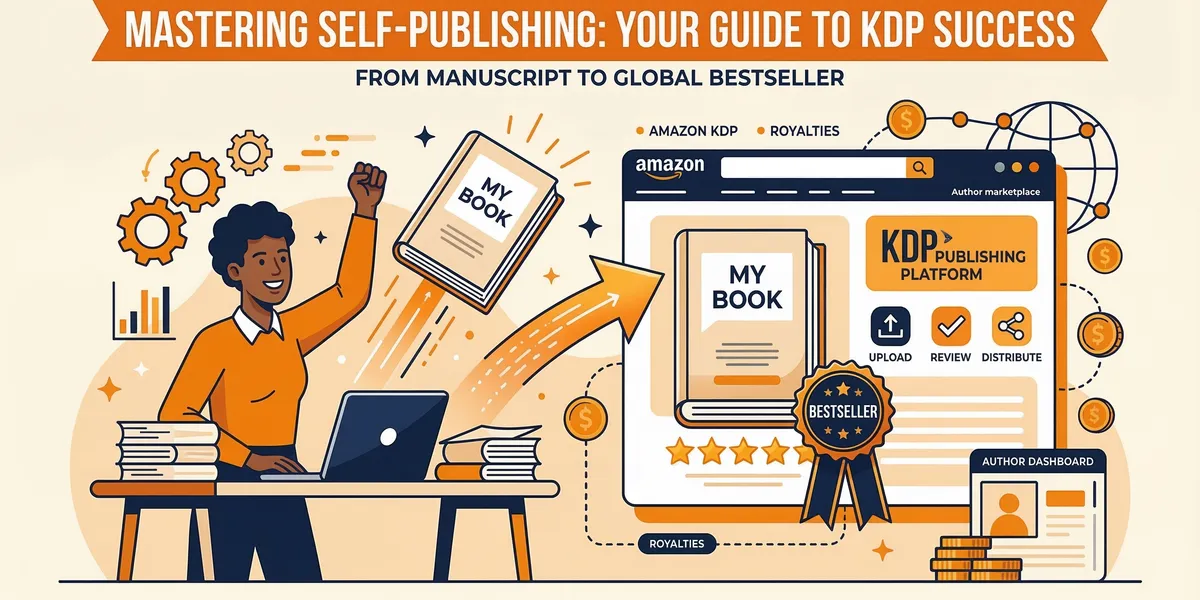
Anyone can publish a book on Amazon. There are no gatekeepers, no query letters, no waiting months for a rejection slip. Kindle Direct Publishing (KDP) is free, open to every author worldwide, and pays up to 70% royalties on ebook sales. More than 2,147 authors have already used Chapter to write their books and publish them through KDP — many within days of finishing their manuscript.
This guide walks you through every step from creating your account to launching your book and getting your first sales. Follow it in order and you’ll have a live listing on the world’s largest bookstore.
What this guide covers
- Create your KDP account
- Prepare your manuscript
- Design your cover
- Set up your ebook
- Set pricing
- Set up paperback (optional)
- Preview and publish
- Optimize your listing
- Launch strategy
- Common mistakes to avoid
- FAQ
Step 1: Create your KDP account
Go to kdp.amazon.com and sign in with your existing Amazon account. If you don’t have one, create a free account first.
Once logged in, KDP will ask you to complete your tax information and set up a bank account for royalty payments. This is where Amazon deposits your earnings, so don’t skip it. US-based authors fill out a W-9. International authors fill out a W-8BEN and may need to apply for an Individual Taxpayer Identification Number (ITIN) to avoid a 30% withholding tax on US sales.
The entire setup takes about 10 minutes. You can start uploading your book immediately after.
What you need to have ready:
- Government-issued ID (for tax verification)
- Bank account details (routing and account number)
- Tax information (SSN for US authors, ITIN or tax treaty info for international authors)
Step 2: Prepare your manuscript
KDP accepts three file formats for ebooks: DOCX (Microsoft Word), EPUB, and KPF (Kindle Package Format, created by Kindle Create). For most authors, a properly formatted DOCX file works fine. If you want more control over layout, use Kindle Create (free from Amazon) to convert your Word file into KPF format.
Formatting requirements
Your manuscript needs clean, consistent formatting before upload. Here’s what to get right:
- Chapter headings. Use Heading 1 style in Word for every chapter title. KDP uses these headings to generate the table of contents automatically.
- Page breaks. Insert a page break before each new chapter. This ensures chapters start on a new page on every Kindle device.
- Font. Use a standard font like Times New Roman, Georgia, or Garamond at 11-12pt. Kindle devices let readers change fonts anyway, but starting with a clean font prevents conversion errors.
- Images. If your book includes images, embed them in the document at 300 DPI and use JPEG format. Avoid wrapping text around images — place them inline.
- Front matter. Include a title page, copyright page, and table of contents at minimum. A dedication and acknowledgments page are optional.
- Back matter. Add an “About the Author” section and links to your other books or website. This is prime real estate for building your reader list.
Tools for formatting
| Tool | Cost | Best For |
|---|---|---|
| Microsoft Word | Included with Microsoft 365 | Basic formatting with Heading styles |
| Kindle Create | Free | Converting Word files to KPF with enhanced layouts |
| Vellum | $249.99 (one-time) | Mac users who want professional interior design |
| Atticus | $147 (one-time) | Cross-platform alternative to Vellum |
| Reedsy Book Editor | Free | Browser-based formatting with export to EPUB |
If you wrote your book with Chapter, you can export directly to a formatted DOCX file ready for KDP upload.
Step 3: Design your cover
Your cover is the single most important marketing asset for your book. Readers judge books by their covers — literally. A professional cover signals that the content inside is worth paying for. A bad cover tells readers to keep scrolling.
Three approaches to cover design
KDP Cover Creator (free, basic). Amazon’s built-in tool lets you create a cover using templates. It’s functional for authors on a zero budget, but the results look generic. Use it as a last resort.
Canva ($0-$13/month). Canva’s book cover templates are a step up from KDP Cover Creator. You can customize fonts, colors, and images to create something decent. For nonfiction books especially, Canva covers can look professional enough if you pick the right template and don’t overcomplicate the design.
Hire a professional designer ($200-$500+, recommended). This is the best investment you’ll make in your book. Professional cover designers understand genre conventions — the visual cues that tell a romance reader “this is a romance” or a thriller reader “this is a thriller” before they read a single word. Sites like 99designs, Reedsy, and Fiverr all have book cover specialists.
Cover specifications
- Ebook cover: Minimum 625 x 1000 pixels. Recommended 2,560 x 1,600 pixels (1.6:1 ratio). File must be under 50MB.
- Paperback cover: Use Amazon’s Cover Calculator tool to get exact dimensions based on your page count, trim size, and paper type. The calculator generates a template with the correct spine width.
- File format: JPEG or TIFF for ebooks. PDF for paperback (with bleed marks).
Step 4: Set up your ebook
This is where you build your book’s product listing. Every field you fill in affects your discoverability, so take your time here.
Title and subtitle
Your title should be clear, searchable, and genre-appropriate. Your subtitle is where you can add keyword-rich descriptive text. For nonfiction, subtitles do heavy lifting — “Publish a Book on Amazon” is the title; “The Complete Step-by-Step Guide to KDP Self-Publishing” is the subtitle that helps the right readers find you.
Book description
You get 4,000 characters for your book description. This is your sales page — treat it like one. Amazon allows basic HTML formatting in descriptions, and you should use it.
HTML tags that work in KDP descriptions:
<b>Bold text</b>for emphasis<i>Italic text</i>for titles and emphasis<br>for line breaks<h4>Subheading</h4>for section breaks (the only heading tag that works)
Structure your description with a hook, the key benefits or premise, social proof if you have it, and a call to action. Write it in a text editor with the HTML tags, then paste it into the description field.
Keywords (7 slots)
Amazon gives you seven keyword slots of up to 50 characters each. These work like behind-the-scenes search terms. Don’t repeat words already in your title or subtitle — Amazon already indexes those.
Keyword strategy tips:
- Use all seven slots
- Include multi-word phrases, not single words
- Think about what readers search for, not what you think your book is about
- Check Amazon’s search bar autocomplete for ideas
- Look at keywords in competing books’ listings
- Avoid author names, book titles, or misleading terms (Amazon prohibits these)
Categories (choose strategically)
You can select up to three browse categories during setup. Categories determine which bestseller lists your book competes in. The strategy here is to find categories that are specific enough to rank in but broad enough to have real readers.
After publishing, you can request up to seven additional categories by contacting KDP support. Many authors use this to appear in multiple niche bestseller lists.
Step 5: Set pricing
KDP offers two royalty tiers for ebooks:
| Feature | 35% Royalty | 70% Royalty |
|---|---|---|
| Price range | $0.99–$200 | $2.99–$9.99 |
| Delivery costs | None | Deducted from royalty |
| All territories | Yes | Select territories only |
For most authors, the 70% tier is the obvious choice. Price your ebook between $2.99 and $9.99 to qualify. The sweet spot depends on your genre:
- Fiction (novels): $2.99–$4.99 for debut authors, $4.99–$6.99 for established authors
- Nonfiction (how-to, business): $4.99–$9.99 depending on perceived value
- Short reads (under 25,000 words): $0.99–$2.99
International pricing
KDP lets you set prices for each Amazon marketplace individually (US, UK, Canada, Australia, etc.) or use automatic currency conversion. Setting prices manually for major markets lets you round to clean price points, which looks more professional. At minimum, set prices for the US, UK, and Canada stores.
KDP Select and Kindle Unlimited
KDP Select enrolls your ebook in Kindle Unlimited for a 90-day period (auto-renewing). Readers with a KU subscription can read your book for free, and you earn money based on pages read from a shared monthly fund. The trade-off: your ebook must be exclusive to Amazon during enrollment. You cannot sell it on any other platform.
For fiction authors — especially in romance, sci-fi, thriller, and fantasy — KDP Select often generates more revenue than wide distribution. For nonfiction authors, the math is less clear-cut because nonfiction readers are less likely to have KU subscriptions.
Step 6: Set up paperback (optional)
Offering a paperback alongside your ebook adds credibility and captures readers who prefer physical books. KDP Print uses print-on-demand, so there’s no upfront cost — Amazon prints each copy as it’s ordered.
Key decisions for paperback
Trim size. The most common sizes are 5” x 8” (compact), 5.5” x 8.5” (standard), and 6” x 9” (common for nonfiction). Pick a size that matches reader expectations for your genre.
Paper type. White paper for nonfiction, business, and how-to books. Cream paper for fiction, poetry, and literary nonfiction. The choice affects page count and printing cost.
ISBN. Amazon offers a free ISBN, but it lists the “publisher” as Amazon’s imprint (Independently Published). If you want your own publishing imprint name, buy an ISBN from Bowker ($125 for one, $295 for ten). Your own ISBN also lets you distribute through other channels like IngramSpark without conflicts.
Print cost calculator
Use KDP’s printing cost calculator before setting your paperback price. The calculator shows your cost per copy based on page count, trim size, ink type, and marketplace. Your list price must be higher than the printing cost — the difference (multiplied by 60%) is your royalty.
Example for a 250-page, 6” x 9” black-and-white paperback:
- Printing cost: approximately $3.95 (US)
- If list price is $14.99, your royalty is ($14.99 - $3.95) x 0.60 = $6.62 per sale
Step 7: Preview and publish
Before hitting publish, preview your book on every device format using KDP Previewer (free desktop app from Amazon). The online previewer works too, but the desktop version shows more accurate results.
What to check in preview
- Table of contents. Does it link to every chapter correctly?
- Images. Do they display properly across screen sizes?
- Formatting. Are paragraph indents consistent? Are there any random page breaks?
- Front and back matter. Do hyperlinks in the back matter work?
- Drop caps or special formatting. Does it survive the conversion?
For paperback, download the print preview PDF and check margins, page numbers, headers, and the spine text alignment.
Publishing timeline
Once you click “Publish,” Amazon reviews your book. This typically takes 24 to 72 hours for new titles. During review, Amazon checks for content policy violations, cover quality, and formatting issues. If everything passes, your book goes live on Amazon and becomes searchable.
Your book may take a few additional days to appear in all Amazon marketplaces worldwide. The ebook and paperback listings also take time to link together on the same product page — this usually happens automatically within 48 hours.
Step 8: Optimize your listing
Publishing is just the start. The authors who sell consistently optimize their Amazon listing like a product page — because that’s exactly what it is.
A+ Content (formerly A+ Detail Pages)
If you have an Amazon Author Central account (free), you can add A+ Content to your book’s product page. This lets you include images, comparison charts, and formatted text below the description. It’s an underused feature that makes your page look significantly more professional and increases conversion rates.
Author Central page
Claim your Author Central page at author.amazon.com. Add a professional photo, biography, blog feed, and links to your other books. Every book you publish automatically appears on your author page, creating a catalog that builds credibility.
Editorial Reviews section
The “Editorial Reviews” section on your Amazon page is powerful because it sits above the fold. You can add blurbs, endorsements, or press quotes through Author Central. If you don’t have traditional press coverage, use endorsements from experts in your field, beta readers with relevant credentials, or other published authors.
Step 9: Launch strategy
A strong launch week matters because Amazon’s algorithm rewards early sales velocity. Books that sell well in the first 30 days get more visibility in search results, recommendations, and “also bought” lists.
Build a launch team
Before your book goes live, recruit 20-50 people who will buy and review your book during launch week. These can be email subscribers, social media followers, colleagues, or members of writing communities. Give them a specific date to purchase and ask them to leave an honest review within a few days.
Get initial reviews
Reviews are social proof, and Amazon’s algorithm considers review velocity when recommending books. Aim for at least 10-20 reviews in the first month. Legitimate ways to get reviews:
- Launch team. Your core supporters who commit to buying and reviewing.
- ARC (Advance Reader Copy) distribution. Services like BookSirens, NetGalley, and StoryOrigin connect you with readers who review in exchange for free copies.
- Email list. If you have an existing audience, send a launch email with a direct link to leave a review.
- Back-of-book ask. Include a polite review request at the end of your book with a direct link to the review page.
Never pay for reviews or use review exchange schemes. Amazon detects these and will remove reviews or suspend your account.
Amazon Ads basics
Amazon runs a pay-per-click advertising platform specifically for books. Even a small daily budget ($5-$10/day) can drive meaningful visibility during launch. The three ad types:
- Sponsored Products. Your book appears in search results and on product pages. Best for targeted keyword campaigns.
- Sponsored Brands. A banner ad featuring your author name and up to three books. Best for authors with multiple titles.
- Lockscreen Ads. Your book appears on Kindle device lockscreens. Best for broad awareness.
Start with Sponsored Products ads targeting keywords related to your book’s topic. Set a daily budget you’re comfortable with, monitor performance for two weeks, and cut keywords that don’t convert.
Common mistakes to avoid
Most first-time self-publishers make the same preventable mistakes. Here’s what to watch for:
Bad cover. This is the number one killer of book sales. If your cover looks self-published, readers assume the writing is amateur too. Invest in a professional cover or, at minimum, study top-selling covers in your genre and match their design conventions.
Wrong categories. Choosing overly broad categories puts you in competition with bestselling authors. Choosing categories unrelated to your book frustrates readers who find it through browse. Research which categories competing books use and pick ones where you can realistically rank in the top 20.
No description optimization. A blank or poorly written description wastes the most valuable sales copy space on your page. Use HTML formatting, write a compelling hook, and include specific benefits or plot points.
Pricing too high. New authors without an established readership need to earn trust. Pricing a debut novel at $12.99 when competing titles are $3.99 creates friction. Match or slightly undercut genre norms until you have reviews and social proof.
Pricing too low. Pricing at $0.99 permanently devalues your work and drops you to the 35% royalty tier. Use $0.99 pricing only for limited promotions or the first book in a series, not as your permanent strategy.
Skipping keywords. Leaving keyword slots empty is leaving money on the table. All seven slots should be filled with relevant, specific phrases readers actually search for.
Ignoring back matter. The back of your book is where readers decide to buy your next book, join your email list, or leave a review. A book that just ends without links, a call to action, or an “About the Author” section is a missed opportunity.
FAQ
How long until my book is live on Amazon?
Amazon reviews new titles in 24 to 72 hours after you click publish. Most books go live within 48 hours. Complex formats or books that trigger a manual review can take up to 72 hours. Once live, it may take a few more days for your book to appear in all international Amazon stores.
Can I update my book after publishing?
Yes. You can update your manuscript, cover, description, pricing, keywords, and categories at any time through your KDP dashboard. Manuscript updates typically take 24-48 hours to go live. For content changes, Amazon may notify readers who already purchased, giving them the option to download the updated version.
Do I need an ISBN to publish on Amazon?
No. Amazon assigns a free ASIN (Amazon Standard Identification Number) to every ebook, which serves as the identifier within their ecosystem. For paperbacks, Amazon offers a free ISBN, but it lists the publisher as “Independently Published.” If you want to list your own imprint name as the publisher, you’ll need to purchase an ISBN from Bowker.
Can I sell on other platforms too?
Yes, unless you enroll in KDP Select. Standard KDP publishing has no exclusivity requirement — you can sell your ebook on Apple Books, Kobo, Barnes & Noble, and any other platform simultaneously. Only KDP Select (which enrolls your book in Kindle Unlimited) requires Amazon exclusivity for the 90-day enrollment period. For a full comparison, see our guide to the best self-publishing platforms.
How much can I earn publishing on Amazon?
Earnings vary dramatically based on genre, pricing, marketing effort, and book quality. At the 70% royalty tier, a $4.99 ebook earns roughly $3.44 per sale after delivery costs. Sell 10 copies a day and that’s over $1,000/month. Some self-published authors earn six figures annually through Amazon KDP, while others earn modest supplemental income.
The authors who earn the most typically have multiple books (building a catalog increases discoverability), write in popular genres with loyal readerships, and actively market through Amazon Ads and email lists. Writing the best book you can is still the foundation — if you need help getting your manuscript done, tools like Chapter can help you write your book faster without sacrificing quality.
Publishing a book on Amazon KDP is one of the most accessible paths to becoming a published author. The platform handles printing, distribution, and payments while you keep creative control and the majority of your royalties. Start with a well-formatted manuscript and a professional cover, optimize your listing with strong keywords and description, and launch with a plan to get early reviews and visibility.
The hardest part isn’t the publishing process — it’s finishing the book. Once your manuscript is ready, everything in this guide can be completed in a single afternoon. If you’re still working on your manuscript, check out our guide on how to self-publish a book for the full journey from draft to published, or explore how a book can serve as a lead magnet for your business.