You can design a professional coffee table book layout without hiring a designer — if you start with the right template and understand how visual books differ from standard text-heavy formats.
In this guide, you’ll learn:
- The exact dimensions, margins, and bleed settings coffee table books use
- How to build a layout grid that balances images and text
- Free and paid template options for InDesign, Canva, and Blurb
- Page-by-page design patterns that make your book feel premium
Here’s how to create a coffee table book layout that looks like it came from Taschen or Rizzoli.
What Is a Coffee Table Book Layout Template?
Coffee table book layout template — A pre-designed page framework that defines where your images, text, captions, and white space go on every spread of a large-format visual book.
Unlike a standard book layout template built for text-heavy manuscripts, a coffee table book template prioritizes images. The visuals lead. The text supports. Every design decision — grid structure, margin width, font size — serves the photography or artwork.
A good coffee table book template handles three things:
- Print specifications. Trim size, bleed, gutter, and safe zones are built into every page so your files pass preflight checks at any printer.
- Visual hierarchy. Full-bleed spreads, image frames, caption blocks, and white space are pre-positioned to create rhythm across pages.
- Consistency. Fonts, spacing, and grid proportions stay uniform from the first spread to the last, giving your book a cohesive, designed feel.
The difference between a self-published coffee table book that looks amateurish and one that looks professional almost always comes down to the layout template.
What Size Should a Coffee Table Book Be?
The trim size you choose sets every other design decision — margins, image resolution, grid columns, and even paper weight.
Here are the standard coffee table book dimensions:
| Size | Format | Best For |
|---|---|---|
| 8.5” × 11” | Portrait | Most common, versatile, cost-effective |
| 9” × 12” | Portrait | Detailed layouts, larger images |
| 10” × 10” | Square | Contemporary, modern aesthetic |
| 11” × 11” | Square | Anchor book, bold visual impact |
| 11” × 14” | Portrait/Landscape | Art books, architecture, travel |
| 12” × 12” | Square | Creative, oversized projects |
The most popular size is 8.5” × 11” because it balances visual impact with manageable printing costs. If your content demands larger images — architecture, landscape photography, fine art — step up to 11” × 14” or 12” × 12”.
Square formats (10” × 10” or 11” × 11”) have become increasingly popular because they feel modern and distinctive on a display table. They also simplify layout decisions since you don’t need to choose between portrait and landscape orientation for every spread.
Pro tip: If you’re using print-on-demand through Blurb or a similar service, check their available trim sizes before designing. Custom sizes cost significantly more than standard options.
How to Set Up Margins, Bleed, and Gutter
Getting your margins right is the difference between a book that feels spacious and elegant versus one that feels cramped or has images cut off during printing.
Bleed
Bleed is the extra image area that extends beyond the trim edge. When your printer cuts pages to final size, slight variations happen. Bleed ensures no white strips appear at the edges of full-page images.
Set your bleed to 0.125” (1/8 inch) on all four sides. This is the industry standard for coffee table books and what most printers require.
Margins
For a coffee table book, margins serve a different purpose than in a text-heavy book interior. You’re framing images, not text blocks.
Recommended margin settings:
- Outside margins: 0.5” to 0.75” (gives images breathing room)
- Top margin: 0.5” to 0.75”
- Bottom margin: 0.625” to 0.875” (slightly larger than top creates visual balance)
- Inside/gutter margin: 0.75” to 1” (accounts for binding)
The gutter is critical. Hardcover coffee table books with perfect or case binding lose roughly 0.25” to 0.5” of visible page area in the spine fold. If you set your gutter too narrow, images that cross the center spread will have their middle section swallowed by the binding.
Safe Zone
Keep all critical content — text, important image details, page numbers — at least 0.25” inside the trim line. This is your safe zone. Printers can shift up to 1/8” during cutting, so anything closer to the edge risks getting trimmed off.
How to Build a Layout Grid for Visual Books
A layout grid is the invisible structure that keeps your pages consistent and professional. Without one, your book will feel random — images floating in different positions on every page, captions shifting left and right, spacing inconsistent.
Column Grid
Most coffee table books use a 2-column, 3-column, or 6-column grid:
- 2-column grid: Simple and clean. Works for books with large, dominant images and minimal text. Each page divides roughly in half.
- 3-column grid: The most versatile option. You can place a full-width image across all three columns, a two-thirds image with a one-third text block, or three smaller images in a row.
- 6-column grid: Maximum flexibility. You can create 2-column, 3-column, and asymmetric layouts within the same grid system. Professional designers favor this approach because it handles every page type.
Baseline Grid
Set your baseline grid to match your body text leading. If you’re using 11pt type on 16pt leading, your baseline grid increments should be 16pt. This keeps all text aligned across columns and spreads.
For a coffee table book, text is secondary — but when it appears, it should snap to the baseline grid. Sloppy text alignment is one of the fastest ways to make a book look unprofessional.
Row Structure
Divide your page vertically into rows that match your column grid. A 3-column × 4-row grid gives you 12 modules per page. Images and text blocks can occupy one module, two modules, a full row, or any combination.
This modular approach lets you create variety across spreads while maintaining underlying consistency. Your reader won’t consciously notice the grid, but they’ll feel the difference between a gridded layout and a random one.
Page Layout Patterns Every Coffee Table Book Needs
You don’t need dozens of unique layouts. The best coffee table books cycle through 5 to 7 core page patterns that repeat throughout the book with different content.
Pattern 1: Full-Bleed Single Image
The image fills the entire page edge to edge, with no margins, no text, no page number. This is your most dramatic layout and should be reserved for your strongest images.
Use full-bleed pages for:
- Opening spreads for new chapters or sections
- Your single best image in each section
- Images with strong horizontal lines that benefit from edge-to-edge presentation
Pattern 2: Full-Bleed Spread (Two Pages)
The image crosses the center gutter and fills both pages. This creates the most immersive visual experience in any coffee table book.
Critical warning: The center 0.5” to 0.75” of your image will disappear into the binding. Never place faces, key details, or text across the gutter. Choose images with a natural center that can absorb the binding loss — landscapes, abstract patterns, and architectural shots work best.
Pattern 3: Single Image With White Space
One image sits within the margins, surrounded by generous white space. This creates a gallery-like presentation that gives the eye room to breathe after denser spreads.
Position the image slightly above center (the optical center is about 40% from the top, not 50%) for a balanced feel. Add a caption in a small, clean font below or beside the image.
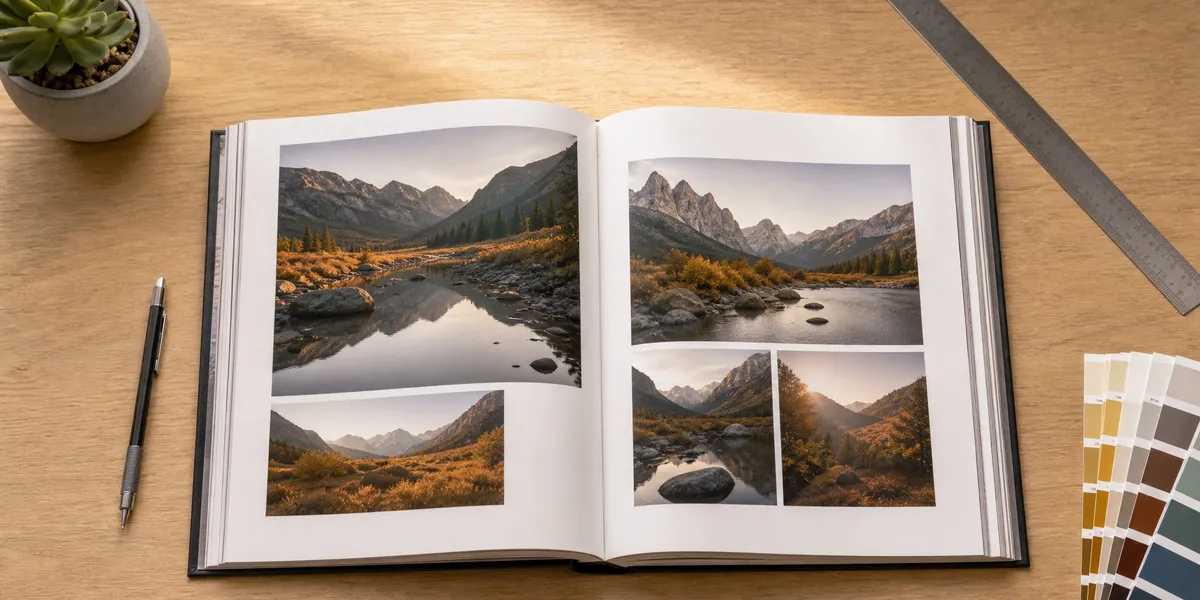
Pattern 4: Image Grid
Two, three, or four images arranged on a single page or spread using your column grid. This pattern works for:
- Detail shots that tell a story together
- Before/after comparisons
- Process sequences
- Multiple angles of the same subject
Keep consistent gutters between grid images (typically 0.125” to 0.25”). Inconsistent spacing between images is immediately noticeable.
Pattern 5: Text Spread
A page or spread dedicated primarily to text — an essay, chapter introduction, artist statement, or extended caption. Even in a visual book, you need these moments to provide context and narrative.
Use a single, narrow text column (about 60-65 characters per line for readability) with generous margins. The text page should feel as deliberately designed as the image pages, not like an afterthought.
Pattern 6: Section Opener
A simplified page that signals a new chapter or section. Typically includes the section title, possibly a small image or pull quote, and significant white space.
Section openers give your reader’s eye a reset. They create rhythm. A coffee table book without section breaks feels like a relentless wall of images with no narrative structure.
Choosing Typography for Coffee Table Books
Typography in a coffee table book plays a supporting role — it should never compete with the images. But “supporting” doesn’t mean “invisible.” The right type choices elevate the entire design.
Body Text
Choose a clean, readable serif or sans-serif font at 10-12pt with 14-18pt leading. For a coffee table book, slightly larger leading (the space between lines) creates an airy, premium feel.
Strong choices include:
- Garamond — Classic, elegant, works with fine art and photography
- Helvetica Neue — Clean, modern, pairs with contemporary subjects
- Minion Pro — Readable at small sizes, professional
- Futura — Geometric, bold personality, great for architecture and design books
For more font options, see our guide to the best fonts for book interiors.
Captions
Set captions in a smaller size than body text — 8-9pt is standard. Use the same font family as your body text but in a lighter weight or italic to create visual distinction without introducing a third typeface.
Titles and Headers
Limit yourself to two typefaces maximum across the entire book. A common pairing: a serif for body text and a sans-serif for titles (or vice versa). Using three or more typefaces makes a coffee table book feel chaotic.
Best Tools for Coffee Table Book Layout
You don’t need to design from scratch. Here are the best tools for creating a coffee table book layout, from professional to beginner-friendly.
Our Pick — Chapter
Chapter handles the writing and content development side of your coffee table book. Use it to write and organize your text — artist statements, chapter introductions, captions, and essays — then export to a design tool for final visual layout.
Best for: Writing and organizing coffee table book text content Pricing: $97 one-time (nonfiction) Why we built it: Most coffee table book guides skip the writing process entirely, but the text is what transforms a photo album into a real book.
Adobe InDesign
InDesign is the industry standard for coffee table book design. Professional publishers — Taschen, Rizzoli, Phaidon — all use InDesign or similar page layout software.
Best for: Professional-quality layouts with full control over every design element.
Strengths:
- Master pages for consistent layouts across hundreds of pages
- Advanced typography controls (optical kerning, baseline grid, nested styles)
- CMYK color management for accurate print reproduction
- Preflight checks that catch print-readiness issues before you send files
Limitations:
- Steep learning curve if you’ve never used it
- Subscription pricing ($22.99/month or included in Creative Cloud)
- Overkill for simple photo books with minimal text
For free InDesign book templates to get started, check our template roundup.
Canva
Canva is the most accessible option for first-time coffee table book creators. The drag-and-drop interface makes it possible to produce a presentable layout without any design training.
Best for: Beginners and creators who want a finished book fast.
Strengths:
- Hundreds of free photo book templates
- No software installation — works in your browser
- Easy to share drafts for collaboration and feedback
- Export to print-ready PDF
Limitations:
- Limited CMYK and bleed controls (critical for high-end printing)
- No master pages — you’ll manually update repeated elements
- Less precise typography controls than InDesign
If you’ve already used Canva for book cover design, the interior layout tools work similarly.
Blurb BookWright
Blurb’s BookWright is a free desktop application designed specifically for creating photo books, portfolios, and coffee table books.
Best for: Print-on-demand coffee table books with integrated ordering.
Strengths:
- Free software with templates built for Blurb’s print specs
- Drag-and-drop layout with pre-built page templates
- Automatic bleed and margin guides
- One-click ordering — design and print in the same workflow
Limitations:
- Only prints through Blurb (no exporting to other printers without workarounds)
- Fewer typography options than InDesign
- Template designs can feel generic without heavy customization
Affinity Publisher
Affinity Publisher is a one-time-purchase alternative to InDesign that handles coffee table book layout with professional-level tools.
Best for: Designers who want InDesign-level control without a subscription.
Strengths:
- One-time purchase ($69.99) — no subscription
- Master pages, baseline grids, advanced typography
- CMYK support and print preflight
- Imports InDesign files (IDML format)
Limitations:
- Smaller template ecosystem than InDesign
- Fewer tutorials and community resources
- Some advanced InDesign features (data merge, GREP styles) are missing
Free Coffee Table Book Templates to Download
You don’t need to build every page from scratch. These free templates give you a professional starting point:
| Template Source | Format | Sizes Available | Cost |
|---|---|---|---|
| Blurb BookWright | BookWright | Multiple standard sizes | Free |
| StockInDesign | InDesign (.indd) | 9×11”, 11×11” | Free & paid |
| Star Print Brokers | InDesign (.indd) | Multiple sizes | Free |
| PrintingCenterUSA | InDesign, PDF, PSD | Multiple sizes | Free |
| Canva | Online editor | 10×10” and custom | Free & Pro |
| Flipsnack | Online editor | Multiple sizes | Free & paid |
When evaluating any template, check for:
- Correct bleed settings (0.125” minimum)
- Proper gutter/margin allowances for binding
- Master pages or repeating elements already configured
- At least 5-7 distinct page layout patterns included
- High-resolution placeholder images (not 72 DPI web images)
Step-by-Step: Creating Your Layout From a Template
Here’s the practical workflow for turning a blank template into a finished coffee table book layout.
Step 1: Organize Your Content First
Before you open any design software, sort your images and text into sections. Create folders for each chapter or section of your book. Sequence the images within each folder.
This is where a tool like Chapter helps — you can write and organize all your text content (introductions, essays, captions) before touching the visual layout. Having your written content ready prevents the common mistake of designing pages around placeholder text that never gets replaced.
Step 2: Set Up Your Document
Open your template and verify these settings:
- Trim size matches your chosen dimensions
- Bleed is set to 0.125” on all sides
- Color mode is CMYK (not RGB) for print
- Resolution is 300 DPI
- Facing pages is enabled (you’re designing spreads, not single pages)
Step 3: Build Your Page Map
Before designing individual pages, create a page map — a simple list or sketch showing which layout pattern each spread uses.
Example for a 60-page photography book:
- Pages 1-2: Title spread (text-only)
- Pages 3-4: Full-bleed hero image
- Pages 5-6: Image grid (4 images)
- Pages 7-8: Single image with white space + caption
- Pages 9-10: Text spread (artist statement)
- Pages 11-12: Full-bleed spread (panoramic)
Map the entire book before designing a single page. This prevents the common trap of starting strong and running out of layout ideas halfway through.
Step 4: Place Your Strongest Images First
Drop your best images into the full-bleed and full-spread slots first. These are your anchor points. Then fill in the supporting pages — grids, single images with captions, text pages — around them.
Step 5: Check the Flow
Print a rough PDF and flip through it. Look for:
- Pacing: Do dense spreads alternate with breathing room? Three consecutive full-bleed pages feel exhausting.
- Color balance: Are warm and cool images distributed evenly, or is there a section that’s all blue followed by all red?
- Text placement: Are captions and essays spaced throughout, or clustered in one section?
- Gutter safety: Do any critical details fall in the center fold?
Step 6: Preflight and Export
Run a preflight check (InDesign and Affinity Publisher have built-in preflight tools) to catch:
- Images below 300 DPI
- Text outside the safe zone
- Missing fonts
- RGB images that should be CMYK
- Overset text (text that doesn’t fit its frame)
Export as a high-resolution PDF/X-1a or PDF/X-4 — these are print-industry standards that preserve color accuracy and embed all fonts.
Common Coffee Table Book Layout Mistakes
These are the errors I see most often in self-published coffee table books:
- No layout grid. Pages look random because images and text aren’t aligned to any consistent structure.
- Gutter ignorance. Full-spread images lose their center detail to the binding because the designer didn’t account for gutter loss.
- Too many typefaces. Using four or five fonts when two would create a cleaner, more cohesive design.
- Low-resolution images. Web-quality images (72 DPI) look blurry and pixelated in print. Every image must be 300 DPI at final print size.
- No breathing room. Cramming images edge-to-edge on every page with no white space. The best coffee table books use white space as a design element, not wasted space.
- Ignoring page pacing. Putting all the best images at the front and filler at the back. Distribute visual impact evenly.
- Skipping the text. A coffee table book without any written context — introductions, captions, essays — is a photo album, not a book. The text is what transforms it. Tools like Chapter make the writing process painless.
How Much Does It Cost to Print a Coffee Table Book?
Printing costs vary dramatically based on size, page count, paper quality, and print run.
| Print Method | Cost Per Book (50 pages) | Minimum Order | Best For |
|---|---|---|---|
| Print-on-demand (Blurb) | $25-$60 | 1 copy | Testing, small runs |
| Digital printing | $15-$40 | 25-50 copies | Short runs, limited editions |
| Offset printing | $8-$20 | 500+ copies | Large runs, best unit cost |
Print-on-demand services like Blurb and Lulu let you order a single copy to proof your layout before committing to a larger print run. This is the safest way to catch layout issues that don’t show up on screen — gutter problems, color shifts, and margin errors are much easier to spot in a physical copy.
For a deeper look at hardcover book production — the binding, paper stock, and printing process — check our production guide.
What Paper Should You Use for a Coffee Table Book?
Paper choice affects how your images look, how the book feels in hand, and how long it lasts on display.
- Glossy coated paper (100-150 gsm): High color saturation, sharp image detail, reflective surface. Best for photography books where color accuracy matters most.
- Matte coated paper (100-150 gsm): Softer appearance, no glare, fingerprint-resistant. Better for art books, architecture, and books that will be handled frequently.
- Uncoated premium paper (120-160 gsm): Textured, organic feel. Works for fine art, illustration, and books where the paper itself is part of the aesthetic.
Most coffee table books use coated paper between 130-150 gsm. Heavier paper (170+ gsm) feels luxurious but adds significant weight and cost to larger books.
How to Write Text for a Coffee Table Book
The text in a coffee table book is minimal but crucial. It provides context, narrative, and meaning that images alone can’t convey.
Types of text in a coffee table book:
- Foreword or introduction (500-1,000 words) — Sets the context for the entire book
- Section introductions (100-300 words each) — Bridges between chapters
- Extended captions (25-75 words each) — Context for individual images
- Artist/photographer statement (300-500 words) — Your perspective and intent
- Back matter (colophon, credits, index) — Technical and legal information
The key principle: every word must earn its place. In a text-heavy book, a mediocre paragraph disappears. In a coffee table book, it stands out. Edit ruthlessly.
For help writing and organizing your coffee table book text, Chapter lets you draft, structure, and refine all your written content before bringing it into your layout tool. Over 10,000 authors have used Chapter to write books across genres — including visual and nonfiction projects.
If you’re also thinking about how to create a photo book or want a broader overview of writing a coffee table book from scratch, we’ve covered those processes in detail.
Can You Make a Coffee Table Book With AI?
Yes — AI tools can help with several parts of the coffee table book creation process, though you’ll still need human judgment for the visual design.
AI can help with:
- Writing text content — Introductions, captions, section essays, and back matter. Chapter uses AI to help you draft and refine your written content.
- Image enhancement — Upscaling resolution, color correction, and removing unwanted elements from photos.
- Layout suggestions — Some newer design tools offer AI-powered layout recommendations based on your image dimensions and content type.
AI can’t replace:
- Curatorial judgment — Deciding which images to include, how to sequence them, and what story they tell together.
- Design taste — Understanding white space, visual rhythm, and the emotional impact of page-to-page flow.
- Print production knowledge — Color profiles, paper selection, binding decisions, and printer communication.
The most efficient workflow: use AI for the writing and image preparation, then bring your polished content into InDesign or a similar tool for the final visual layout.
FAQ
What is the best software for coffee table book layout?
The best software for coffee table book layout is Adobe InDesign for professional-quality results, or Canva and Blurb BookWright for beginners. InDesign offers master pages, advanced typography, and CMYK color management — essential for high-end print reproduction. Choose based on your design experience and print requirements.
What is the standard size of a coffee table book?
The standard size of a coffee table book is 8.5” × 11” (portrait) for most projects, or 10” × 10” and 11” × 14” for more visually ambitious designs. The publishing industry defines the typical range as 9” × 12” to 13” × 17”, with the sweet spot being 10” × 13” at around 250 pages for optimal display presence.
How many pages should a coffee table book have?
A coffee table book should have between 60 and 200 pages, with most falling in the 80-120 page range. The minimum for a credible coffee table book is around 28-30 pages. Page count depends on your content depth — a focused photo series might work at 60 pages, while a comprehensive subject needs 150+.
Can I make a coffee table book in Canva?
Yes, you can make a coffee table book in Canva using their photo book templates. Set up your document with the correct dimensions and 0.125” bleed for printing, use high-resolution images at 300 DPI, and export as a print-quality PDF. Canva lacks some advanced features like CMYK color management, but it works well for simpler layouts and print-on-demand production.
How much does it cost to print a coffee table book?
Printing a coffee table book costs $25-$60 per copy through print-on-demand services like Blurb, $15-$40 per copy for digital printing runs of 25-50 copies, or $8-$20 per copy for offset printing at 500+ copies. Final cost depends on trim size, page count, paper quality, and binding type.