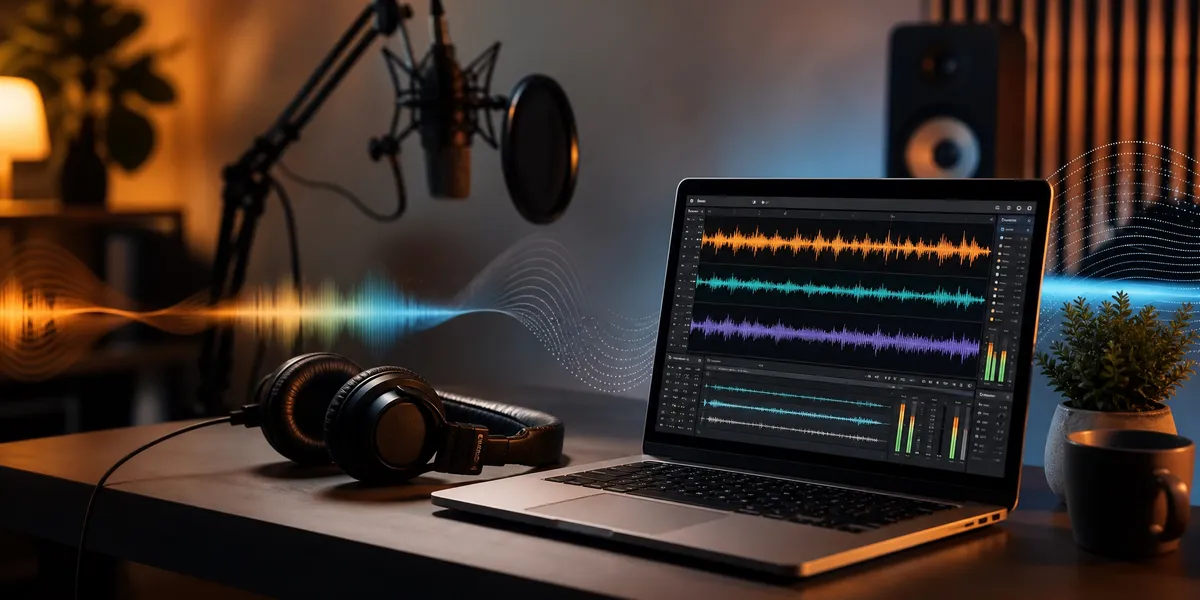
You can add sound effects to your audiobook using free audio editing software, a library of royalty-free sounds, and about two hours of mixing per finished hour of narration.
In this guide, you’ll learn:
- How to choose sound effects that enhance your audiobook without distracting listeners
- Which audio editing tools work best for audiobook sound design
- The step-by-step mixing process from raw narration to finished production
- Platform rules for Audible, Apple Books, and other distributors
Here’s exactly how to do it.
Why Add Sound Effects to Your Audiobook?
Audiobook sound effects are audio elements layered over narration to create an immersive listening experience. They range from subtle ambient sounds to dramatic Foley effects that punctuate key story moments.
Sound effects transform a standard audiobook into something closer to a cinematic experience. Listeners report higher engagement and longer listening sessions with dramatized audiobooks compared to straight narration.
The audiobook market has grown every year for over a decade. With more competition on platforms like Audible and Spotify, production quality is one way to differentiate your title. A well-placed door creak, rainstorm, or crowd murmur pulls listeners deeper into your story.
Sound effects work especially well for fiction genres like fantasy, horror, science fiction, and thriller. They are less common in nonfiction, self-help, or educational audiobooks where clean narration keeps the focus on the content.
If you are still deciding whether to produce an audiobook at all, start with our guide on how to create an audiobook to understand the full process.
What You Need Before You Start
Before you open any audio editor, you need three things ready:
A finished narration track. Your audiobook narration should be fully recorded, edited for mistakes, and cleaned of background noise. If you have not recorded yet, check our guide on how to record your own audiobook for the full equipment and setup walkthrough.
A sound design plan. Go through your manuscript chapter by chapter and mark every moment where a sound effect could add value. Note the timestamp in your narration file and the type of sound you want. A spreadsheet with columns for chapter, timestamp, effect type, and notes works well.
A collection of sound effects. You will either source these from free and paid sound libraries (covered in the next section) or record your own Foley effects.
Keep your plan focused. The biggest mistake first-timers make is adding too many effects. Start with five to ten sounds per chapter and build from there only if the story demands it.
Where to Find Sound Effects for Audiobooks
You have two categories of sources: free libraries and premium libraries.
Free Sound Effect Libraries
- Freesound.org — Community-contributed library with thousands of sounds under Creative Commons licenses. Quality varies, so preview before downloading.
- Zapsplat — Over 150,000 free effects with a simple attribution license. Organized by category, which makes browsing fast.
- BBC Sound Effects — Over 33,000 effects from the BBC archive, free for personal and educational use.
- SoundBible — Smaller library, but well-curated and easy to search.
Premium Sound Effect Libraries
- AudioJungle — Individual effects and packs starting at a few dollars each. Higher consistency in quality.
- SoundSnap — Subscription model with access to a large professional library.
- Artlist — Unlimited downloads with a subscription. Includes music beds and ambient tracks alongside effects.
- Epidemic Sound — Popular with content creators. Solid selection of ambient and Foley effects.
Recording Your Own Foley
For unique sounds, record your own. A decent microphone for audiobook recording and a quiet room are all you need. Crumpling paper for fire, tapping a table for footsteps, or pouring water for rain gives you effects that no library duplicate will match.
Label every custom recording with a descriptive filename. You will thank yourself during the mixing phase.
How to Choose the Right Audio Editing Software
You need a digital audio workstation (DAW) that supports multitrack editing. This lets you layer your narration track with one or more sound effect tracks and adjust timing, volume, and fades independently.
Best Free Option: Audacity
Audacity is free, open-source, and available on Windows, Mac, and Linux. It supports multitrack editing, noise reduction, and a wide range of export formats.
Best for: Beginners and authors on a budget. The learning curve is gentle, and there are hundreds of tutorials available online.
Limitations: The interface feels dated compared to premium tools, and real-time effect preview is limited.
Best Professional Option: Adobe Audition
Adobe Audition offers spectral editing, adaptive noise reduction, and seamless integration with other Adobe tools. The multitrack session view is purpose-built for layering narration with effects.
Best for: Authors producing multiple audiobooks or those already paying for Adobe Creative Cloud.
Pricing: Included in Adobe Creative Cloud subscriptions.
Best for Mac Users: GarageBand and Logic Pro
GarageBand comes free with every Mac and handles basic multitrack editing well. If you need more control, Logic Pro offers professional-grade mixing tools.
Best for: Mac users who want to stay within the Apple ecosystem.
Other Solid Options
- Reaper — Powerful DAW with a generous free trial and a $60 personal license. Favored by podcasters and indie producers.
- Hindenburg Narrator — Built specifically for voice recording and audiobook production. Automatic loudness normalization saves time.
- DaVinci Resolve Fairlight — Free with DaVinci Resolve. Overkill for most audiobook projects but capable.
If you are exploring AI-powered options for the narration itself, see our breakdown of AI audiobook generators and Google Play Books AI narration.
Step-by-Step: How to Add Sound Effects to Your Audiobook
Here is the exact process, using Audacity as the example (the concepts apply to any DAW).
Step 1: Import Your Narration
Open your DAW and import your finished narration file. This becomes your primary track. Do not edit the narration at this stage — it should already be clean and final.
If your audiobook is split into chapter files, work one chapter at a time. This keeps projects manageable and prevents your computer from struggling with massive files.
Step 2: Create a Sound Effects Track
Add a new audio track below your narration. Label it “SFX” or “Sound Effects.” You can add multiple SFX tracks if you want to separate ambient sounds from one-shot effects.
A good starting setup:
| Track | Purpose | Example |
|---|---|---|
| Track 1 | Narration | Your finished voice recording |
| Track 2 | Ambient/Background | Rain, crowd noise, forest sounds |
| Track 3 | Foley/One-shot | Door slam, footsteps, glass breaking |
| Track 4 | Music beds | Chapter transitions, emotional cues |
Step 3: Place Your Sound Effects
Drag your sound effect files onto the SFX track and position them at the timestamps you marked in your sound design plan.
Timing matters. Place effects slightly before the narrator describes the action, not after. If your narrator says “the door slammed shut,” the slam sound should hit a fraction of a second before or precisely on the word “slammed.” Late sound effects feel disconnected.
Step 4: Adjust Volume Levels
This is the most critical step. Your narration must always be the dominant audio element. Sound effects should sit underneath the voice, not compete with it.
General volume guidelines:
- Narration: -3 dB to -6 dB (your baseline)
- Ambient sounds: -20 dB to -30 dB below narration
- One-shot effects: -10 dB to -15 dB below narration
- Music beds: -25 dB to -35 dB below narration
Use the envelope tool in your DAW to automate volume changes. Ambient sounds should fade in gradually over two to three seconds, not appear abruptly.
Step 5: Apply Fades and Transitions
Every sound effect needs a fade-in and fade-out. Hard cuts sound amateurish and jar the listener.
- Ambient sounds: 2-3 second fade-in, 2-3 second fade-out
- Music beds: 3-5 second fade-in, 3-5 second fade-out
- One-shot effects: Short 0.1-0.3 second fade-in to avoid clicks, natural decay for fade-out
Crossfade between scenes. When transitioning from an indoor scene to an outdoor scene, fade the indoor ambience out while fading the outdoor ambience in. Overlap the fades by one to two seconds for a smooth transition.
Step 6: EQ and Match Your Effects
Your sound effects should match the acoustic quality of your narration. If your narration was recorded in a treated room with a warm microphone, a sound effect recorded in a bathroom will sound obviously fake.
Use equalization (EQ) to:
- Cut frequencies below 80 Hz from most effects (reduces rumble)
- Match the warmth or brightness of the effect to your narration
- Roll off high frequencies on ambient sounds to push them further into the background
Step 7: Export and Quality Check
Export your mixed chapter as a single audio file. For audiobook distribution, you will typically export as:
- MP3 at 192 kbps for ACX/Audible
- M4B for Apple Books (chapter-aware format)
- MP3 at 128-192 kbps for other platforms
Listen to the entire export on different devices: headphones, car speakers, phone speakers. What sounds balanced in studio headphones might have overpowering bass on car speakers or tinny effects on phone speakers.
For full technical specs, check our audiobook chapter length best practices guide.
Types of Sound Effects That Work in Audiobooks
Not all sounds belong in an audiobook. Here is what works and what to avoid.
Effects That Enhance
- Ambient backgrounds: Rain, wind, crowd noise, forest sounds, ocean waves. These set the scene without demanding attention.
- Foley sounds: Footsteps, doors opening and closing, glass clinking, paper rustling. Small details that add realism.
- Transition cues: A short musical sting or tonal shift between chapters or major scene changes.
- Emotional music beds: Soft, non-lyrical music underneath emotional peaks. Think film scoring, not pop songs.
Effects to Avoid
- Dialogue sound effects: Do not add echo or reverb to make dialogue sound like it is in a cave. It makes narration harder to understand.
- Constant background music: Music playing through entire chapters fatigues listeners and competes with the narrator.
- Startling loud effects: A sudden gunshot at full volume will make listeners rip out their earbuds. Always keep effects below narration volume.
- Lyrical music: Songs with words compete with narration. Use instrumental tracks only.
Platform Rules for Sound Effects in Audiobooks
Before you spend hours mixing, know what each platform allows.
Audible and ACX
ACX has specific technical requirements for audiobooks with sound effects. Music and effects are allowed but must not interfere with narration clarity. Your audio must still meet ACX’s technical specs: room tone at the opening and closing, consistent RMS levels, and peak volume under -3 dB.
ACX reviewers will reject audiobooks where effects overpower narration or where music contains copyrighted material without proper licensing.
Apple Books
Apple Books accepts audiobooks with sound effects. The M4B format supports chapter markers, which means you can structure your enhanced audiobook so listeners can navigate easily.
Findaway Voices and Other Distributors
Most wide distribution platforms accept sound-enhanced audiobooks. If you are distributing through Findaway Voices or alternatives to ACX, check their submission guidelines for any format-specific restrictions.
Spotify
Spotify accepts audiobooks through its Spotify for Authors program. Sound-enhanced audiobooks are accepted, and Spotify’s younger listener base tends to respond well to immersive audio production.
Common Mistakes to Avoid
- Overusing effects. More is not better. If a sound does not serve the story, cut it. Restraint is the mark of professional sound design.
- Inconsistent volume. Effects that jump between barely audible and uncomfortably loud destroy the listening experience. Normalize your SFX track levels before mixing.
- Ignoring licensing. Using copyrighted music or effects without a proper license can get your audiobook removed from distribution platforms and trigger legal action. Always verify your license covers audiobook use specifically.
- Skipping the test listen. Never publish without listening to the full mixed audiobook on at least three different devices.
- Adding effects to nonfiction. Unless your nonfiction book has strong narrative elements (like a memoir or history book), sound effects will feel out of place and distract from the content.
How Long Does It Take to Add Sound Effects?
Adding sound effects to an audiobook takes approximately two to four hours per finished hour of narration, depending on how many effects you add and your experience level.
A simple ambient-only approach (background sounds for scene-setting) takes about two hours per chapter. A fully dramatized production with Foley, music beds, and ambient layers can take four or more hours per chapter.
For a 10-hour audiobook with moderate sound design, budget 20 to 40 hours of mixing time. This is on top of the narration recording and editing time.
If you are weighing the time investment, compare this against hiring a professional audiobook producer. Our guide on audiobook narrator costs breaks down what professional production typically runs.
How Much Does It Cost?
Your costs depend on whether you use free or premium tools and libraries.
| Item | Free Option | Premium Option |
|---|---|---|
| Audio editor | Audacity ($0) | Adobe Audition ($23/mo) |
| Sound effects | Freesound, BBC Archive ($0) | AudioJungle packs ($10-50) |
| Music beds | Free Creative Commons ($0) | Artlist subscription ($17/mo) |
| Total | $0 | $50-100+ |
Most indie authors can produce professional-sounding audiobook sound design for under $100 using a combination of free tools and a few premium sound packs.
Should You Hire a Professional Sound Designer?
If your book is a high-stakes release in a genre where production quality matters (literary fiction, horror, fantasy), hiring a professional audiobook sound designer is worth considering.
Professional sound designers charge $50 to $200 per finished hour. For a 10-hour audiobook, that is $500 to $2,000. You get experienced mixing, proper mastering, and a result that sounds like a produced audio drama.
For most indie authors producing genre fiction, the DIY approach covered in this guide delivers professional results at a fraction of the cost. Start with one chapter, compare the quality to commercial audiobooks in your genre, and scale up if it meets your standards.
Can You Add Sound Effects to an AI-Generated Audiobook?
Yes. AI-generated audiobooks produce narration files in the same audio formats (MP3, WAV) as human-narrated recordings. You add sound effects to AI narration using the exact same process described in this guide.
In fact, sound effects can help AI narration feel more immersive. Because AI voices sometimes lack the emotional variation of human narrators, a well-placed ambient layer or music bed fills the emotional gap and creates a richer listening experience.
If you are using Google Play Books AI narration or another text-to-speech tool, export the audio files and import them into your DAW just as you would with any narration track.
What Genres Benefit Most from Sound Effects?
Sound effects work best in fiction genres with strong settings and action. Here is a breakdown:
| Genre | Sound Effect Value | Best Effects |
|---|---|---|
| Fantasy/Sci-Fi | High | Ambient worlds, creature sounds, magical effects |
| Horror/Thriller | High | Environmental tension, jump scares (subtle), creaking |
| Romance | Medium | Ambient settings, soft music beds |
| Mystery | Medium | Urban ambience, dramatic stings |
| Literary Fiction | Low-Medium | Minimal ambient, chapter transitions |
| Nonfiction | Low | Chapter transitions only, if any |
| Self-Help | Very Low | Not recommended |
The key principle: sound effects should match listener expectations for your genre. Fantasy readers on Audible expect a more produced experience than business book readers.
FAQ
How do you add sound effects to an audiobook?
You add sound effects to an audiobook by importing your finished narration into a digital audio workstation (like Audacity or Adobe Audition), creating a separate sound effects track, placing royalty-free sound files at key story moments, adjusting volume so effects sit below the narration, and exporting the mixed file.
Does Audible allow sound effects in audiobooks?
Yes, Audible allows sound effects and background music in audiobooks submitted through ACX. However, effects must not interfere with narration clarity, and all music must be properly licensed. ACX reviewers will reject audiobooks where sound effects overpower the narrator’s voice.
What is the best free software for adding sound effects to an audiobook?
The best free software for adding sound effects to an audiobook is Audacity. It supports multitrack editing, noise reduction, and exports in all major audiobook formats. Audacity runs on Windows, Mac, and Linux and has extensive online tutorials for beginners.
How loud should sound effects be in an audiobook?
Sound effects in an audiobook should be 10 to 30 dB below narration volume. Ambient sounds sit furthest back at 20-30 dB below, one-shot Foley effects at 10-15 dB below, and music beds at 25-35 dB below the narrator’s voice. The narration must always remain the dominant audio element.
Can you add sound effects to an AI-narrated audiobook?
Yes, you can add sound effects to an AI-narrated audiobook using the same process as human-narrated recordings. Export the AI narration as MP3 or WAV, import it into your DAW, and layer effects on separate tracks. Sound effects can actually improve AI narration by adding emotional depth the synthetic voice may lack.