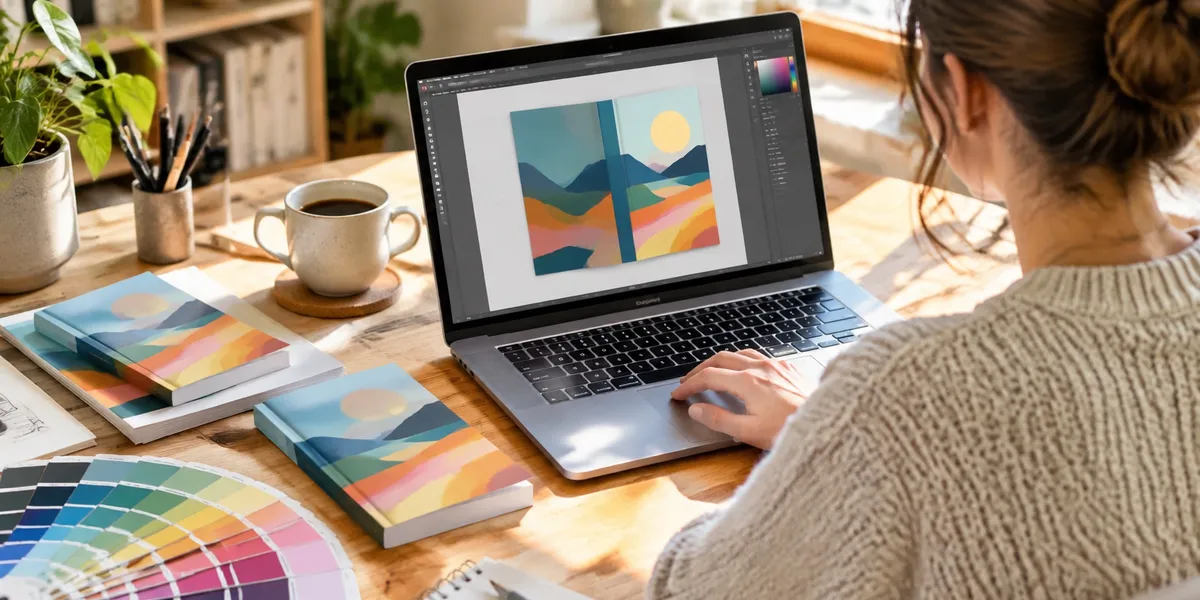
The best free book cover design tools in 2026 are Canva’s free plan for templates, KDP Cover Creator for Amazon-only books, Affinity for free professional print layout, and GIMP or Photopea if you want Photoshop-style editing for $0. Our #1 pick isn’t a cover tool at all, and we’ll explain why.
In this guide, you’ll learn:
- What each free book cover maker actually gives you, and where the free plan stops
- Which free tool handles print wrap covers, bleed and spine width
- Where to find free fonts and stock photos you can legally put on a cover
Here are the eight options, ranked for self-published authors.
Quick Comparison: Free Book Cover Design Tools
| Tool | Best for | Print wrap cover? | Free plan limit (as of Oct 2026) |
|---|---|---|---|
| Chapter (Our Product) | Finishing the book the cover sells | No, not a cover tool | No free tier; $97 one time, 2 books |
| Canva Free | Template-based ebook covers | Yes, with manual setup | Free templates only, 5 GB storage |
| KDP Cover Creator | Amazon-only books, zero setup | Yes, spine sized for you | Free, but stays inside KDP |
| Affinity | Pro-grade print covers | Yes, full control | Free; AI tools need paid Canva |
| Adobe Express Free | Quick covers with Adobe fonts | Ebook mainly | Free templates, 5 GB, daily AI limit |
| GIMP | Photo editing without a subscription | Yes, with manual setup | Free and open source |
| Photopea | Photoshop-style editing in a browser | Yes, with manual setup | Free with ads |
| Book Brush Free | Author graphics and 3D mockups | No (Cover Creator is paid) | 15 image downloads |
Free plans change often. Every limit below comes from the vendor’s own page where we could reach it, and we flag the few we couldn’t confirm.
If you’re comparing paid options too, our full roundup of the best book cover design tools covers Photoshop, paid Book Brush tiers and hiring a designer. This post sticks to what you can do for $0.
1. Chapter: Our Pick for Getting the Book Done First
Our Pick — Chapter
Chapter is our product, so here’s the honest version up front: Chapter is not a cover design tool, and it isn’t free. It writes and edits your book, fiction or nonfiction, in your voice. It’s on this list because a free cover is worthless without a finished manuscript behind it.
Best for: Authors designing covers for a book that’s still half-written Pricing: $97 one time, 2 books included (fiction or nonfiction), 30-day money-back guarantee Why we built it: Too many authors spend a month perfecting a free Canva cover for a draft that stalls at chapter four.
We see the same loop constantly. You find a free cover tool, build five concepts, ask your writing group to vote, and feel productive. The manuscript doesn’t move.
Chapter fixes the part that blocks publication. It plans your outline, writes full chapters, runs its DoubleCheck pass for consistency and facts, and includes unlimited editing and revisions. More than 2,147 authors have used it to create over 5,000 books.
What Chapter does not do: It doesn’t design covers, lay out spines, make mockups or export cover files. It also has no free tier or free trial, only a 30-day refund window. For the cover itself, use one of the free tools below.
There’s also a practical reason to finish first. Your paperback spine width depends on your final page count, so a print cover designed before the book is done usually gets redone. Write the book with Chapter’s nonfiction software or Chapter’s fiction software, then design once.
2. Canva Free: Best Free Book Cover Maker for Beginners
Best for: First-time authors who want a clean ebook cover in an afternoon
Canva is where most self-published authors start, and its free plan is genuinely usable. You get the drag-and-drop editor, a large library of free templates and stock elements, 5 GB of storage, and downloads in JPG, PNG and PDF.
For an ebook cover, that’s enough. Pick a template, swap the image, change the fonts and colors, and export a JPG. Our step-by-step Canva book cover design guide walks through dimensions, typography and export settings in detail.
The free plan’s limits show up in three places:
- Premium content: Many of the best templates, photos and fonts carry a crown and need Canva Pro. Filter for free elements before you fall in love with a design.
- Resizing: Magic Resize, which turns one design into an ebook cover, a social post and an ad, is a Pro feature.
- Print wraps: Canva won’t calculate your spine. You’ll build a custom-size design from KDP’s template and measure by hand.
The other risk is sameness. Thousands of authors use the same free templates. Change the layout, imagery and type enough that your cover doesn’t look like a template.
Free plan: Free forever, with premium elements and Pro features locked. Pro is a paid subscription; check Canva’s pricing page for the current figure.
3. KDP Cover Creator: Best Free Tool for Amazon-Only Books
Best for: Authors publishing only on Amazon who want a compliant cover with zero technical setup
Amazon’s KDP Cover Creator is free and sits inside the KDP publishing flow. It supports ebook, paperback and hardcover covers. You choose a layout, add your own image or pick from its stock gallery, then set your title and author name.
Its standout feature is the one every other free tool lacks: it sizes your spine automatically from your uploaded interior. You never touch bleed math or a cover calculator.
The limits are real, though:
- It stays on Amazon. Per KDP’s help page, covers built with its stock images can’t be downloaded for use outside KDP. That rules out IngramSpark, your website and your ads.
- Spine text needs 80+ pages. Thinner books get a blank spine.
- Uploaded images need 300 DPI. Lower resolution triggers a warning.
- Generic layouts. The templates look plain next to professionally designed genre covers.
KDP Cover Creator is the right call for a low-content book, a first nonfiction title or a quick test launch. It’s the wrong call for a romance or fantasy novel competing on page one.
Free plan: Completely free, with no paid tier.
4. Affinity: Best Free Professional Design Software
Best for: Authors willing to learn real design software for a print-ready wrap cover
Affinity used to be three separate paid apps: Photo, Designer and Publisher. Canva, which owns Affinity, merged them into one app and made it free. The Affinity site states plainly that it’s free for individuals on Mac and Windows, with an iPad version listed as coming soon.
For cover design, this is the biggest free upgrade in years. You get layers, masks, vector shapes, professional typography controls and precise document setup with bleed. That’s exactly what a full paperback wrap needs, and no other free tool here does it as cleanly.
Download and activation go through a Canva login, so you’ll need a free Canva account. The optional AI tools, like generative fill, need a paid Canva plan. Everything you need for a cover works without them.
The trade-off is the learning curve. Affinity expects you to understand layers, color profiles and export settings. Budget a weekend to learn it before your first cover.
Free plan: Free for individuals. AI features require a paid Canva subscription.
5. Adobe Express Free: Best for Quick Covers With Adobe Fonts
Best for: Authors who want a simple template editor with a different look from Canva
Adobe Express is Adobe’s answer to Canva: a browser and mobile editor built around templates. Its free plan costs $0 and, according to Adobe’s pricing page, includes 100,000+ templates, 5 GB of cloud storage and a daily allowance of free generative AI uses.
The free plan is a good Canva alternative if your covers keep looking like everyone else’s. Adobe’s template styles and font library feel different, and the editor is just as easy to learn.
Like Canva, it’s built for ebook covers and marketing graphics, not print wraps. Premium templates and the monthly generative credit pool sit behind Premium, which Adobe lists at $9.99 per month.
Free plan: Free templates, 5 GB storage and limited daily AI generations. Premium is $9.99/month.
6. GIMP: Best Free Desktop Photo Editor for Covers
Best for: Authors who want Photoshop-level image editing with no account and no subscription
GIMP is free software released under the GNU General Public License. It runs on Windows, Mac and Linux, and it’s been the go-to free alternative to Photoshop for decades.
For covers, GIMP shines at image work: compositing a background, cutting out a figure, adjusting color and adding texture. GIMP 3.0, released in 2025, added a long-requested improvement for print, the ability to export CMYK files, though editing still happens in RGB.
Where GIMP is weaker is typography. Setting a title, subtitle and author name with precise spacing is clumsier than in Affinity. Many authors build the artwork in GIMP, then finish the type in Canva or Affinity.
Expect a learning curve similar to Affinity’s, with an interface that some find dated.
Free plan: Completely free and open source, with no paid tier.
7. Photopea: Best Free Photoshop Alternative in Your Browser
Best for: Authors who know Photoshop, or who need to open a PSD cover template
Photopea is a free image editor that runs entirely in your browser. Its interface closely mirrors Photoshop, and it opens and saves PSD files natively. That matters because many premade cover templates and mockups ship as PSDs.
You don’t install anything or create an account. Open the site, load a file and start editing layers, masks and text. On a Chromebook or a borrowed computer, nothing else on this list is as capable.
The free version shows ads. An optional paid Premium removes them; third-party listings put it around $5 for 30 days, but Photopea shows the price only inside the app, so we couldn’t confirm it. Large print files can also feel slow in a browser.
Free plan: Every editing feature is free, with ads.
8. Book Brush Free: Best Free Plan for Author Marketing Graphics
Best for: Authors who already have a cover and need mockups and promo images
Book Brush is built for authors, and its free plan is generous on templates. According to Book Brush’s pricing page and recent reviews, it includes 3,000+ author-specific templates, 200+ 3D cover templates and access to a large stock photo library, with no credit card required.
The catch for this list: Book Brush’s dedicated Cover Creator is a paid feature, starting at the Plus plan. The free plan also caps you at 15 image downloads. So it’s not really a free cover maker; it’s a free way to turn a finished cover into 3D mockups and social graphics.
Used that way, it’s excellent. Design your cover elsewhere, then use your 15 downloads on launch graphics. Our book cover mockup generator guide compares other mockup options.
Free plan: 15 image downloads; Cover Creator requires a paid plan.
Where These Free Tools Beat Chapter
We put Chapter first, so here’s the honest flip side. For the job of designing a cover, every free tool on this list beats Chapter:
- They’re free. Chapter isn’t. Canva, KDP Cover Creator, Affinity, Adobe Express, GIMP and Photopea all cost $0. Chapter is $97 with no free tier or trial.
- They actually make covers. Chapter has no cover templates, no image editor and no cover export.
- KDP Cover Creator sizes your spine. Chapter produces no cover files of any kind.
- Affinity, GIMP and Photopea handle print files. Bleed, layers and CMYK export happen there, not in Chapter.
- Canva and Adobe Express give you templates. If you want a cover by tonight, open one of them.
- Book Brush makes your marketing images. Mockups and ad graphics are outside what Chapter does.
So if your manuscript is finished, skip #1 and pick from #2 to #8. Chapter only belongs in your workflow if the book itself isn’t done yet.
Which Free Book Cover Design Tool Should You Use?
The right free book cover design tool depends on where you publish, which formats you need and how much design skill you have. Amazon-only beginners should use KDP Cover Creator. Wide-distribution beginners should use Canva. Anyone needing a polished print wrap should learn Affinity.
| Your situation | Best free choice |
|---|---|
| Amazon only, no design experience | KDP Cover Creator |
| Ebook cover, want templates | Canva Free or Adobe Express |
| Paperback wrap for KDP and IngramSpark | Affinity |
| Heavy photo compositing | GIMP or Photopea |
| You have a PSD template | Photopea |
| Cover done, need launch graphics | Book Brush Free |
| Manuscript not finished | Finish the book first |
Many authors combine two tools. A common free stack: build the artwork in GIMP or Photopea, then set the type and print wrap in Affinity.
Where Can You Find Free Fonts and Images for a Book Cover?
You can find free cover assets on Google Fonts for typefaces and Unsplash or Pexels for photos. Both allow commercial use, which includes a book cover. Always check the specific license first, because “free to download” doesn’t always mean “free to sell on.”
A free tool is only half the job. The fonts and photos on your cover need commercial rights, because your book is a commercial product.
- Fonts: Google Fonts are released under open source licenses, mostly the SIL Open Font License, that permit commercial use. Font sites that label fonts “free for personal use” don’t cover a book you sell.
- Photos: The Unsplash license allows free commercial use. It doesn’t cover recognizable trademarks, and you shouldn’t use a photo of an identifiable person in a way that implies they endorse your book.
- Template elements: Canva and Adobe Express each have their own content license. Read it before you publish, especially for elements that appear in many other covers.
- AI art: If you generate art with AI, Amazon requires disclosure. Our guide to Amazon KDP’s AI rules explains what counts, and our AI book cover generators roundup compares the tools.
What Specs Does a Free Cover Still Need to Hit?
A free cover must meet the same specs as a paid one: 300 DPI resolution, the correct trim size, and for print, bleed plus a spine sized to your page count. Amazon recommends ebook covers of 2,560 by 1,600 pixels in RGB.
Free tools don’t relax the rules. Here’s what to check before you upload:
- Ebook: 2,560 px tall by 1,600 px wide, JPEG, RGB color
- Print: a full wrap (back, spine, front) with 0.125 inches of bleed on the outer edges
- Spine: width based on your page count and paper type, so generate the template after your interior is final
- Barcode area: leave space on the back cover; KDP adds the barcode if you don’t supply one
KDP’s free template generator gives you exact dimensions. Our guides to the KDP book cover template, bleed settings for book covers and barcode placement cover the details tool by tool.
Can a Free Book Cover Look Professional?
Yes, a free book cover can look professional if you follow genre conventions, keep the typography simple and test the design at thumbnail size. The tool matters less than the decisions. A $0 Affinity cover beats a sloppy Photoshop one every time.
The DIY mistakes that make free covers look cheap are predictable:
- Title unreadable at about 100 pixels wide, the size readers see in search results
- Three or more fonts fighting each other
- A layout that ignores what bestsellers in your genre look like
- Low-resolution images that pixelate in print
- Missing bleed, so the paperback trims with white slivers
Study the top 20 books in your category before you start. Our book cover design ideas show patterns that work by genre, and our guide on how to design a book cover walks through the full process.
Competitive genre fiction is where free tools hit their ceiling. If you’re writing romance, fantasy or thrillers, compare your DIY result against a premade cover; our book cover design cost breakdown shows what that costs.
How We Evaluated These Free Tools
We judged each tool on five criteria that matter when your budget is zero:
- True cost: Can you produce and export a usable cover without paying anything?
- Print readiness: Does it handle wrap covers, bleed and spine width?
- Ease of use: How quickly can a first-time author get a usable result?
- Portability: Can you use the finished cover outside one platform?
- Free-plan honesty: Are the paywalls clear, or do you hit them mid-design?
Free-plan details were checked against each vendor’s own page in October 2026. Where a vendor page didn’t load or didn’t state a limit (Canva’s pricing page and Photopea’s Premium price), we used recent third-party reviews and flagged it. Chapter was assessed only against features listed on its product pages.
FAQ
What is the best free book cover design tool?
The best free book cover design tool for most authors is Canva’s free plan, thanks to its templates and easy editor. For Amazon-only books, KDP Cover Creator is simpler because it sizes your spine automatically. For professional print covers, the free Affinity app offers the most control.
Is KDP Cover Creator really free?
Yes, KDP Cover Creator is completely free and built into Amazon’s KDP publishing flow. It creates ebook, paperback and hardcover covers and sizes the spine automatically. The main limit is portability: covers made with its stock images can’t be downloaded for use outside KDP.
Can I make a paperback cover for free?
Yes, you can make a paperback cover for free with KDP Cover Creator, Affinity, GIMP or Photopea. You’ll need a full wrap with bleed and a spine width based on your page count. KDP’s free cover template generator gives you the exact dimensions to build on.
Can I use free Canva templates for a book I sell?
You can generally use free Canva templates on a book cover you sell, but check Canva’s content license first. Customize the design heavily, because many authors use the same templates. Avoid premium elements unless you have Pro, since they carry watermarks or licensing restrictions on the free plan.
Is Affinity really free now?
Yes, Affinity is free for individuals on Mac and Windows after Canva merged Affinity Photo, Designer and Publisher into one app. You need a free Canva account to download and activate it. Only the optional AI features require a paid Canva subscription.
Once your cover is ready, our guide on how to self-publish a book for free walks you through the rest of a $0 launch, including a free ISBN where one is available.